Import/Update P&ID
The first step is to connect to SPID, Hazid will automatically connect to the last site ini you had open in Intergraph Smart PID, the ini can be selected via the  button.

The Diagnostics is also configured here, the location can be selected via the button.

Once the system has connected to the SmartPlant Site and Plant you can select the P&IDs for import
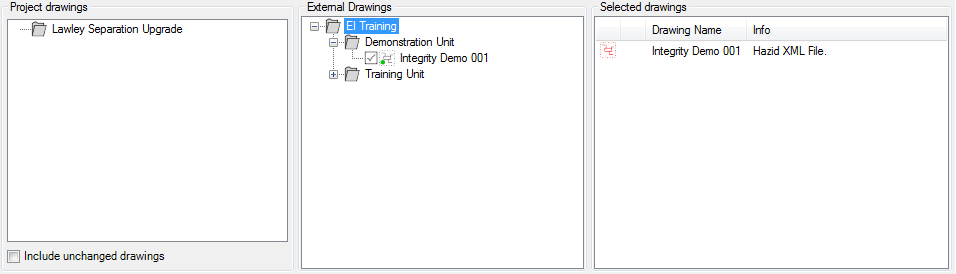
Any Drawings which are currently imported into the Project are displayed within Project Drawings. All Drawings which are available in the SmartPlant Plant are displayed within External Drawings and those selected for Import or Update are displayed within Selected Drawings.
Hovering over any P&ID within the Project Drawings will tell you when the drawing was imported into the project and if it has been modified since.
By Default Hazid Integrity will not allow an up-to-date drawing to be re-imported to the project. However if you wish to over ride this function, by selecting  will allow you to update any unchanged drawings in the project.
Right clicking at any Group level on Project or External drawings allows you to select all P&IDs under that group.
There are a number of different options available to you which can be run during the import or update operation. For more Information see Import Options
Once you have selected your P&IDs and any Import Options you wish to enable, select  to Import you P&IDs. The Import screen will then appear detailing the current progress of the Import.
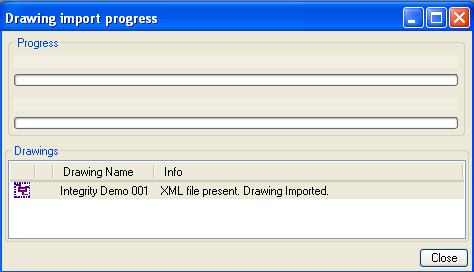
Imports can take some time depending on the size and complexity of your plant we recommend running this as a batch task during low server usage hours. Any failed imports will be displayed in the Import progress screen. Hazid Integrity will skip failed imports which will require less rework by user. An Import log detailing failures and their reason can be found in the Parsed Drawing folder.
Selecting  will give you the option to schedule another time to run the import:

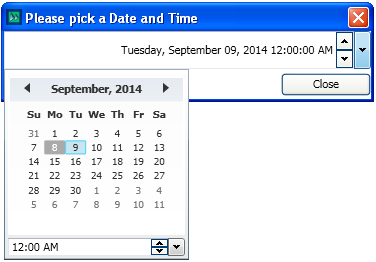
Selecting "Yes" will open a form where you can select a date and time: