Property Filter Editor
Data Editor has the facility to filter data based upon property values, these property filters can be created on a per-project basis. In the Property Filter Editor
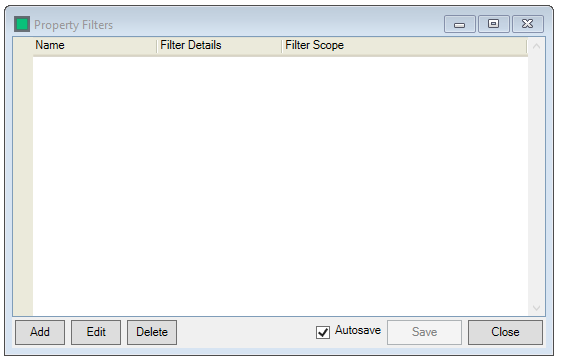
To create a property filter, click on the  button
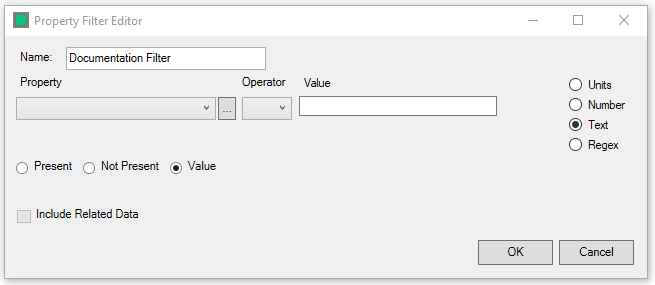
The property filter requires a name, the property to be filtered on to be selected (either via the dropdown or  button)
The Operator for the comparison is also required. P&ID Integrity allow Greater than (>), Greater than or equal(=>), Less than(<), Less than or Equal(<=), Does not equal(!=) and Equals(==) as operators. There are two options for properties with lists. "In" allows the user to select acceptable values from a dropdown list. "Not in" allows user to select values from a dropdown list which are not acceptable.
The user must then set the Value to be filtered against, there are 5 filter options
- Present/Not Present/Value - Allows the filter to run on whether data is present at all, not present or a specific value
- Value: Units - To compare the property against a unit value. User may select the units they wish for the property to be compared against
- Value: Number - To compare the property against a numerical value
- Value: Text - To compare the property against a text string. To enter a blank text field type a space in the field
- Value: Regex - User can use Regular Expressions to create complex search algorithms for the property to compare against
Clicking  saves the filter, and
  exits without saving

The  allows the user to edit an existing filter, the
  deletes the currently selected filter.
The Autosave checkbox allows the filters to be automatically saved, with it unchecked the user must manually save the created filters with the  button.
The  button exits the Property Filter Editor.