Drawing Viewer
Drawings can be opened as read only to review both graphically and the data on the items with the use of the Drawing Viewer application.
Drawing viewer can be opened from the document page on the web by clicking the thumbnail.
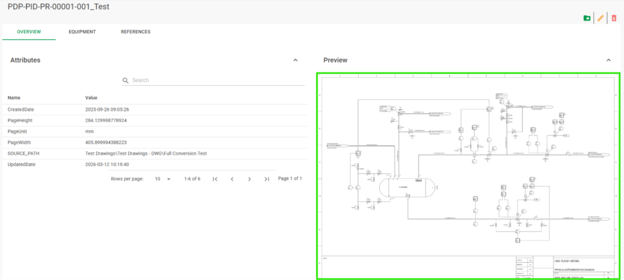
If there is no preview for the drawing, you can navigate to the “Equipment” tab and click the “Open in Drawing Viewer”  button.
This will open the drawing viewer application.
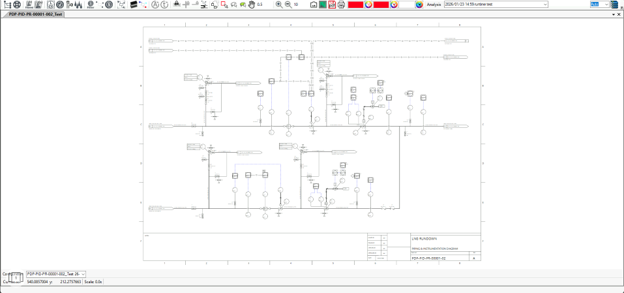
Drawing Viewer Toolbar
The Drawing Viewer tool bar is used to open/close sections of the drawing viewer and information panel, the tool bar is located in the top-left hand corner of the drawing viewer.

The tool bar contains the following functions:
- Open/Close Project Navigator – This opens or closes the Project Navigator
- Open/Close Selected Equipment – This opens or closes the Selected Equipment tab in the information panel
- Open/Close Project Attributes – This opens or closes the Project attributes tab in the information panel
- Open/Close Instruments – This opens or closes the Instrument data tab in the information panel
- Open/Close Safeguards – This opens or closes the Safeguards tab in the information panel
- Open/Close Fluids – This opens or closes the Fluids tab in the information panel
- Open/Close Piperun Mapping Viewer - This opens or closes the Piperun Mapping Viewer panel
- Activate/Deactivate Scenario Filter – This activates or deactivates the scenario filter
- Open/Close Scenario Viewer – This opens or closes the scenario view panel
- Clear all Highlights – This clears any highlights that are present on the currently selected drawing.
- Select From Drawing/Select from Scenario – This enables switching betweeen selection of the item to filter the safety integrity panels either from the drawing or from the filter panels themselves
- Open/Close Show/hide Layers - This open or closes the Layers tab in the information panel
- Open/Close Show/hide Display Sets - This open or closes the Display Sets tab in the information panel
- Create Action - Creates an Action on the selected item(s)
- Create Task - Creates a Task on the selected item(s)
- Enable/Disable View Sync - Turns the ability to synchronise the view/navigation between two or more similar drawings on or off
- Add to View Sync - Adds your current drawing to the synchronised viewer
- Remove from View Sync - Removes your current drawing from the synchronised viewer
- Link to SPPID - Searches in your linked SPPID site for an active drawing that matches the drawing you currently have selected, if the search finds a drawing, then that drawings is opened and linked to.
- Zoom - Allows you to select the zoom level on the drawing, in multiples between 1x and 100x
- HazOp Analysis Data - This opens or closes the HazOp Analysis Data in the Scenario View Panel
Drawing Navigation
Navigation in Drawing Viewer is controlled in the toolbar where we can change what left clicking on the drawing will do, by default left-click is set to select items on the drawing.

With a drawing open in the drawing viewer application, we can move around by right-clicking and dragging or with the “Drag to Move”  button enabled we can left-click and drag.
To zoom in and out we can use the “scroll wheel” on your mouse or enable the “Zoom in/out”  buttons on the toolbar where we can set the amount to zoom and then left clicking on the drawing to zoom in/out that amount.
To select items, we need to ensure that a selection mode is enabled from the toolbar  , we can use either single selection
  (default option) or lasso selection
  to select items, holding the “Shift” key down will allow you to select multiple drawing items.