View Data
Project Attributes
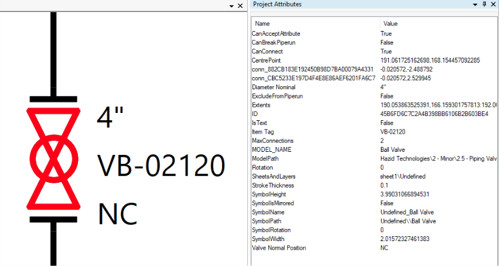
The Project Attributes display the P&ID attributes that contain data and the data attributes that have been imported into Framework respectively upon selecting an item on the drawing.
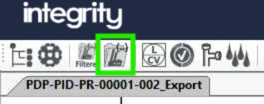
They are accessed by clicking on the  button in the Drawing Viewer Tool bar, they open be default in the right hand pane of the drawing viewer. The attribute list appears as below.
When an item is selected in the drawing, the attributes of that item are listed in the sidebar:
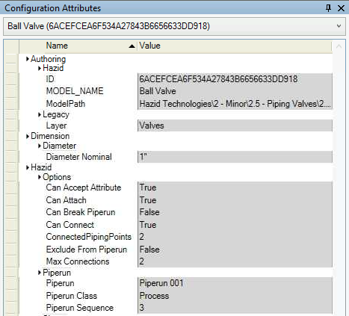
Configuration Attributes
Alternatively we can view the data on the items in a structured format based on the property tree created for your project. To view this we use the "Configuration Attributes" panel to open this click the 
With an item selected the attributes panel will update.
Selected Equipment
The Selected Equipment tab displays a list of all of the items that you have selected using the Alt or Shift click method, it appears as below.
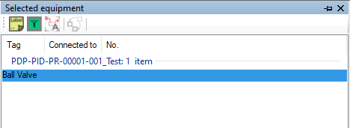
The Selected Equipment tab shows not only a list of the equipment selection but displays which item nozzles in the selection are attached to and the number of similarly named items.
The  button includes/excludes lables on the selected equipment in the Selected Equipment Tab
The  button opens Data Integrity pre-filtered to the items shown in the Selected Equipment Tab
The  button highlights linked items on the drawing (and other documents)
Open In Data Editor
To view an item on the drawing in Data Editor, click the "Selected Equipment" button on the toolbar  . Select the item(s) on the drawing and click to open Data editor filtered on those items.
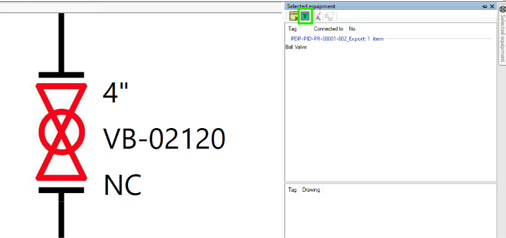
This will open a new instance of Data Editor with the filter applied to match the item(s) selected in Drawing Viewer.