Open Drawings
Drawing Viewer can be opened from multiple places in the Hazid application. Here we will describe ways to open Drawing Viewer and how to add additional documents with the Drawing Viewer application open.
Integrity Web
From the document page you can click the generated thumbnail in the Preview section for the drawing to open it in Drawing Viewer.
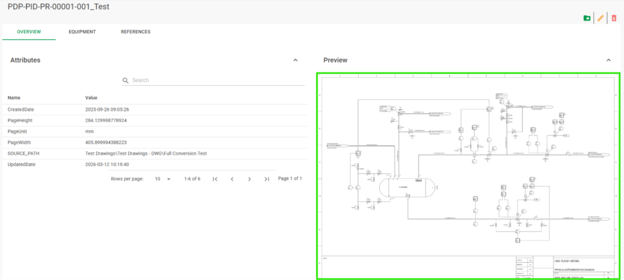
If there is no preview for the drawing, you can navigate to the “Equipment” tab and click the “Open in Drawing Viewer”  button.
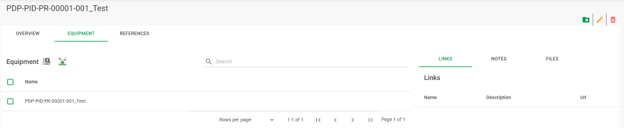
Project Editor
From within the Project Editor app, we can open any document directly from Project Editor by selecting the document in the Project Tree:
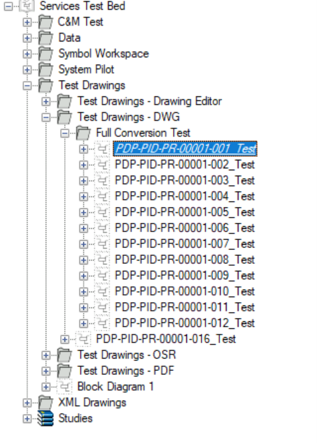
Select “Open Drawing Viewer” from the right-hand menu to open a new instance of Drawing Viewer filtered to the document or if already opened a new tab within the Drawing Viewer app will be added for the selected drawing.

Classic Integrity
Navigate to the document page within the Classic Integrity app and click the  button, to open Drawing Viewer on the selected document.
Briefcase Manager
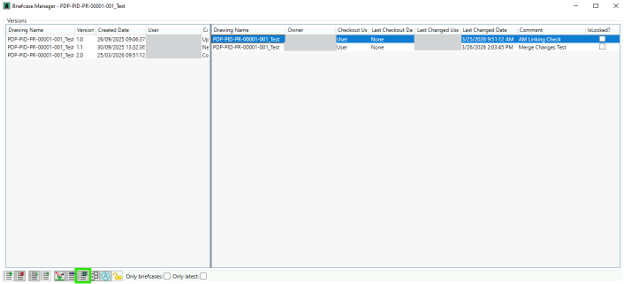
From Briefcase Manager we can see all version of the drawing and any Briefcases created on it, to open one of the Briefcases select it in the right-hand panel and click the  button.
Project Navigator
Drawing Viewer can show multiple documents in the same instance, separated by tabs. To add more drawings to your view, click the  button at the top left of the application to open the Project Navigator. Navigate to the drawing you want to open and with it highlighted click the
  button in the bottom right of the panel.
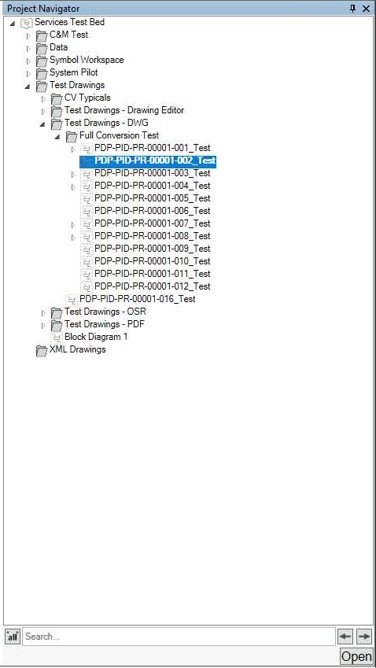
At the bottom of the project navigator is the search section, this will allow you to search the project for any document/group names.

Open Briefcase
You may sometimes see a small arrow next to the drawing you want to open.
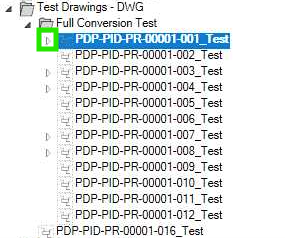
If we expand this, we can see any briefcases that have been made for the drawing and view them in the same manner as any other drawing.
