Knowledge Bank
The Model Creation suite is the central seed repository for all reference data used within the Hazid Projects. The corporate level mapping and rule structures are stored and created within the Model Creation Suite along with any Hazid Knowledge model required. For more Information see Model Creation
Hazid Model Creation is an integrated engineering model creation system for use with the Hazid Integrity system. It has been designed specifically to allow you to add your engineering knowledge easily and in a manner in which an engineer can do and understand. . It allows you to electronically create engineering models, to accurately reflect the response of items of equipment to process conditions that deviate from normal operation and to store Regulatory, Industry and Engineering good practice rules for fast deployment to multiple projects.
The Knowledge Bank can be opened from the launchpad menu at any level of the project on the web.
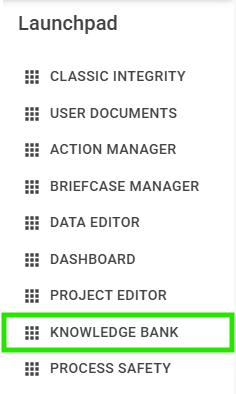
This will open the Knowledge Bank application in a new tab.
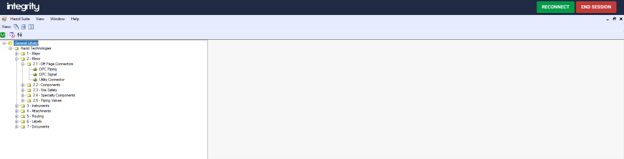
Toolbar
At the top of the application is the main toolbar for the Knowledge Bank allowing you to configure how the application looks for the user currently logged in and provide information about the current version of the application.
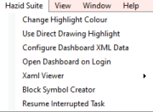
“Hazid Suite” allows you to set the default opening options and to resume any interrupted automated tasks:
The “View” section allows you to change the tiling arrangement of the view panel, swapping between column, row or stacked layouts. These are available as both a list option or as buttons to toggle between the view layout:

The “Window” section is for administrators and only re-opening “Project Editor” should be available to users:

The “Help” section will give you the current version of the Hazid application and allow the generation of detailed diagnostic files for administrators to review:

Below these options you will find additional buttons depending on your permission levels.
 Configure Connections – Is an admin only operation that allows you to set the connections to the knowledge bank.
 Refresh – Will refresh the current Model Tree.
Model Tree
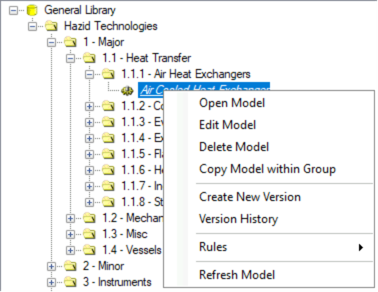
The model tree allows you to view, edit and navigate the model library structure, right clicking on any of the items will give a list of functions available for the selected item or group.

To expand an item in the project tree, click the  button next to the group name to expand the folder and view items within it.
The icons next to the model/groups name informs you if it is a model  , a group or the model library
  .
.
Operation and functions are used by right-clicking on an item in the model tree, depending on where you select the options available will change.
Model Library Level
With the top of the model tree selected we have access to these operations within the right-click menu. All of these operations apply to or effect the whole model library.
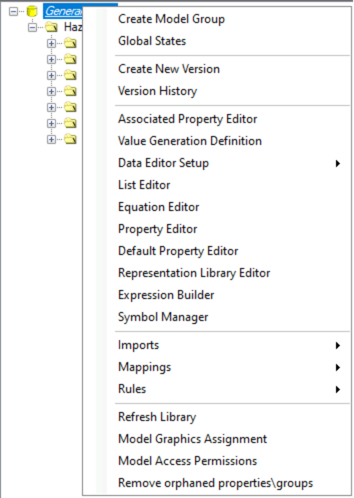
Group Level
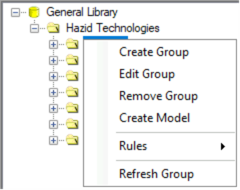
Groups are for structuring the model library and should be created with how the model configuration and drawing editor rules are targeting those groups.
With any group in the model tree selected we have access to these operations within the right-click menu.
Model Level
Models are one of the core pillars for digitising any documents, here is where we define the model and how it exists relative to other components with the use of states and ports.
With any model in the model tree selected we have access to these operations within the right-click menu.