Display Sets & Layers
Hazid Integrity provides access and control to the layers embedded in the source document, allowing for the drawing to be viewed as intended. Hazid extends on the concept of layers with the use of Display Sets.
Display Sets allow you to apply graphical transformations (line colour, highlight and line type) to drawing items that contain certain data points and can be applied to individual layers or across multiple layers.
Display Sets
To enable the Display Sets panel in Drawing Viewer, click the “Show/Hide Display Sets” button in the toolbar  .
.

This will open the “Display Sets” view here we can enable/disable individual display sets and provides access to the “Auto Adapt” functionality which sets all drawings items to a colour that contrasts the background (e.g. black lines on a white background) ignoring the colour defined in the drawing item property or layer. The “Adapt Text” provides the same function but only applies to drawing items that are identified as text.
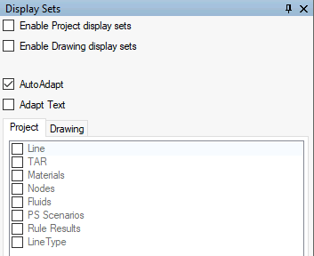
Display Sets are split into 2 types, “Project” display sets are accessible to all drawings/documents within a project whilst “Drawing” display sets are only available in the Drawing they are created in.
Focussing on “Project” display sets, to enable them tick the  option and all project display sets will be selectable, choose the display set you would like to enable by selecting it from the list and the drawing will update to the graphical configuration set in the display set.
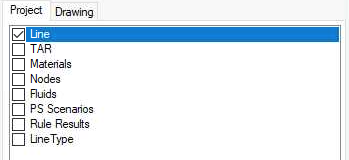
Show/hide Display Sets is used to set the Display Sets in the drawing in order to filter to only what you want to see.
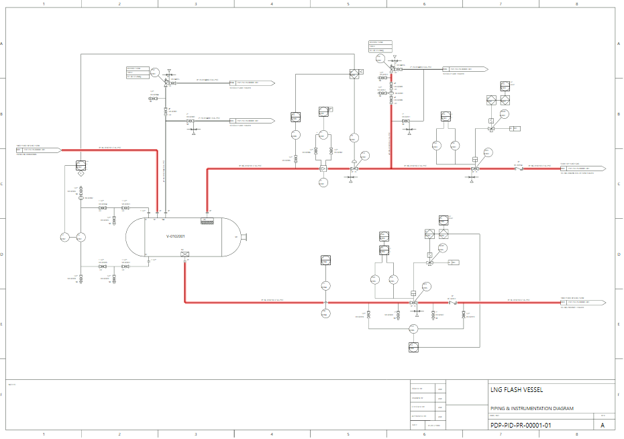
Display sets are created and managed from Drawing Editor.
Layers
To access the Layers view in Drawing Viewer, click the “Show/Hide Layers” button in the toolbar  .
.

This will open the “Layer” view allowing you to disable or enable any layer from the source document and the main drawing view will update to reflect that.

Layers are displayed/hidden via the check boxes in the tree, for drawings with large numbers of layers, a standard search box is available. The checkboxes are used to show/hide default / typical items in SPPID drawings.
As an example all layers expect the "Primary Piping" layer has been disabled:

Should your document contain many layers that finding them in the tree becomes difficult then you can use the search layers function at the button of the view to filter the layers to match a text search.
