Data Editor
The Data Editor application allows all of the data in a Hazid Integrity project to be viewed and edited in a tabulated format, it can be opened from any location in the project by selecting “Data Editor” from the Launchpad.
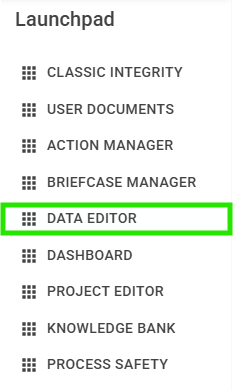
This will open “Data Editor” with the documents filtered to all documents below the location you opened it from.
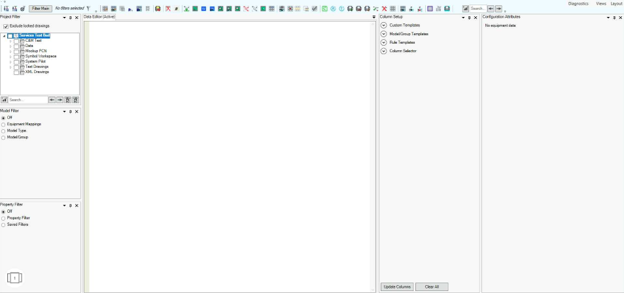
Main Data View
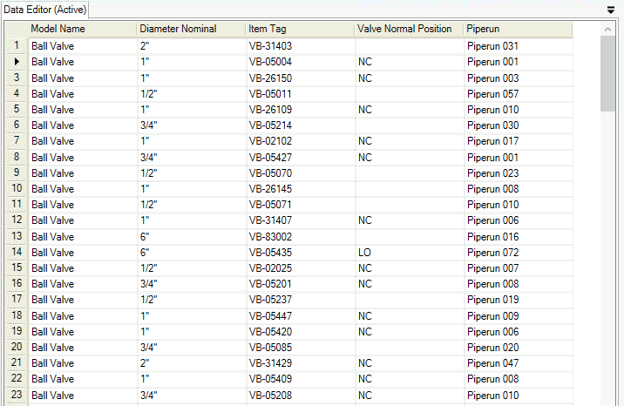
In the centre of the application is the “Data Editor (Active)” view that cannot be disabled as it is the window that displays all the results from the database query.
We populate this view by defining the columns/properties we would like to display using the "Column Setup" view and applying filters to refine our results as the system will return all items that are in the documents set in the “Project Filter”
With our query (filters) defined we can press the  button on the toolbar to populate the main data window.
Views
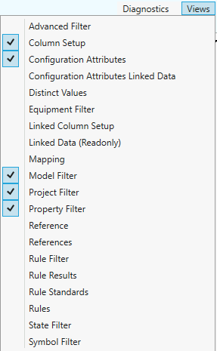
The functionality available to users in Data Editor are grouped into different “Views”. All views are enabled and disabled by selecting the “Views” button in the top right of the application. If a view is enabled, then it will have a  icon next to it:
Column Setup
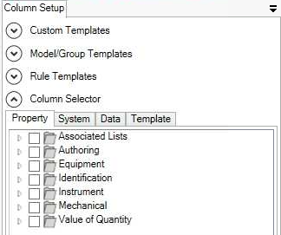
Column setup allows us to define the properties to display in the main window, we can choose individual properties in the “Column Selector” section or use predefined templates that can be applied generically (Custom templates) or based on what the filter is set to (Model/Group and Rule templates)
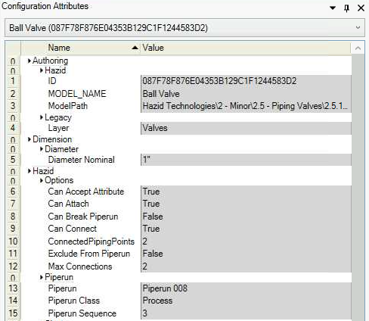
Configuration Attributes
This view shows us all the data on the drawing item and will include all the source information that has not been assigned a property in the database.
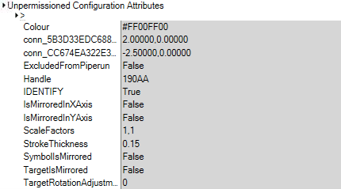
The unassigned data points will be shown at the bottom of the view as “Unpermissioned Configuration Attributes”.
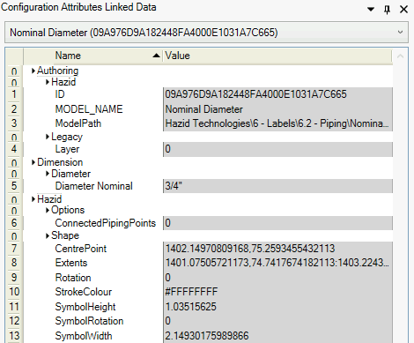
Configuration Attributes (Linked Data)
This view is the same as “Configuration Attributes” but only shows the data for the selected linked item, due to this, this view must be used in conjunction with the “Linked Data (Readonly)” view.
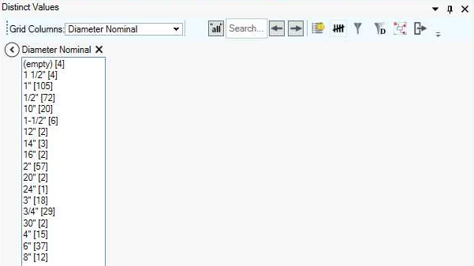
Distinct Values
This view will return all the unique values for a given column when the main view has been filtered, we can view the results directly in the view or export it to another file format to be reviewed outside the Hazid suite.
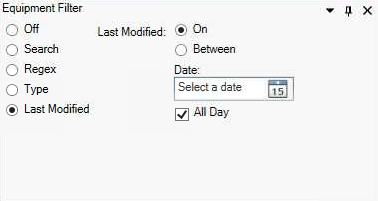
Equipment Filter
We can filter on items based on the equipment meta data such as “Last Modified” and “Type” using the Equipment filter
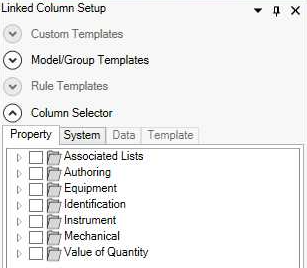
Linked Column Setup
This view is for choosing the columns to display in the “Linked Data (Readonly)” view and works similar to the standard “Column Setup” view however only the Model/Group templates can be used, all other columns need chosen manually.
Linked Data (Readonly)
With an item selected in the main window this view will be populated with all items linked/attached to the parent object selected.

Mapping
The mapping view allows us to view the model tree and set the model/state for any item selected in the main window.

We can set the model or states using the buttons at the bottom of the view.
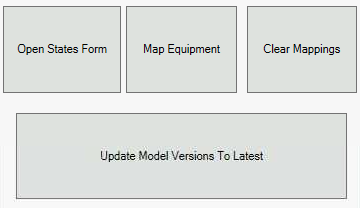
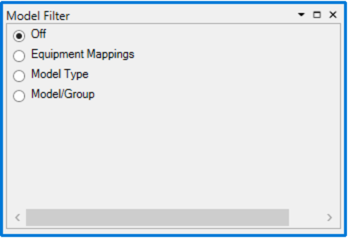
Model Filter
The Model Filter is used to filter equipment in the Data Editor according to the Hazid Integrity model they are mapped to.
Project Filter
This allows us to set the documents that should be included for filtering/displaying the document items in the main data view.
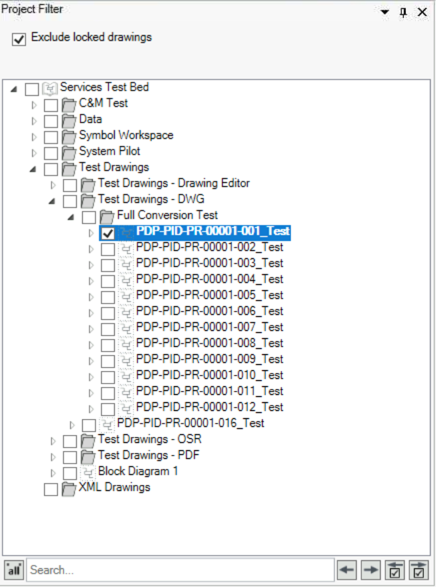
To “open” any other document in the project we select it for the Project Tree in the filter and click “Filter Main” to update the main window.
We can view the data of drawings currently in use by disabling the “Exclude locked drawing” option however this data is read only and no rows in the main view will be editable.
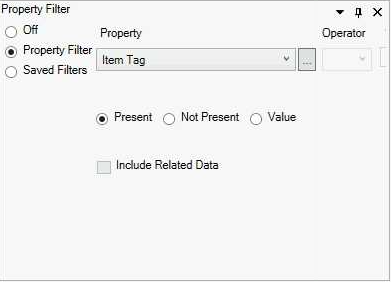
Property Filter
Here we can set the property to check, any item that contains this property will be display in the main data view:
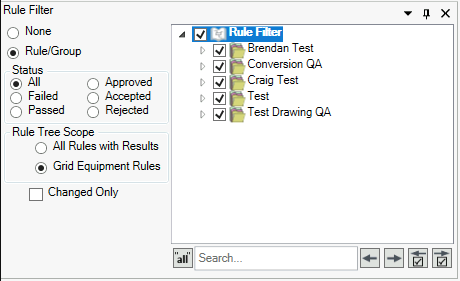
Rule Filter
This view allows us to filter on and display any document items that pass/fail the rules created and run from other locations within the Hazid suite.
Rule Results
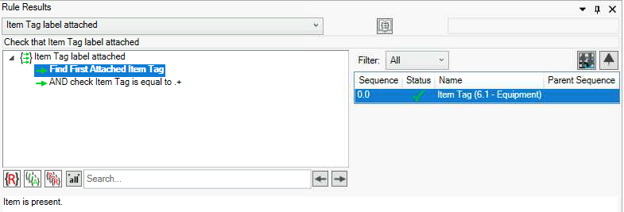
With a rule filter applied we are able to see a detailed result of any item that passed or failed in the “rule Results” view.
Rules
Using the “Rules” view we can run “Safety Analysis” or “Model Configuration” rules directly on drawing items selected in the main data view.

State Filter
We apply states to mapped items for propagating and analysing data flowing through drawing items, these states can be filtered on, displaying in the main data view for any item that passes the filter.

Layout Customisation
The view in Data Editor is configurable, you can move the panels around to best fit your workflow, they can be docked, tabbed floated and hidden as you require: Selecting and moving the panel will display a guide diamond used to dock the panels:
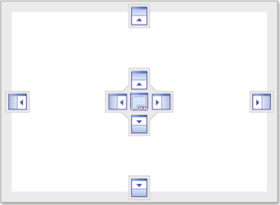
You can place the panel in another location by dragging and dropping the panel onto one of the docking guide icons.
More options are available from the toolbar by clicking the  button

- Float - Only available when the panel is docked, disconnects from the main window and allows you to move the view anywhere on screen
- Dock - Only available when the panel is floating. The default docking location is the top left of the dashboard.
- Dock as Tabbed Document - Docks the panel in its current location as a tab
- Auto-Hide
 - Hides the panel and displays a tab which can be selected to momentarily view the panel
 - Close
 - Closes the panel. To open the panel again it must be selected from the "Views" dropdown menu
With the layout set you can save and load them for future use in the “Layout” section of the menu bar.
