Drawing Editor
Introduction
Drawing Editor is a Tool for the conversion of “dumb” CAD drawings into intelligent, database driven representations of the data inferred from the CAD Drawing. The Aurelia tool is designed to allow the CAD to be enriched with connectivity, engineering and process information, whilst still retaining the visual fidelity of the original CAD Drawing.
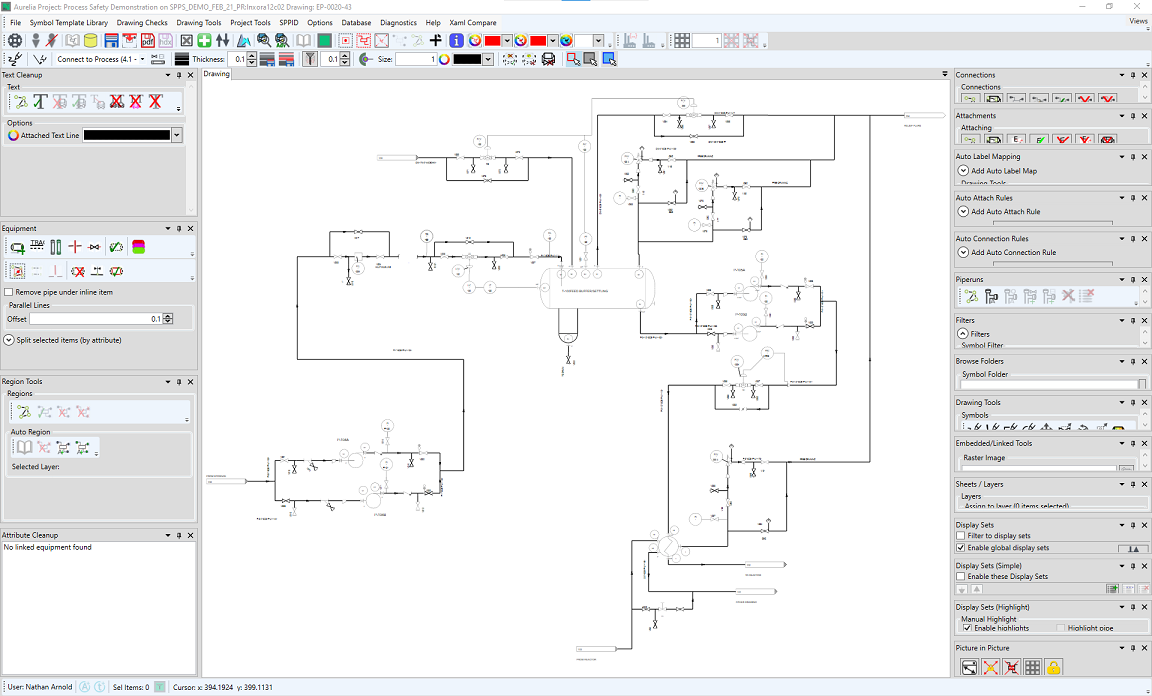
Upon opening Aurelia for the first time, you will be presented with the default aurelia view (the view is configurable and saved to your windows user profile on close).
Example Workflow
Manipulation Tools
Upon opening Aurelia for the first time, you will be presented with the default aurelia view (the view is configurable and saved to your windows user profile on close).
Enable or Disable the panels you want by selecting them from the views dropdown menu

Aurelia Functions
The below panels are available in Aurelia - for more information on the controls available within them, please follow the link.
| Panel | Description |
|---|---|
| Drawing | The drawing you are working on. |
| Text Cleanup | This panel contains the tools for remeditating Text on a drawing. |
| Equipment | This panel contains the tools for remeditating Graphical Objects on a drawing. |
| Region Tools | This panel contains the tools for defining and remediating the regioning on a drawing. |
| Attribute Cleanup | This panel contains the tools for defining and remediating the attributes on a drawing. |
| Connections | This panel contains the tools for defining and remediating the connections between items on a drawing. |
| Attachments | This panel contains the tools for defining and remediating the attachments between items on a drawing. |
| Auto-Label Mapping | This panel contains the tools for defining rules to automatically map labels on a drawing. |
| Auto-Attach Rules | This panel contains the tools for defining rules to automatically create attachments between items on a drawing. |
| Auto-Connection Rules | This panel contains the tools for defining rules to automatically create connections between items on a drawing. |
| Piperuns | This panel contains the tools for defining and remediating the piperuns on a drawing. |
| Filters | This panel contains the filter tools. |
| Browse Folders | This panel contains the tools for browsing to, selecting and placing symbols onto a drawing. |
| Drawing Tools | This panel contains the tools for manually drafting/remediating a drawing. |
| Embedded/Linked Tools | This panel contains the tools for adding raster images to a drawing. |
| Sheets/Layers | This panel contains the tools for viewing the different sheets/layers of a drawing. |
| Display Sets | This panel contains the tools that allow the user to apply display sets as filters/overlays on the drawing. |
| Display Sets (Simple) | This panel contains the tools for creating and managing simple display sets. |
| Display Sets (Highlight) | This panel contains the tools for creating and managing highlighting display sets. |
| Picture in Picture | This panel contains the picture-in-picture viewer, and the controls for that viewer. |
Arranging Panels
The view in Aurelia is customisable, you can move the panels around to best fit your workflow, they can be docked, tabbed floated and hidden as you require:
Clicking and dragging the panel will display a guide diamond used to dock the panels:

The panel can be snapped to any edge of the grid by dragging it onto the icons.
Clicking or hovering over a tab will expand the panel, but it will retract again after clicking off it. To fix the panel in place click the Auto-Hide  button.
The options are also available from the  menu on the panels:

- Float (while Docked) - detaches the main panel
- Dock (while floating) - Snaps the panel to its last docked position.
- Dock as Tabbed Document - Makes the panel appear as a tab on another panel:
- Auto Hide - Toggles whether the panel is fixed open or will retract after clicking off it.
- Hide - Removes the panel from the screen.
Clicking  also removes the panel. To restore the panel it must be re-enabled from the Views menu.
Main Drawing Window
The drawing can be navigated in several different ways, the main set of drawing controls can be accessed by right clicking the drawing title tab, this opens the drawing controls menu.

Clicking and dragging the drawing title tab allows you to move the drawing panel location from its default position in the center of the screen.
Basic Drawing Panel Controls
There are several interactions that can be carried out on the drawing itself as well.
Item Selection
Left-Clicking an Item – This will select the item on the drawing and display information relating to the item in the Attribute Cleanup panel (if the panel is open)
Shift + Left-Click and Drag – This will select all of the items in the area that you have specified.
Spacebar-Click – This will add/remove items from a selection that you have made.
Drawing Panel Navigation
Right-Clicking and Drag - This allows you to move around the drawing
Middle-Click - Centers the drawing to your cursors location
Scroll Up - Zooms In
Scroll Down - Zooms Out
Ctrl + Left-Click and Drag – This will zoom the drawing viewer to fit the selection that you have specified.