Safety Analysis Rules
Overview
Safety Analysis rules are used to form checklists, to ensure that the data present in the drawing is not conflicting. Safety analysis rules can be used to endure that a PSV has a set point that is below the pressure at which the vessel it is protecting will rupture, or that a pumps rated discharge pressure does not cause the maximum operating pressure of the pipe to which it is connected to be exceeded. Safety Analysis rules can also be used to ensure that the configurations of equipment required for certain functions (i.e. sampling) to be carried out safely are in place on the drawings or that project tagging and data requirements are met.
To create rules in Integrity, open the Rule Editor from Project Editor
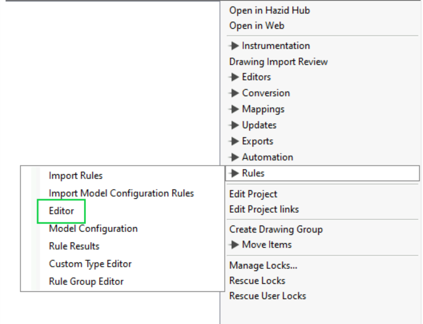
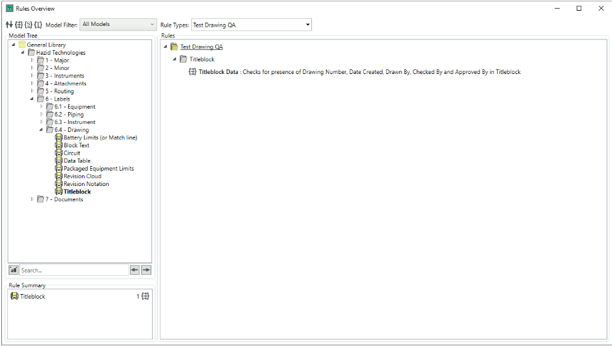
This will open the Rules Overview Window:
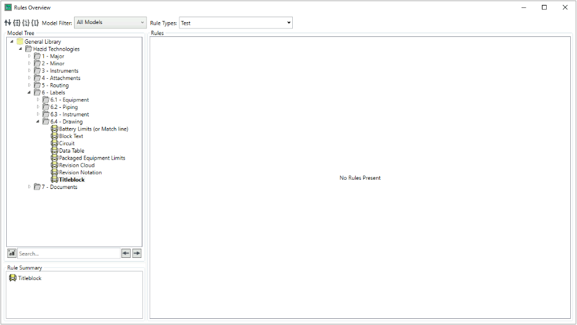
Create Rule
From the Rules Overview window, choose which Rule Type to create a rule under and select the model or group which the rule will target.
Select the Titleblock model under Labels>Drawing and click  to add a new rule. From here, choose the Rule Type and Group. Give the rule an identifying Title and Description.
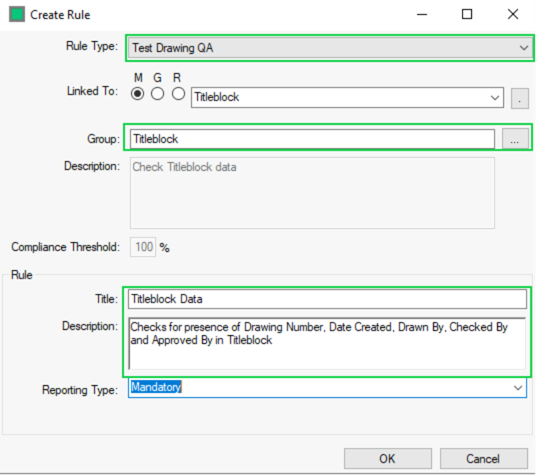
- Rule Type - Select the Custom Rule Type that you wish the rule to be created under. If creating a rule from selecting a Custom Rule type it is automatically entered.
- Linked to - The Model Group or Hazid Integrity Knowledge Model that the Rule is linked to. You may select the linked group or model from the drop down list. M filters to models Only. G filters to Group only R allows the user to enter a Regex search. You may choose the model or group from the model tree by using the Browse icon.
- Group - The Rule Group you wish the Rule to be stored under. To create a new rule group while creating the rule type the name into the box. When creating a new Rule Group this way you will be prompted to add a comment. Use the Browse button to select a rule group already created. The user can also enter a description here
- Compliance Threshold - The percentage of rules within the group that need to pass in order for the rule group to be considered compliant for the dashboard report.
- Title - A short title for the Rule
- Description - A description of the purpose of the rule
- Reporting Type - Hazid Integrity will report the results in two ways (The reporting type can be toggled on or off in the Rule Analysis results):
- Mandatory - The rule result will always be reported in the Rule Analysis results
- Possible - The Rule result will only be reported in the Rule Analysis results if failed
- Search Sub-Groups - By Default Rules entered at a Model Group Level will only run on those Model Items directly bellow them. Selecting to Search Sb-Groups allows the rules to be run on all children of the Model Group.
Rule Structure - Example
After defining the rule information, the “Edit Rule Structure” window will open. If searching a group, ensure that the “Search Sub-Group” option is enabled. To begin creating the rule right click on the rule tree and select Create Rule Item.
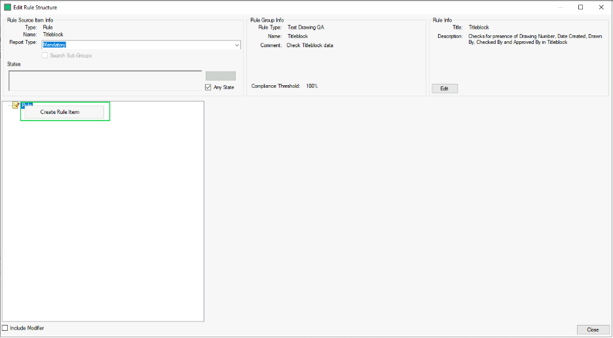
The first step of the Rule will be to check if the drawing has a Title. This property should be part of the “Titleblock” item, so under Detection Location select Self and uncheck the box for Presence only.
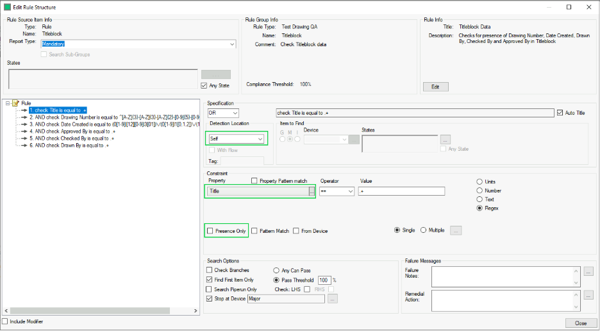
This unlocks the Constraint section, where you can check for specific properties. Choose Title from the dropdown, uncheck From Device, check Regex for the Constraint type and put “.+” in the Value field (Because the Title of a drawing could be almost anything, this is a regular expression which will return a positive match if any characters are found in the Title field, but not if it is blank).
You can repeat these steps for the Drawn By, Checked By and Approved By properties, but make sure that you select the Boolean AND for all steps after the first.
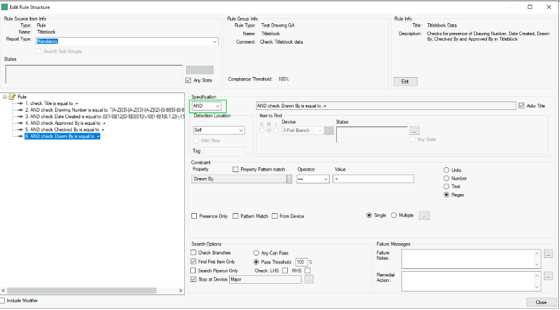
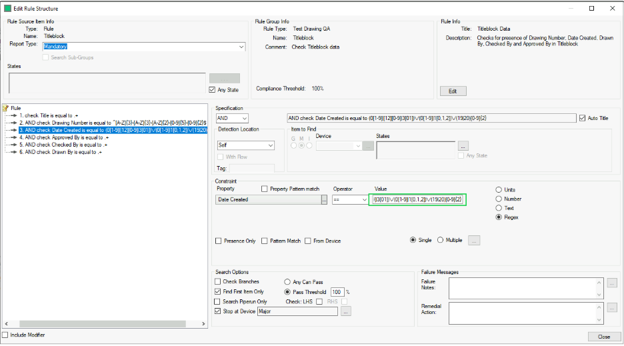
For properties which must fit a particular format, like the Drawing number and Date Created, more complicated regular expressions may be used. This will validate that the property is not only present, but compliant with the established standard.
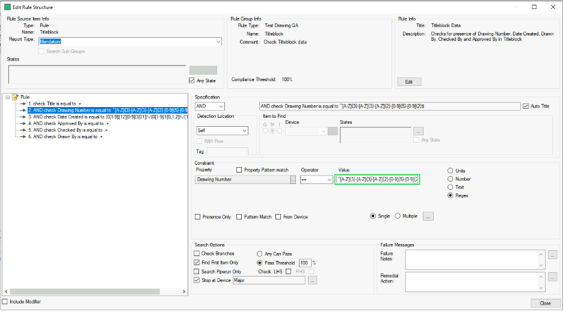
In this example the regex "^[A-Z]3-[A-Z]3-[A-Z]2-[0-9]5-[0-9]2$" is designed to find a Drawing Number in the format AAA-BBB-CC-00001-01
For the Date Created “(0[1-9]|[12][0-9]|3[01])/(0[1-9]|1[0,1,2])/(19|20)[0-9]2” will find a date in the dd/mm/yyyy format
Click Close to finish, and the Rule will now appear in the overview.
For more information on how to build rule items refer to the Rule Structure Editor