Rule Structure Editor
Overview
Rule Items are created in tree for starting at the source item which is the Root of the tree. The rule structure allows user to select items down the tree to continue searching from items which are not the source item. User may also create multiple trees within the Rule Items allowing you to have boolean values and multiple rule passing conditions.
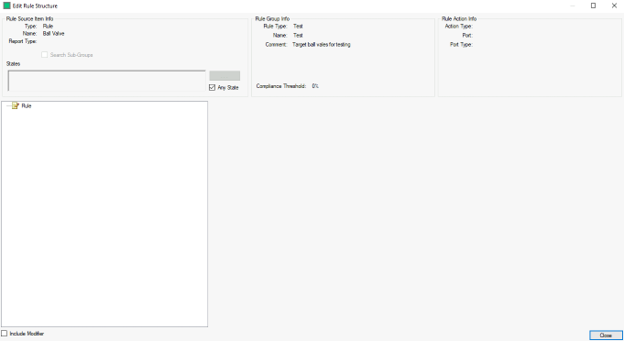
The top of this window provides information about the rule and action to perform, if you are targeting a group instead of a model in the “Rules” section then ensure the “Search Sub-Groups” checkbox is enabled.
The first step in creating the trigger is to right-click the top of the rule tree and choose “Create Rule Item”.

This will populate the trigger options to the right:
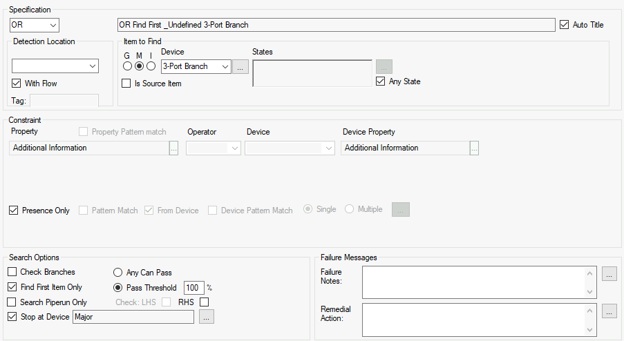
Rule triggers are split into multiple sections.
Detection Location
First, we define the detection location, which determines how the item to look for is related to the source.

The options available are:
- Attached - Instructs the rule to search for a directly attached Item to Find
- Document - Instructs tthe rules to seach for the Item to Find on the Document on which the source item exists
- Downstream - Instructs the rule to search only downstream of the equipment on which the rule is created
- External - Instructs the rule to search for the Item to Find in an external application
- Linked - Instructs the rule to search for the Item to Find as an item linked to the source item
- Port - Instructs the rule to search for the Item to Find down the line attached to a particular port on the equipment on which the rule is created. The port is selected by the user from a second drop down menu that becomes active when ‘Port’ is selected as the search type. The Port is limited to display NonUnique only when the rule item source is a Model Group.
- Port Type - Instructs the rule to search for the Item to Find on a particular type of port, Signal, Ignore or Mappable, the port type to search is define by the user from a second drop down menu that becomes active when ‘PortType’ is selected as the search type
- Process - Instructs the rule to search for the Item to Find across all Process connections, both upstream and downstream
- Project - Instructs the rule to search for the Item to Find across all of the data in the entire project. This option enables a regex search to restrict the rule to passing on a specifc documnet/group of documents
- Self - Instructs the rule to act upon the item of equipment on which the rule is created.
- Signal - Instructs the rule to search for the Item to Find all of the signal lines connected to the equipment on which the rule is created.
- Upstream - Instructs the rule to search for the Item to Find only upstream of the equipment on which the rule is created
If we set the location to “Project” then the item can be in any document in the project, we can refine it with use of regex to match either on a document or group name.

Item To Find
Next, we set the “Item to Find” which can be on individual models or on a group, if we choose a group, ensure the “Search Sub-Groups” option is enabled to look for all items below that group:

The options available are:
- Device Group - Selecting the G limits the device drop down box to be Model Group items only. You can select the Browse icon to select from the Model Tree
- Device Model - Selecting the M limits the device drop down box to be Model items only. You can select the Browse icon to select from the Model Tree
- Device Instrument - Selecting the I displays the Instrument selection boxes. You can type multiple measured variable in the first box, or leave it blank to search for all measured variables and devices without. The second box allows user to select the instrument type modifier from the drop down. This must have an entry. Is Source Item Selecting Is Source Item sets the device to be the source item of the rule.
- Search Sub Groups - When searching for a Group the default is to only search for items directly beneath the group in the tree. Select this to search for all sub items of the group.
- States - User can search for an item in a specific equipment State. For more information see Setting States
Constraints
The next section is the constraints, by default we are only looking for the “Presence” of an item if we would like to search for properties that match a specific pattern or match the parents’ properties, disabling the “Presence Only” option will allow us to set them.
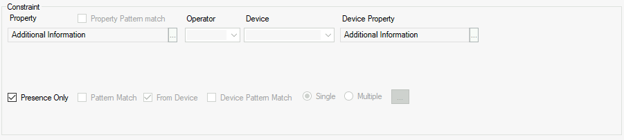
- Property Pattern Match - Allows the user to match a pattern in the property name using regex
- Property - The Property of the Item which user wishes the value to be compared with. This could be Item Tag, Operating Pressure etc.or a Calculation. If an Item is specified as having associated properties a second drop down appears to allow user to select that. The user can use the
 button to select the property from the Property Tree.
 - Operator - The Boolean Operator for the comparison. There are two options for properties with lists. "In" allows the user to select acceptable values from a dropdown list. "Not in" allows user to select values from a dropdown list which are not acceptable.
- Device - Any Device including the Item the rule is currently on that is a parent of the rule item can be selected to compare the Property against
- Device Property - The Property of the device the user wishes to be compared. This could be Item Tag, Operating Pressure etc.or a calculation. If an Item is specified as having associated properties a second drop down appears to allow you to select that. The user can use the button to select the property from the Property Tree.
- Presence Only - Select this option to forgo a constraint and search only for the item to find.
- From Device - Deselect from device to compare the property against a specific value
- Pattern Match - Allows the user to match a pattern in the property using regex
- Device Pattern Match - Allows the user to match a pattern from another device using regex
- Single/Multiple Constraints - Allows the user to define more than one constraint in a single window. Multiple Constraints
- Units - To compare the property against a unit value. User may select the units they wish for the property to be compared against
- Text - To compare the property against a text string. To enter a blank text field type a "space" in the field
- Number - To compare the property against a numerical value
- Regex - User can use Regular Expressions to create complex search algorithms for the property to compare against
Multi-Constraints
Multiple Constraints allow the user to add as many property constraints as they need to a single rule item, along with booleans to define how they are interpreted, multiple constraints are enabled via the Constraints checkbox
Selecting multiple greys out the single constraint dialog

Multiple Constraints are configured by clicking on the button to open the constraint editor
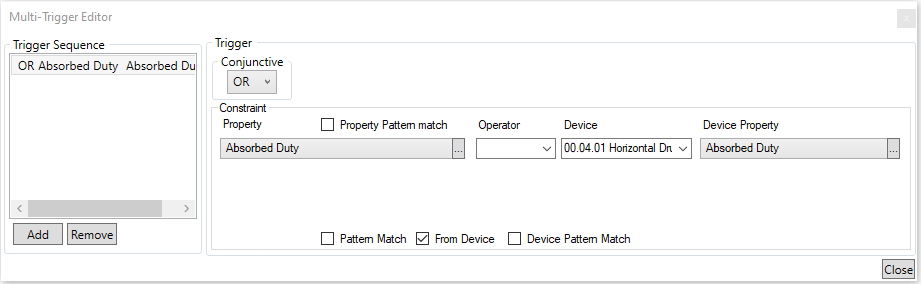
Multiple Constraints are added in the same manner as single contraints, using the  buttons to create/delete constraints, and the boolean
  to define how they are applied.
Search Options
The “Search Options” section at the bottom restricts how far the rule can look within the detection location, in most cases the default options will not need changed:

- Check Branches - Selecting check branches allows the search to continue through every branching pipe that it comes across until it finds the item to find.
- Find First Item Only - Will stop searching after it finds the item to find for the first time down a search path. Branches etc. in lines will create multiple search paths so more than one item may be found in parallel
- Search Piperun Only - Will only search within the piperuns the search began on
- Stop at Device - Will stop the search when it finds the first device group or model specified by the user.
- Any Can Pass - When multiple items are found in a search with constraints. Any found items must pass the constraint
- Pass Threshold - When multiple items are found in a search with constraints, the specified percentage (as a minimum) of those found must pass in order for the item to pass.
- Check LHS/RHS - Enables the constraint to search for the specified property on an item directly attached to the parent item on the left/right hand side of the constraint (or both)
Failure messages allows user to add extra information to the rule item which can act as an aide to the Rule Result Evaluator.
- Failure Notes - Likely reasons why a Rule Item may fail or information on what should be the ideal situation.
- Remedial Action - What the user should do to remove the failure from the Rule Item
Rule Modifiers
The final part of creating a rule is adding a rule modifier if required. Rule modifiers are used to force the rule to run only when certain criteria have been met, for instance a rule modifier can be used to ensure that a rule to check that piping is insulated is only run when the temperature of the fluid within the piping is above 60C. Since a model configuration rule trigger is effectively a modifier itself, modifiers on triggers are largely redundant. To add a rule modifier check the ‘Include Modifier’ check box in the bottom left corner of the rule structure editor, this enables the modifier tab.
Rule modifiers are created in the same way as the rule itself, and like the rules can be multi-layer to produce very strict conditions under which the rule will be run, note that Failure Notes and Remedial Actions for Modifiers cannot be viewed through the results for failed Modifiers, as if the Modifier fails, then the rule itself is not run, if they are filled in, then they will only be visible in the Editor, and in the ‘View Rule’ section of the rule results, and then only for rules that have passed.