Classic Integrity
Landing Page
The Landing Page is the highest-level view in Classic Integrity, containing search functionality and an overview of all Projects & Project Groups available.
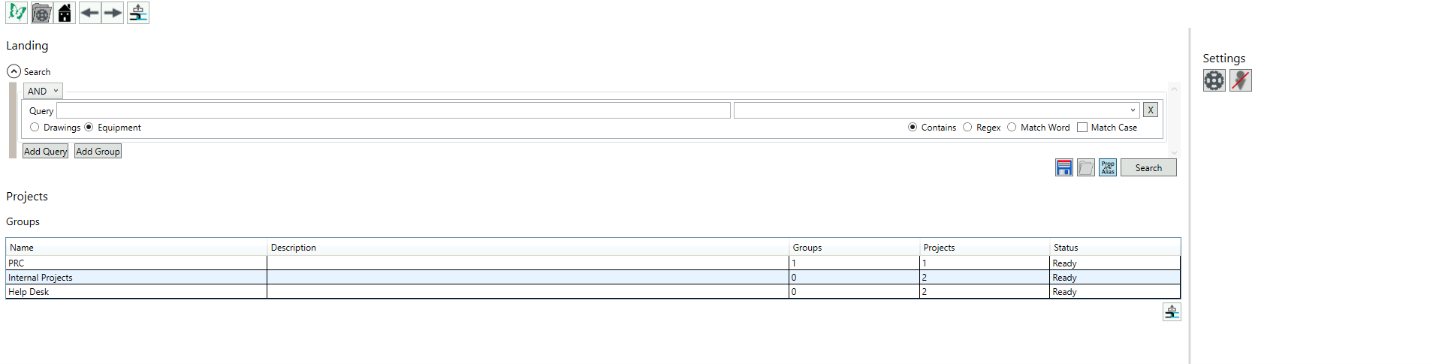
The Projects view contains a list of all Projects and Groups in Integrity.
- Name – the name of the Project
- Description – the description given to the Project, if any
- Groups – the number of Groups (sub-folders) within the folder
- Projects – the number of Projects
- Status – the status of the Project
Items selected from the Projects table can be opened using Goto selected item  in the Projects view or top toolbar.
Toolbar
The toolbar in the top left corner provides a range of options for navigating within the project.

| Icon | Tooltip | Description |
|---|---|---|
 | Toggle Project Tree | Toggles the Project Tree on the left-hand side of the page. |
 | Open Search | Opens Hazid Quick Search |
 | Open Page in Web | Opens the current page in Hazid Web |
 | Return to Landing | Returns to the Landing Page |
 | Goto Root | returns to Project level if in a drawing/folder |
 | Go Back | returns to the previous page |
 | Go Forward | advances to the next page |
| Goto selected item | opens the page for the selected item |
Project Page
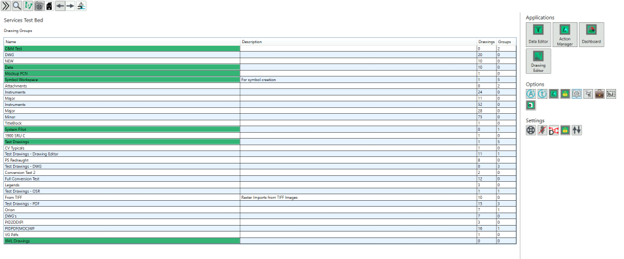
The project page contains a list of drawing groups in the associated project, which can be used to navigate to a specific drawing or set of drawings, as well as various options for configuration and opening applications at Project level.
Project Tree
The project tree displays the folder structure for the project, allowing the user to navigate between and select the project, folders, and drawings.
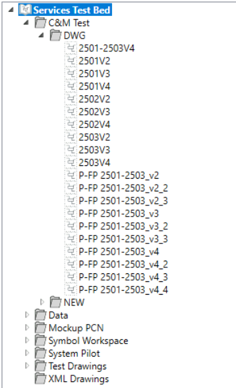
At the bottom of the Project Tree is a search function, which allows the user to search for items rather than using the folder structure to navigate.

Selecting an item in the Project Tree will open the Integrity page for that item, allowing the user to interact with that item specifically. Classic Integrity is context-specific, meaning that different actions are available at Project, Folder, and Drawing levels.
Document Groups
The main view at project level is taken up by a list of Drawing Groups. This corresponds to a list of folders (highlighted in green) and subfolders in the project tree structure.
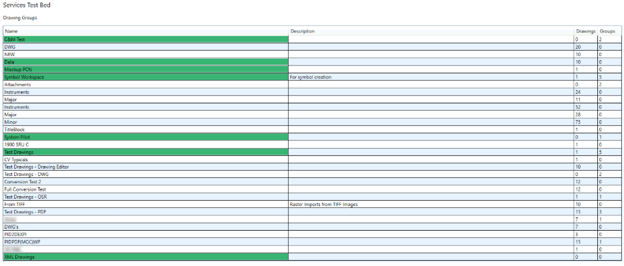
Items selected from the Drawing Groups table can be opened using Goto selected item in the top toolbar.
Applications
Most of the Hazid applications can be opened from “Classic Integrity” however some applications (e.g. Drawing Editor) can only be opened from the document level. The application section will update depending on the level of the project you are at, below is a list of the applications available:
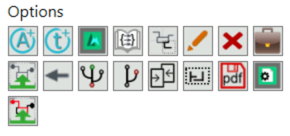
Options
Many functions can be run from Classic Integrity and are found under the “Options” section, similar to applications the options available change depending on the level of the project you are currently at.
Settings
Additional functionality that are user dependant are in the settings section and include functions such as “Rescue Locks” and “Refresh”