Automation
The Multi-Batch function allows multiple automation processes to be run in sequence on a set of drawings, greatly reducing the time needed for conversion. Icon Mapping rules, Model Configuration rules and Drawing Editor batch operations may be queued up in any order to perform a full drawing conversion or other automation tasks in one click.
Run Multi-Batch
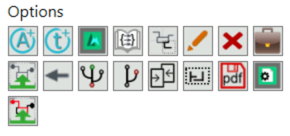
The Multi Batch can be accessed through Classic Integrity by clicking  under Options in the right sidebar:
Or through from Project Editor by selecting “Automation > Run multi-batch":

This will open the multi-batch window:
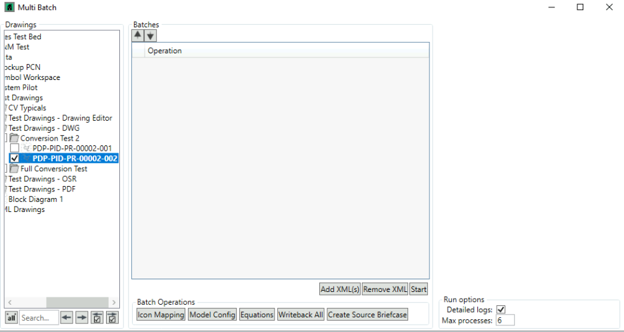
On the left of the window is the project tree where the drawings the process is to be run on are selected. In the centre the list of operations will be displayed, which can be added to from the buttons below, and the right side will contain options which can be adjusted for each process.
Once all desired steps have been loaded, press the  button to begin the process.
Icon Mapping
To add an Icon Mapping step, click the  button at the bottom of the window under Batch Operations: this is used to map symbols in the drawing to models from the Integrity library based upon attributes.

Selecting the step in the Operations list will populate the right hand side of the window with the list of Icon Mapping Rule groups, select which groups are to be run. Within the same step the rules will be run in descending order.
XML Batches
Drawing Editor batches can be loaded into Multi-Batch provided they have been configured in the Drawing Editor Batches window and saved to an .xml file. Click  to browse to the location of the batch .xml files.

Once loaded, the drawing editor batch step will not have any options on the right hand side as these are all predefined in the Drawing Editor Batches menu.
Model Configuration
Model Configuration Rule steps are added with the  button. These are used to manipulate data in a variety of ways. When a step is added, selecting it will populate the right hand menu with the list of Model Configuration Rule groups in the project.
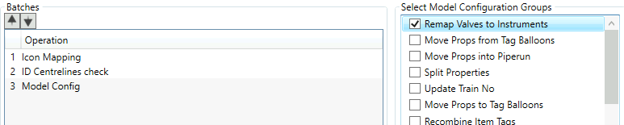
Select which rules are to be run in the step, bearing in mind that they will be run in descending order if within the same step.
Equations
To add a step to run equations, click the  button. This will simply generate results for all Equations in the Knowledge Base, which may then be used by subsequent rule steps.

Writeback
When run on imported SPID drawings, the Writeback function writes any data added in Integrity into the SPID drawing. Click the  button to add a step to writeback all data.
Source Briefcase
The final operation available in multi-batch is the Create Source Briefcase operation. This simply creates a briefcase from the active drawing version. Click the  button to add this to the batch.