Document Versions
Versioning documents in Hazid Integrity creates a “restore point” where the document can be rolled back to and is used when creating a briefcase on a drawing.
Create Version
To create a version of the document, open Classic Integrity and navigate to the document from the project tree, selecting the  button in the options section of the right-hand menu will open the “New Version” window.
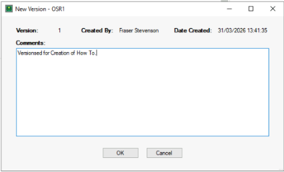
Enter a comment for the new version and press OK to apply it. If the drawing has not been versioned until now you will get another dialogue to version the configuration file as well. It considered good practice to keep the drawing and configuration file in synch.
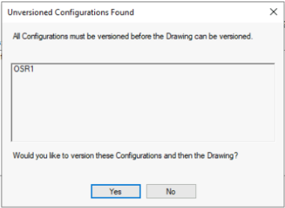
You can create a new version from the group level of the project and all documents below that group will be versioned with the same version number and comment.
Version History
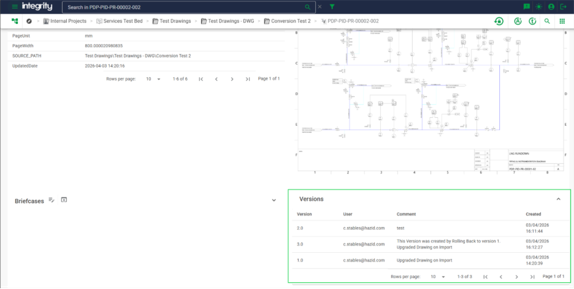
The version history of a document can be viewed on the document page in the web application under the “Version” heading.
Alternatively, we can view the version history on a document through Classic Integrity by navigating to the document from the project tree and clicking the  button option in the right-hand menu.
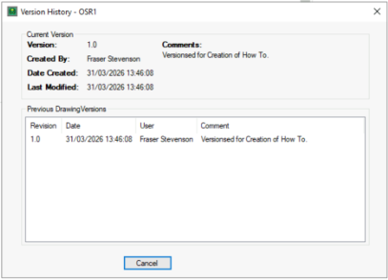
When selecting a version, we are able to view the version with the  button or roll the drawing back to a previous version with the
  button.