Data Filtering
To populate the main window with relevant data we use 3 main filters, the project filter allows you to choose the document(s) to target, the model filter allows you to target mapped models or a collection/group of models and the property filter allows you to target items with specific data points.
To search with any applied filters, click the  button and it will update the main window with the results and provides a brief description of the applied filters. To clear all filters, press the
  button to the right of filter description.

Project Filter
The Project Filter can be used to change the drawings loaded in Data Editor. From here you select which drawings/groups to filter to with the checkboxes.
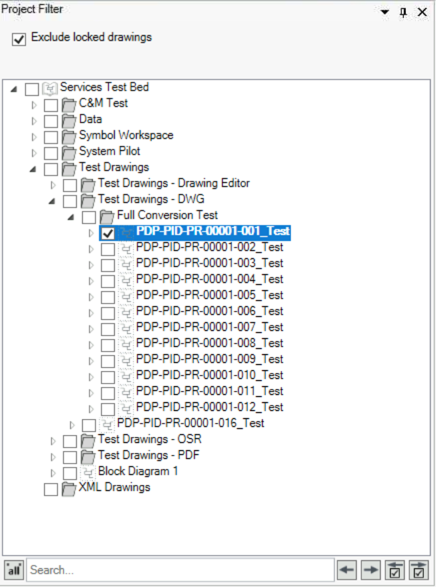
Clicking the button on the toolbar will update the query with the selected drawings
We can view the data of drawings currently in use by disabling the “Exclude locked drawing” option however this data is read only and no rows in the main view will be editable.
Searching the Project Filter
At the bottom of the project filter is the search section, this will allow you to search the project for any document/group names.

The  buttons cycle between search results, and the
  buttons cycle between checked documents.
Model Filter
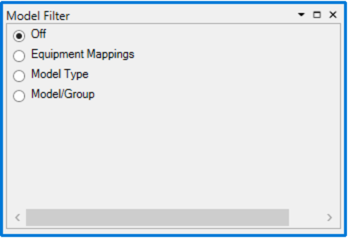
The model filter is used to filter for items mapped to models and types defined in the Model Library, when it is disabled all items that contain data will be shown in the main window.
Equipment Mappings
Selecting 'Equipment Mappings' enables you to filter by mapped or unmapped equipment:

Model Type
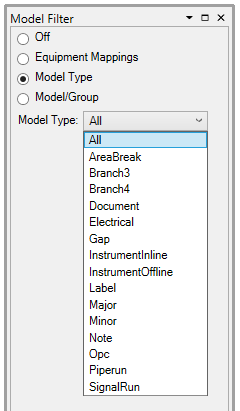
Selecting 'Model Type' provides a drop-down menu that allows you to filter by model type:
Model/Group
Selecting the 'Model/Group' button allows you to filter to items mapped to specific models or model groups. The Model/Group filter contains a list of all models that appear in the selected documents, enabling this option will display the model tree for selecting groups  or individual models
  , these can be added to the filter with the checkboxes:
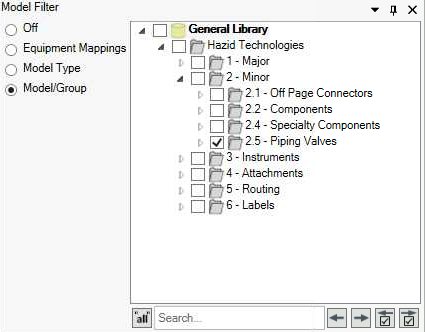
We can search the model tree for any unique model using the search function at the bottom of the view.
The buttons cycle between search results, and the buttons cycle between checked documents.
Property Filter
The Property Filter is used to filter items based on the data present in them, for example searching for a specific item by tag, or finding all items with a particular datapoint populated or empty.
Selecting the Property Filter radio button enables the property filter.
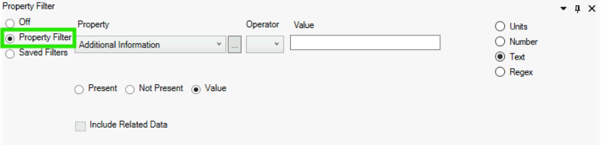
First choose the property to filter using the drop down or the  button to pick from the property tree, and if it is to be present, not present or have an entered value using the radio buttons below.
With “Value” selected, new options become active, as the value must be defined. The first step is to define the operator that you wish to search with (equals, does not equal, etc), then define the value for which you are searching.
Unit Type Filter
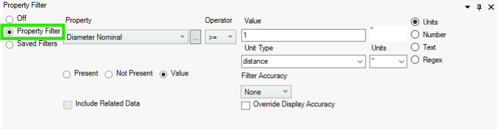
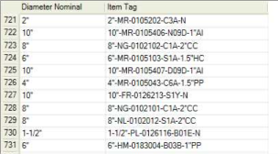
Where properties are typed as units (distance, pressure, temperature etc…) we can convert to and from SI units and use bitwise operators to search the document/project. In this example we are searching for any item with a nominal diameter greater than or equal to 1”.
Number Type Filter
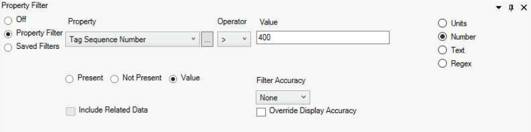
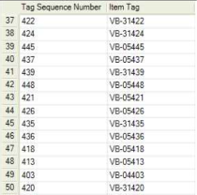
Where properties are identified as numbers we can use simple bitwise operators. In this example we are looking for any item that has a tag sequence number above 400
Text Type Filter
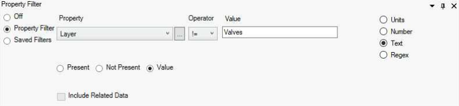
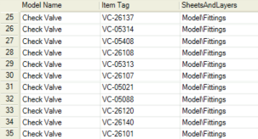
For any type not identified as a unit or number it will be stored as plain text in the system. We can only use the “Equal To” or “Not Equal To” bitwise operators for text search. A text search must exactly match the contents of the property to return as a result. In this example we are searching for any item that is not on the “Valves” layer.
Regex Filter
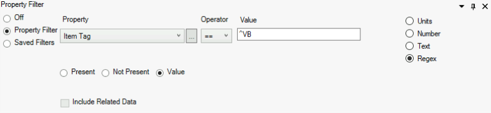
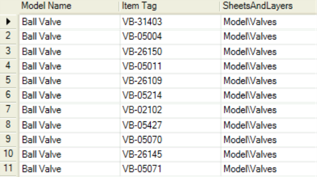
The regex Filter allows us to search any property type that matches a defined string pattern that we set using regular expressions. In this example we are searching the “Item Tag” property for any value that starts with “VB”.
Multi-Property Filter
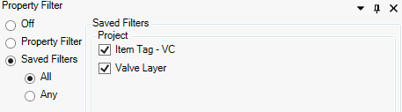
We can perform searches on multiple properties with the use of Saved Filters to do this click the Saved Filter radio button and click the  button to open the Filter creation window.

Clicking the  button will open the Property Filter Editor which allows us to define a Unit, Number, Text or Regex filter.
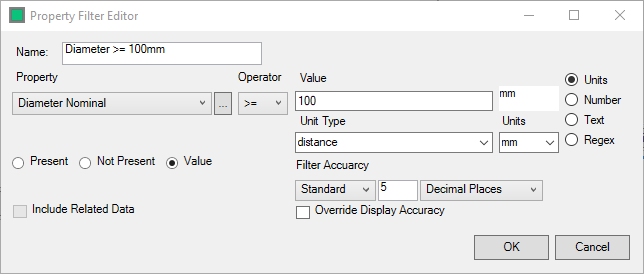
The property filter is defined in the same way as previously described. Click 'OK' to save the filter.
Project Saved Filters
If we want to re-use a filter across users/session we us the Project Saved Filters. These are created in Project Editor and allow us to quickly reapply predefined filters or to concatenate multiple property filters together. In this example we are doing a text search for not equal to “Valves” and a regex search for any item tag that starts with “VC”