Linked Data
Items in Hazid Integrity can be linked to other items in the project. These linked items can be viewed in Data Editor using the Linked Data panel.
Links between items can be the result of:
- Attached items in drawings e.g. labels, equipment components, piping systems
- Links artificially created either manually or using Model Configuration rules
- Temporary links to other items found by rules when the Rule Filter is active
Data View
The Linked Data Grid is accessed via the Linked Data tab, which is enabled via the Views Menu.
When an item is selected in the main grid, any linked items are listed in the Linked Data grid:

The columns displayed in the linked data grid are controlled by the Linked Column Setup panel. When a Rule Filter is active, the linked data grid will instead display items found in the rule results, and columns for properties checked by the rule will automatically display.
The linked data grid will be read-only by default, but it can be edited by clicking  Activate Linked Data Grid on the toolbar. Items selected in the linked data grid can be switched across to the main grid by clicking
  Promote Selected to Main.
Linked Column Setup
The Linked Column Setup panel functions in the same way as Column Setup, but affects the Linked Data grid rather than the main grid. It is accessed via the Linked Column Setup tab, which is enabled via the Views Menu.

Expanding 'Model/Group Templates' shows the column templates associated with particular models/model groups. These are also created in Property Column Templates.
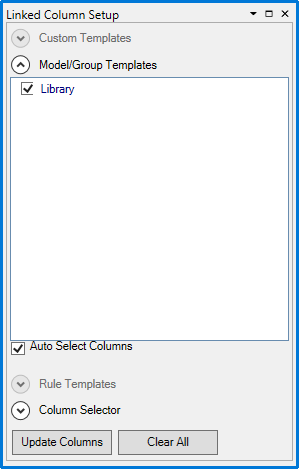
Checking one or more templates and clicking  will add the associated columns to the linked data grid. When 'Auto Select Columns' is selected, the templates are automatically applied whenever the grid is filtered to only display the corresponding models.
Expanding 'Column Selector' allows you to individually select which columns to apply:
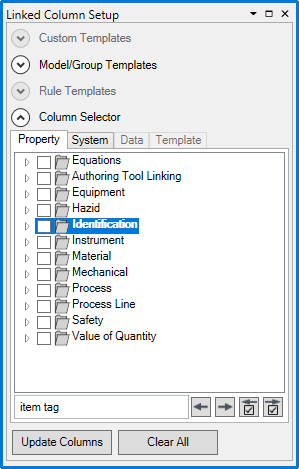
We can search the property tree with the function available at the bottom of the view.

The  buttons cycle between search results, and the
  buttons cycle between checked properties.
Under the 'System' tab are the read-only properties defined by other operations in the system:
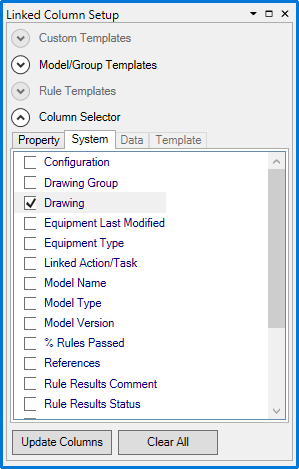
Checking one or more properties and clicking will add those columns to the grid. Clicking  unchecks every property.
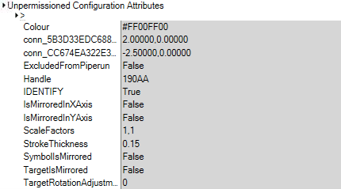
Configuration Attributes Linked Data
This view is the same as “Configuration Attributes” but only shows the data for the selected linked item, due to this, this view must be used in conjunction with the “Linked Data (Readonly)” view.
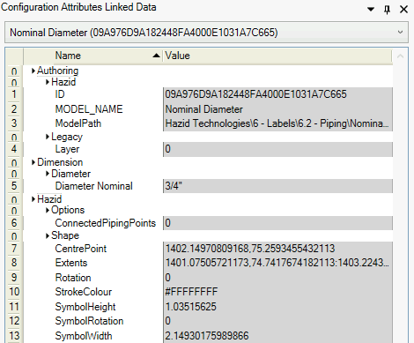
The unassigned data points will be shown at the bottom of the view as “Unpermissioned Configuration Attributes”.