Manage Actions & Tasks
Actions
When an action has been assigned to a user it can be managed through Action Manager by the assigned user. The user can provide updates and message the creator of the action with any queries they may have, with all tasks linked to an action complete the action can also be sent for approval.
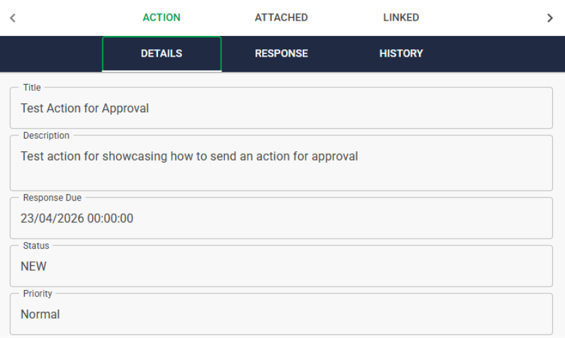
Selecting an action from the main Action Manager action list will update the action details panel on the right, this is where we can review the details of an action, respond/update and view the history of an action.
Action Updates
As we are completing an action, we may need to provide additional information that is relevant to the action or process involved.
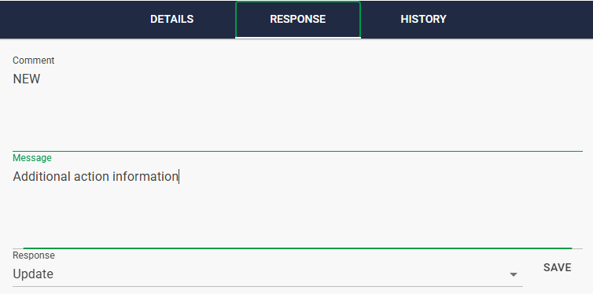
With the action selected in the main window we can navigate to the “Response” tab and select “Update” from the response drop-down menu, we then type in the additional information into the “Message” field and click “Save”.
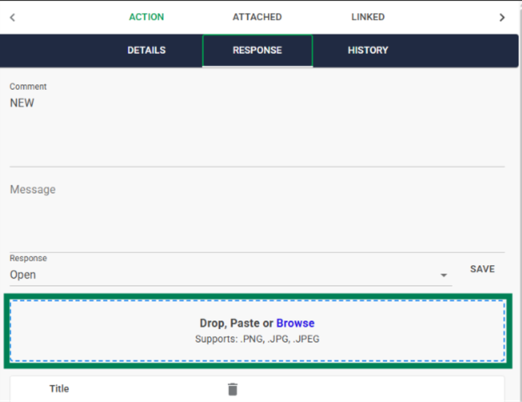
We can append additional files using the attachment upload section at the bottom of the response panel.
Send Action For Approval
When an action is complete and all tasks linked to the action have been cleared, we are able to send the action for approval where it can be reviewed, rejected or approved by the next person in the approval chain.
Like updating an action, we first select the action from the action list, navigate to the response panel and choose “Send for Approval” in the response drop-down menu. We can also add any relevant messages and click “Save"
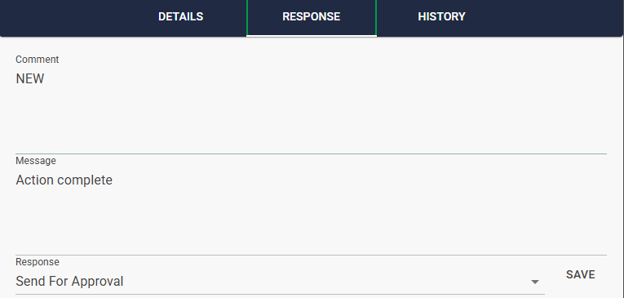
Actions can only be sent for approval after dependant actions and tasks have been completed, dependant actions and tasks can be found in the "Linked" section of the action details
Action History
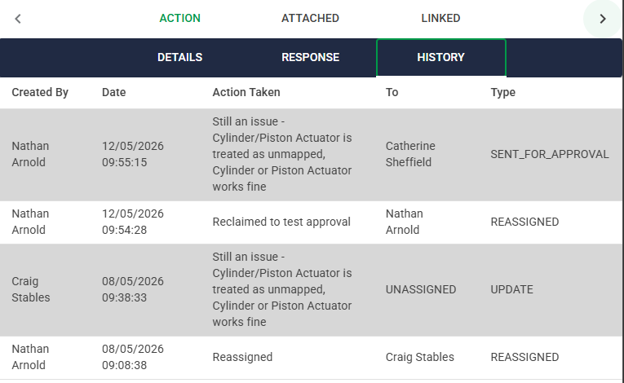
To review the history of an action, select the action in the main window and click on the “History” tab, this will provide a summary of “Responses” made by users whilst creating, assigning and performing the action.
Tasks
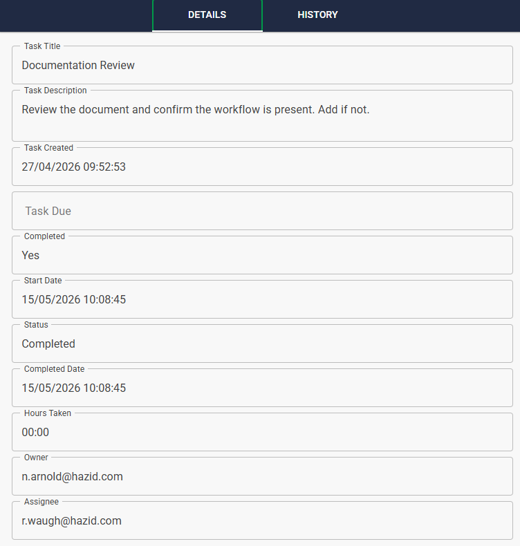
Selecting a task from the main Action Manager action list will update the task details panel on the right, this is where we can review the details of a task and view the history:
Manage Tasks
Task progress/status is managed in the main task window found at the top of the task list:

Start Task
When a Task is to be carried out, select ‘Start Work’  to begin keeping track of the time taken to complete the Task.
Pause Task
When a Task is being carried out, the user may have to postpone the Task due to other workflows or outside factors. Selecting ‘Pause Work’  will pause the timer pertaining to the Task so that the user can divert their attention to other factors.
Complete Task
When a Task has been completed, select ‘Complete Task’  to mark the Task as complete. This allows the user to move onto other Tasks.
Reasign Task
This function allows the user to open a list of project departments. From here, the selected Task can be assigned to a specific department. This allows different Tasks to be separated into appropriate departments.

Once the selected Task has been assigned to a project department, the Task can be assigned to a specific user within the department. This allows for Task allocation within the department for more efficient workflows.

Once the management process is carried out, select ‘Save’  to save the Task management process that has been carried out.
Task History
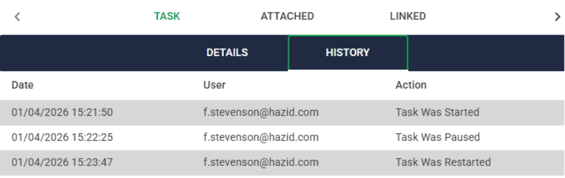
To review the history of a task, select the task in the main window and click on the “History” tab, this will provide a summary of updates made by users whilst creating, assigning and performing the task.