Models
Create & Manage Models
Hazid Knowledge models hold all of the Process Equipment Ports, Deviation Propagation and Cause Consequence behavior for the equipment item.
Create Group
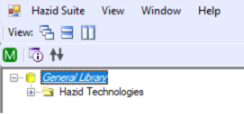
Models & Model Groups are created and managed in the Knowledge Bank, with the Knowledge Bank open right-click at the level you want a new group and select “Create Group”:
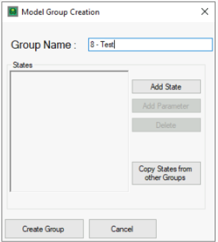
Type the name of the group and select create group.
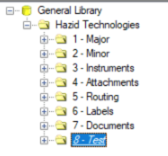
This will add a new folder to the model tree:
Edit Group
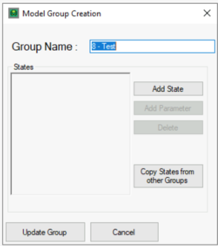
To edit a group name, right-click on the group and select Edit
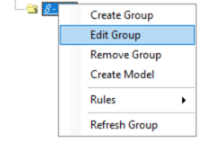
The edit window is essentially the same as the create Window, except it says Update Group Instead of Create Group.
Delete Group
To remove a group right-click on the group and select Remove Group
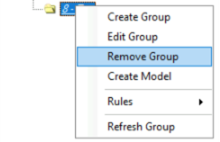
You will be provided a prompt to confirm the deletion as this is not reversable within a version.
Create Model
Hazid Knowledge Models are the foundation of creating the Process model from the P&ID. To create a new model, navigate to the location in the model tree to add a new model, right click and select "Create Model":
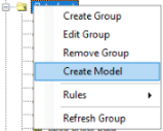
This will open the "New Model Editor" window:
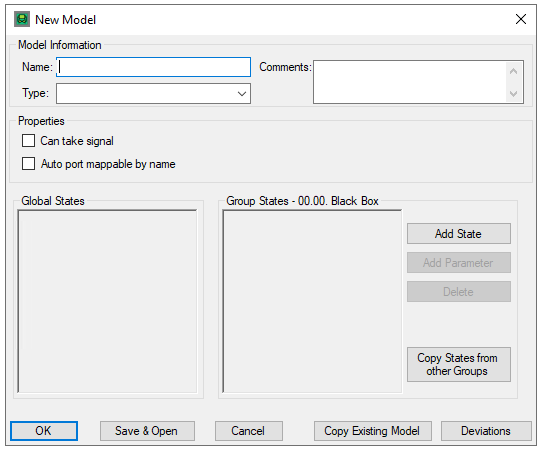
To create a Model you must fill in all the required details.
- Name - A name for your model
- Comments - Any comments that you wish to add to the model
- Type - Models are stored as particular types to allow for filtering and advanced functions within the Hazid Integrity Projects, Process Safety Analysis and P&ID Integrity Rules analysis. Select the type of model that you are wishing to create from the drop down list
- Label - A model representing a label as detailed on the P&ID. No model ports or any further details need be added for label models as they are automatically attached to their parent items.
- Major - A major equipment type such as a Pump or Vessel. Major equipment will not be included in piperuns and will often have more than two process port
- Minor - Minor Items on the P&ID such as inline items. These usually carry most Cause behaviour and only have two ports
- InstrumentInline - Inline Instrumentation such as Pressure relief valves.
- InstrumentOffline - Offline Instruments such as PIC etc. These do not normally require any process ports to be created as Hazid Integrity carries the Signal ports as system.
- SignalRun - Signal lines within the P&ID. This included connect to process and pneumatic signal lines. These allow Hazid Integrity to understand the different interfaces between the process and instrumentation boundaries.
- OPC - Any Off Page connector model
- Electrical - Electrical Equipment (Bus/Load etc)
- Document - Documents (PID/Standards/SLD etc)
- Note - Drawing/Document notes
- Gap - A gap in a signal/process line
- AreaBreak - An area break on a drawing
- Break - An inline break on a drawing where data about the line changes
- BreakLabel - A label displaying the data change on an inline break on a drawing where data about the line changes
- Piperuns - Is not a selectable model type as Hazid Integrity treats piperuns in a special manner. To create a Piperuns model you must copy it from the delivered system models.
- Branch - Branches on piperuns, this is not a selectable model type as Hazid Integrity treats piperuns in a special manner. To create a Branch model you must copy it from the delivered system models.
The Property selections allow you to add extra functionality to the model

- Can Take Signal - Allows normally process items to pass a signal pulse. Such as Nozzles on equipment or valves isolating Instrument lines. This allows Hazid Integrity to propagate a signal from its source destination to the equipment it is ultimately impacting upon. rather than only the connected line.
- Auto Port Mappable by Name - Minor Items and Inline Instruments that have more than two ports may use this selection. Hazid Integrity will use the port names to identify all process connections and map them automatically in the project.
Instrument Offline Model Types have a special Control Function which allows them to use their Item tag to identifies a loop,. This is for use in the cases where Instrument Loops are not defined other than by Tagging procedures or Interlocks are in use in the plant but are not part of an Instrument Loop.
The Global Sates available are displayed for information purposes as well as those created in the parent Group. You can add new states to the Model Group from the model creation page or copy states from another Group

For more Information See Creating Model States and Copying Model States
Selecting  allows you to copy a complete model from another group in the model Library.
Selecting  allows you to select which Process Safety Deviations you wish to use within the model. By default all deviations are selected.
Copy Model
It can be easier to copy an existing model to re-use the definition from similar models. In this case a standard concentric reducer. Click on Copy existing model and browse to Concentric reducer.
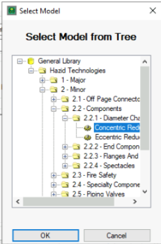
This will add the full definition of the existing model to the newly created model.
Edit Model
Should you ever want to change a modes comment, type or ports then right click the model and click “Edit Model”
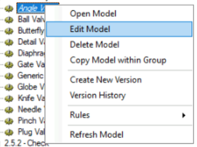
This will open the same window as “Create a Model” where we can update the values as necessary
Delete Model
To delete a model right-click on the model in the tree and select “Delete Model”
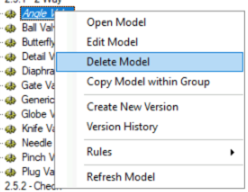
You will be provided a prompt to confirm the deletion as this is not reversable within a version.