States
States may be used to alter the behaviour of a model dependent on where it is being used and can be assigned to a group of models or as global states that all models will inherent from. For example, a valve will have an Open/Closed state, a pump will have a Running/Standby state and the plant will have a Start-Up/Shutdown state.
Model States
To add states to a model, open the Knowledge Bank and locate the model in the project structure. Right-click the model and select Edit Model.
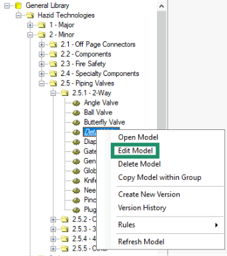
This will open the “Edit Model” window.
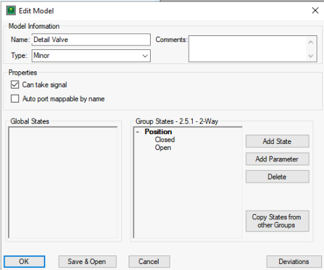
To add a state, click the  button. This will add a new heading to the list into which you type the name of the state (e.g. Position), then to add a parameter to the state click the
  button with the state selected and type in the name (e.g. Closed/Open). If a state or parameter is added in error, it can be deleted by selecting the row and clicking the
  button.
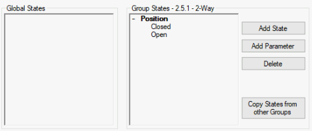
Any states assigned to a model will propagate up to the group, allowing all models within that group to use the defined states.
Group States
We can apply states to a collection of models within a certain group directly by right clicking the group and selecting “Edit Group”
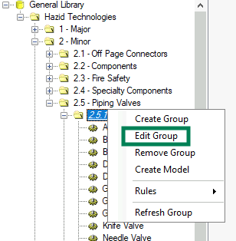
This will open the “Edit Group” window.
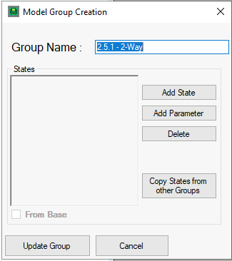
To add a state, click the button. This will add a new heading to the list into which you type the name of the state (e.g. Position), then to add a parameter to the state click the button with the state selected and type in the name (e.g. Closed/Open). If a state or parameter is added in error, it can be deleted by selecting the row and clicking the button.
We can copy the states and parameters from similar groups by clicking  button where a new window will open allowing us to pick the group to copy from.

To commit the changes, click the  button to apply the states to all items in the group, or click
  to close the window without saving.
Global States
Global states can be applied to all models. They are created from the Global States option to access this right click the top of the model tree and select “Global States”
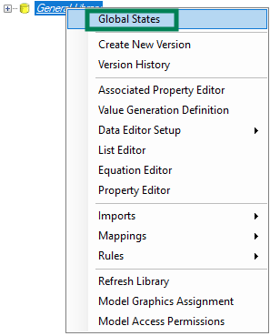
This will open the “Global States Setup” window.
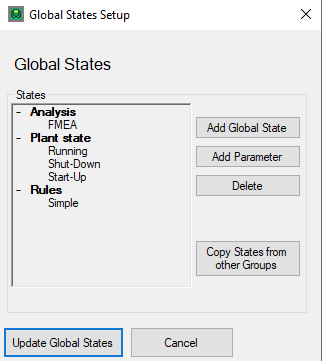
To add a state click  button. This will add a new heading to the list into which you type the name of the state:
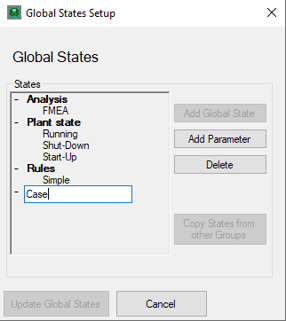
To add parameters to the selected state click the button and type them in:
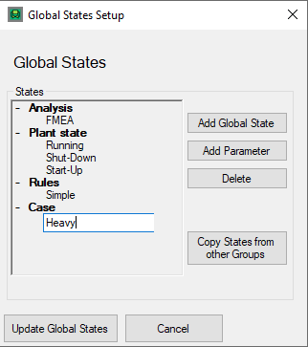
When finished click the  button to apply your changes to all models in the model tree.