Data Model File Manager
The data model file manager is where the data model is configured for the project.
In order to use the data model system, the data model is required to be imported from the data model folder in to the projet database, this is carried out through the Data Model File Manager.
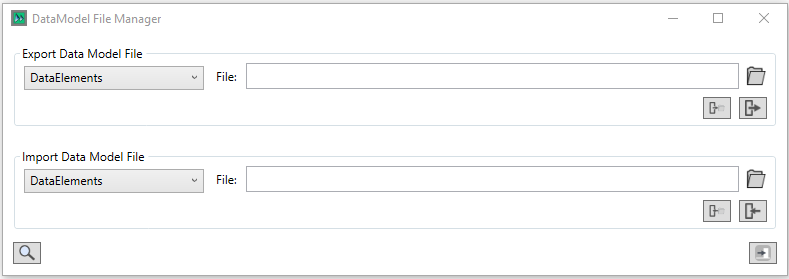
To import a Data Model file, first select the Data Model Item that you wish to import from the dropdown, before browsing to the file with the  button, once you have selected the file, clicking on the
  button imports the file.
To import all the files in a single process, use the  Folder button to specify the folder that you wish to import, after specifying the data model file store location, the data model import dialog is opened
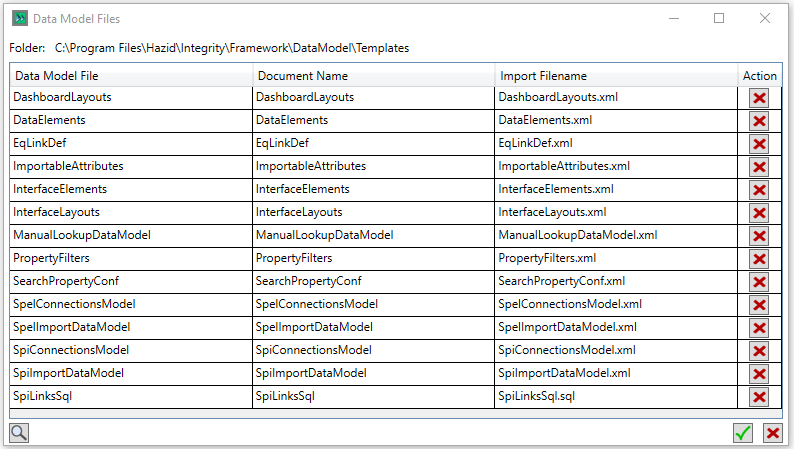
The  button displays a list of all Data Model Items that already exist in the project.
In the Action column, clicking  removes a row.
In the main window, clicking  imports the files specified, and exits without importing.
The export process is carried out through the "Export Data Model File" panel in the same fashion as the import, with the exception that the locations specified are to write to, rather than import from.
Once the data model maintenance has been carried out, clicking  exits the window.
Folder Location
The data model folder is the location which the data model files are written on project creation, prior to their import into the project database.
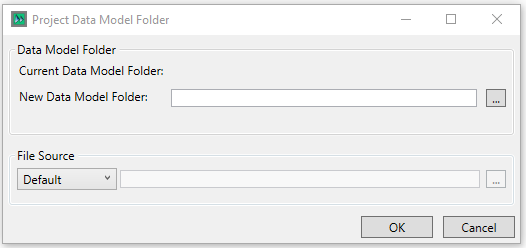
The location for the files to be written to is defined in the "New Data Model Folder" box, either by typing it in, or selecting it via the  button
Once the location to write to has been defined, the source of the data model files needs to be set, there are 3 potential sources button
- Default - The default location - using the default data model files placed in the program folder during installation
- Current - If a Data model folder is already defined, selecting "current" will use this folder, enabling data model transfer between locations
- Custom - A user-defined source location, entered manually, or selected via the button
Once the location has been defined, clicking  saves changes and
  exits the dialog without saving