Functions Editor
Hazid Integrity stores mathematical functions which can be used to conduct calculations within the rules engine.
The functions are stored as an editable XML file per Hazid Integrity Client installation and as such changes to the file must be distributed to other clients wishing to use the same file.
The Functions Editor displays all of the functions held within the XML
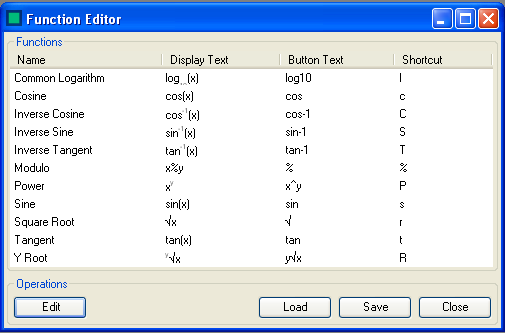
This allows you to Edit Functions or Load a Functions XML from another user.
To Edit a function see Edit Function
To Load a function file see Load Function File
To Save any changes to the Functions XML file select 
To Close the Function Editor select  . The Functions Editor will auto detect if any changes have been applied to the file and prompt to save on close.
Edit Functions
To Edit an existing function in Hazid Integrity select the desired function and then  to open the function editing form.
Please Note that you cannot add a new function to Hazid Integrity or edit parameters. If there is a specific function you wish to be added to the system please contact your local representative.
to open the function editing form.
Please Note that you cannot add a new function to Hazid Integrity or edit parameters. If there is a specific function you wish to be added to the system please contact your local representative.

Enter all of the details as required
- Name - The Functions Name
- Display Format - How you wish the function to be displayed when in use in a calculation. (Selecting Superscript or subscript will enact on the selected text)
- Button Text - How you would like the button to be displayed within the calculator for the function
- Shortcut - Keyboard shortcut key for the function
- Function - The Function name as defined in Hazid Integrity (not editable)
- Parameter - The parameters used in the function (not editable)
 will save and close the form.
 will close the form and revert all changes.
Load Functions File
Functions can be delivered to your Hazid Client installation via an XML file. This allows all users to share the same function file for calculations within rules. The functions XML are stored in the Bin folder at the root of your Hazid Integrity installation.
To Load a Functions file select  this will open a browser window.
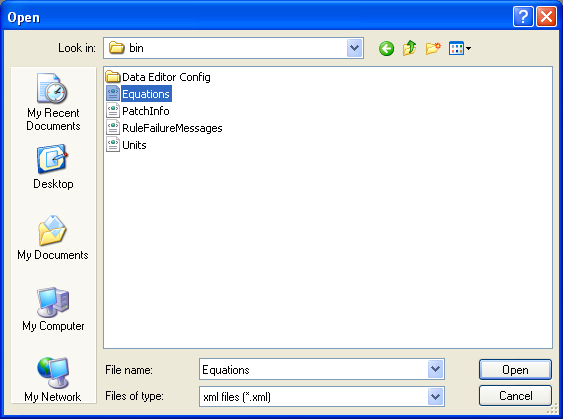
The Functions XML is loaded within the Equations XML when selected.
Once Imported the new functions are available for use with the equations.