Instrumentation and Control Loops
The Instrument and control loop form displays the Instrumentation, as seen within the Instrument form grouped by Control Loop, as defined within your P&ID.
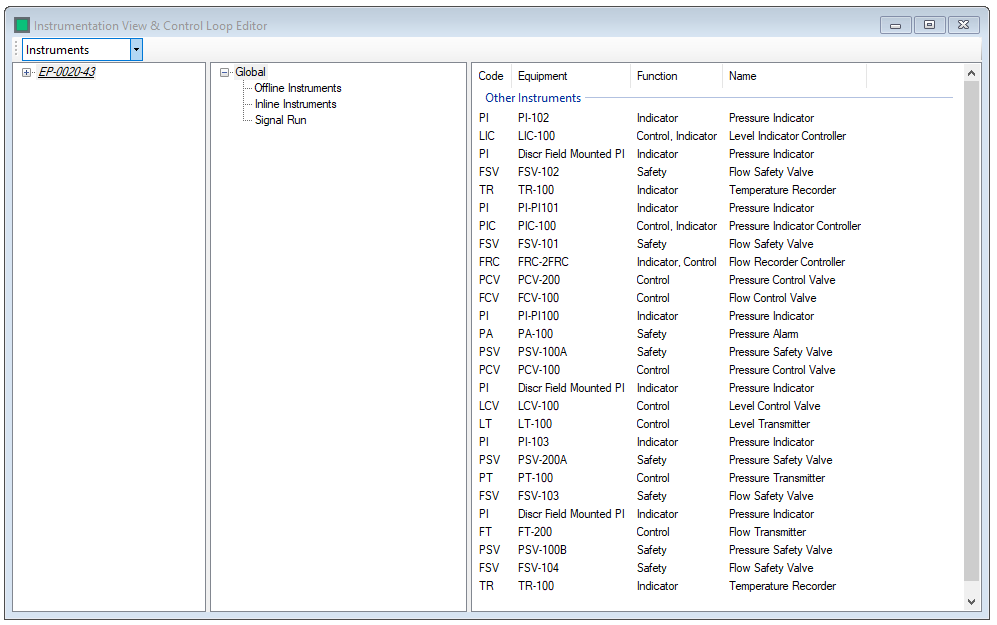
The Dropdown in the top left allows the user to switch between viewing instruments and control loops
The project tree in the lefthand panel allows the user to view data for the project, a drawing group or individual drawing
The middle tab allows the user to filter on global instrument types
The right hand tab displays all the items in the selection that the user has made.
Instruments
Hazid Integrity determines which Instruments within your plant are associated to main equipment items and also uses the Instrument Map to determine whether an Instrument is a safeguard for use during a Safety Analysis. The Fluids form opens at the level in the Project tree where you invoke it from. You can then browse to any level in the Project tree bellow the entry level to find the equipment item you wish to view the fluid properties of.
The first tree within the Instruments form is a mimic of the Project tree from that entry level

All Instruments are consolidated to the root of the Model Tree
The Model Tree displays all of the Hazid Knowledge Models available.

Equipment which have instruments associated with them are visible in the Equipment list. This is grouped by State.

The Instruments associated with the selected equipment are displayed
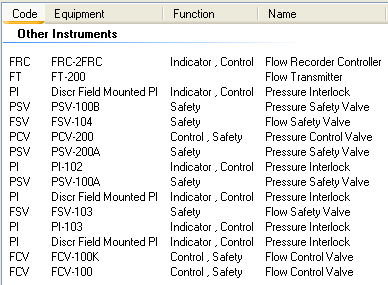
Selecting an Instrument and right clicking allows you to Highlight the instrument directly on the P&ID.
Add/Edit Instrument
The Instruments are displayed when selected from the tree
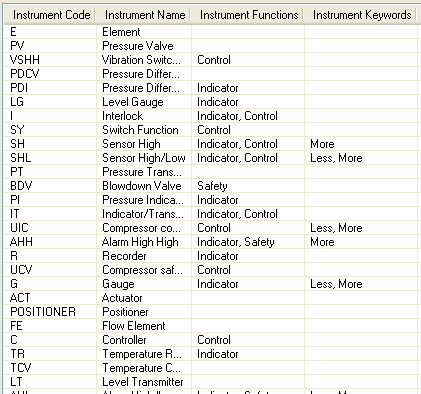
To Add a new Instrument select  which will open the following form.
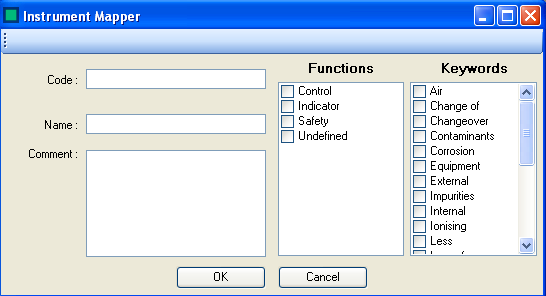
Fill in the instrument details
- Code - The Instrument Code as found in the Instrument Type Modifier property
- Name - A name for the instrument, often a description of the code
- Comment - Any additional comments you might wish to add
- Function - What the instruments function is
- Keyword - Any HAZOP keyword that the instrument will act against
Select  to save the Instrument
Select  to close the form and revert changes
To Edit an Instrument double click on the desired instrument
To Delete an instrument right click and select delete
Add/Edit Measured Variable
The Measured Variable are displayed when selected from the tree.

To Add a new measured variable select which will open the addition form.

Fill in the instrument details
Code The Measured Variable code. This is the code of the parameter it will be detecting such as Pressure. This field only accepts one character. Parameter The Hazop Parameter that the measured variable is associated with.
Select to save the Measured Variable
Select to close the form and revert changes
To Edit an Measured Variable Double click on the desired instrument
To Delete an Measured Variable right click and select delete