Configuration Management
Configuration Panel
The configuration panel allows you to view configuration data directly from the Project Tree and also highlight items directly on the P&ID. The Configuration Panel is a useful tool to quickly checking if all desired items are mapped to equipment models.
The panel requires to retrieve the configuration data from the database whenever you click on a configuration. As this can cause a slight time lag in browsing the tree selecting  removes the panel and allows faster browsing of the tree.
When visible the panel has a number of options available
 - Equipment Filter - Allows you to filter the Configuration Panel data to any of the Model types defined within Hazid Integrity.
  - Display Mode - Changes the display of the Configuration panel from list view to group view where all items are grouped by State. For more Information on states see Contextualisation
 - AutoHighlight - Selects whether Hazid Integrity will automatically highlight the items on selection.
 - Refresh - Refreshes the Configuration Panel from the database. Required after changes in other forms such as mapping.
 - Remove Mapping - Removes the model mapping from the selected item. For more Information see Icon Mapping
The Configuration Panel is split into columns of item information and each column is sortable.
Right clicking on an item within the panel allows you to highlight the desired item or the item and its attached labels.
Alternate Connections
To configure Model, Fluid and Results connections diffreent to those in the HDB file originally connected through, enter their details here
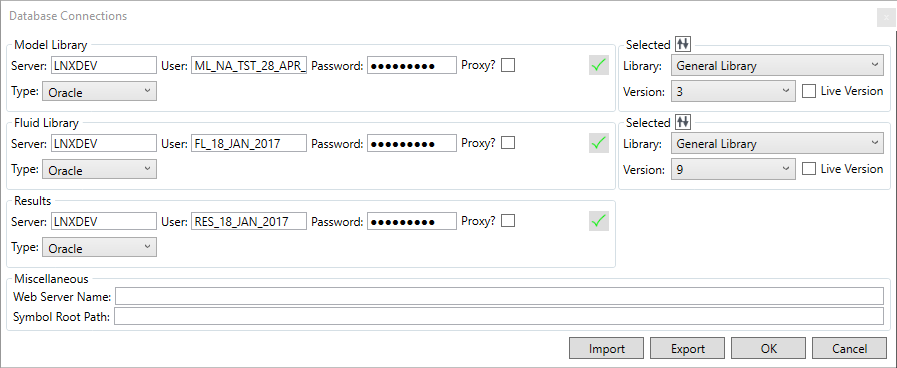
Connections can be made to Oracle or MSSQL databases by selecting the database type to be connected to in the "Type" dropdown
The "Proxy?" checkbox allows the user to specify a Target User for the proxy user to access.
The Library selection dialog operates in the same manner for both the Model and Fluid Libraries

The library to use can be selected from the "Library" dropdown, as can the version of the library to use (from the "Version" dropdown)
The "Live Version" checkbox is used to switch the project into using the current working version of the library.
If a web server is in use, it's name is entered into the "Web Server Name" box
If in use, the SPPID symbol root path can be entered into the "Symbol Root Path" box
The  button allows connection details to be imported from another hdb file, the
  button exports the currently defined connections to an hdb file in a user-specified location
 Commits changes and
  exits the dialog without saving any changes.
Create Configuration
Configurations store the Process Mapping required to convert the P&ID into a Process Model which can then be used to run Safety Analysis or P&ID Integrity rules on.
On Import every P&ID has a default configuration created. As a P&ID can store the information pertaining to multiple Process States you can create additional Configurations per P&ID. When creating a configuration it will automatically associate itself with all Properties and Mappings which have been assigned to the P&ID.

When creating a Configuration the user must enter a name and select 
Select to quit without creating a new configuration.
Clone Configuration
You can Clone a Configuration to edit any other equipment states or connections which is associated with a P&ID in an other Process Configuration.
This option will clone the new configuration exactly from the chosen one.

Select to Clone the configuration
Edit Drawing Configuration
You can edit a configurations name after it has been created.
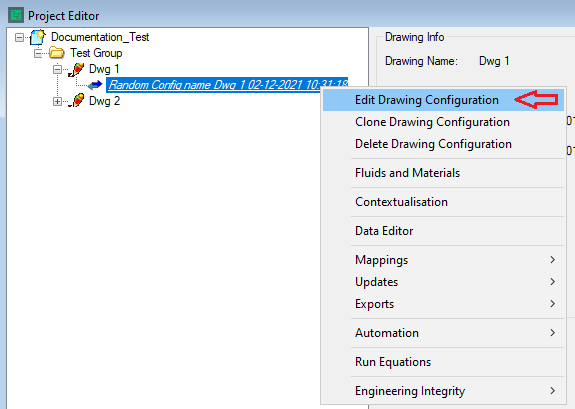

Type the new name and select 
Delete Configuration
When deleting Configuration all associated information will be deleted also.
Select  to confirm
Configuration Options
All Configuration Options, what you see when logged in is a result of Hazid Integrity User Permissions. If you do not see an option you believe you should have please speak to your Administrator.
- Edit Drawing Configuration - Edit the Configuration Name
- Clone Drawing Configuration - Clone this Configuration and link it to the P&ID as a new configuration
- Delete Drawing Configuration - Delete the specified configuration
- Fluids and Materials - Displays all Fluids and Materials of Construction for each item in the plant detailing where potential incompatibilities could arise.
- Contextualisation - Set Equipment to be in specific operating states, such as Valve Open/ Closed Pump Running/Standby
- Data Editor - Opens the Data Integrity module, filtered to all the data in the drawing configuration
- Mappings
- P&ID Icon Mapping - Allows you to create specific Icon mappings for single items within the P&IDs
- Piperuns Mapping - Set Piperuns flow directions to be in line with the process being modeled
- Port Mapping - Detailed Port mapping allowing you to change any plant configuration model to closely mimic the process being modeled
- Updates
- Update Fluid Properties - Updates the Fluid properties associated to the P&IDs
- Update Property Conversions - Runs the routine that updates the property unit conversions for the selected configuration
- Update Symbol Mapping - Apply Icon mapping to configuration
- Exports
- Push Linked Data to SPPID - Opens the linked data push via script dialog
- Automation
- Run Fluidisation - Checks all locations that fluids can flow to within the plant and determines if there is any incompatibilities
- Run Model Configuration Rules - Runs the Model Configuration Rules to automatically port map or define states for equipment Items
- Run Port Mapper - Automatically determines the ports are set correctly within Hazid Integrity
- Run Equations - Runs the Equations on the selected configuration
- Engineering Integrity - Hold the configuration level options for the Engineering Integrity Module