Import PDS
When importing PDS data the system carries out some important tasks behind the scenes:
- Icon mapping rules are automatically run on the PDS data. This maps PDS symbols to models in Engineering Integrity.
- Rules are automatically ran on the models.
When "Import PDS" is selected the following form will appear:
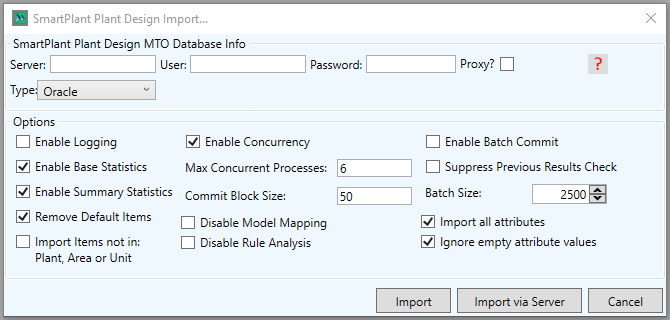
In this form you enter the SmartPlant Plant Design MTO Database info. For example:
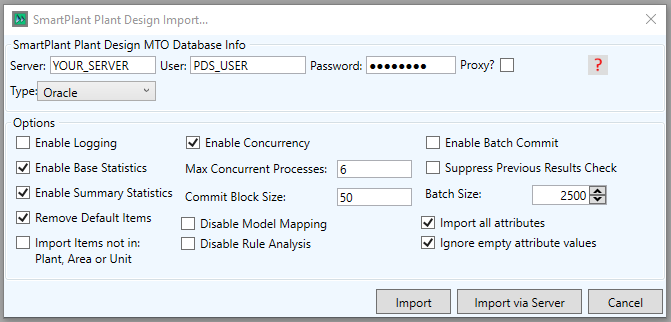
Clicking on the  buttons will connect to the database users specified, if the connection fails holding the mouse over them will provide a tooltip with the error message.
The available import options are as follows
- Enable Logging - Allows the logs of the Import to be created
- Enable Base Statistics - Allows the Base Statistics to be built to populate the dashboard upon completion of the rule analysis
- Enable Summary Statistics - Allows the Summary Statistics to be built to populate the dashboard upon completion of the rule analysis
- Remove Default Items - Allows the import of default SPEL data to be skipped
- import Items not in: Plant, Area or Unit - Allows the import of orphaned SPEL data to be skipped
- Enable Concurrency - Allows the SPEL data to be imported in multiple simultaenous processes
- Max Concurrent Processes - Allows the number of concurrent processes to be set. The maximum number of processes will vary depending on the capacity of your machine.
- Commit Block Size - Allows the number of processed items the import will commit in one section to be defined
- Disable Model Mapping - Allows the running of the icon mapping rules to be disabled (it is enabled by default)
- Disable Rule Analysis - Allows the running of the rule analysis to be disabled (it is enabled by default)
- Enable Batch Commit - Allows the data generated by the rule analysis to be committed in batches
- Suppress Previous Results Check - Allows the rules to be written to the database as "new" even if they have been run previously
- Batch Size - Allows the size of the batch to be committed if the batch commit is enabled to be defined
- Import all attributes - Allows all atrributes to be imported, even if they are not mapped to a property in Integrity
- Ignore empty attribute values - Allows empty values to be skipped, if unchecked they will be imported as nulls
Selecting "Import" will begin the import on your local machine instantly and selecting "Enable Logging" will run diagnostics during import. Selecting "Import via Server" gives you the option to schedule another time to run the import:

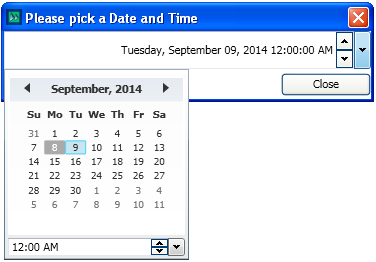
Selecting "Yes" will open a form where you can select a date and time: