Drawings
Activate/Open Drawings
Selecting to Activate/Open Drawings has different functionality depending on how you are viewing your P&IDs.
For those using Hazid Drawing Viewer this option will open the Hazid Drawing viewer without any P&ID selected. To browse and open the P&IDs see Hazid Drawing Viewer
For those who have selected to Highlight Directly to Drawing and are using SmartPlant P&ID selecting Activate/Open Drawing will open the SmartPlant P&ID shell and the Project Drawing Assistant
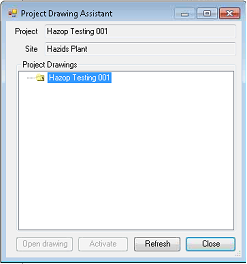
To view the Drawings within the project you must select Refresh

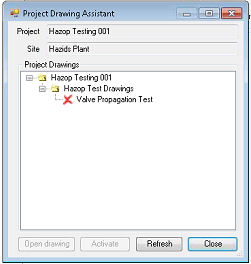
Selecting  will open the selected drawing in SmartPlant P&ID.
Open drawings are demarked with a tick symbol in the Project Drawing Assistant. If you have multiple drawings open and wish to bring a specific P&ID to the from within SmartPlant P&ID selecting
will open the selected drawing in SmartPlant P&ID.
Open drawings are demarked with a tick symbol in the Project Drawing Assistant. If you have multiple drawings open and wish to bring a specific P&ID to the from within SmartPlant P&ID selecting  will do so.
 will close the Project Drawing Assistant
Open Drawing
Hazid Integrity can open the P&IDs imported in the Hazid Drawing Viewer or directly within SmartPlant P&ID if the option is selected in Hazid Suite Menu / Direct Drawing Highlight Item.
Move Drawings
The Move Drawings window is used to move drawings from one drawing group to another within the same project

To move drawings, the user selects which drawing(s) they wish to move using the checkboxes, then selects the group they wish to move them to.
This enables the  button, clicking it moves the drawing(s) to the specified location
Clicking  exits the window.
Delete Drawing
When deleting a selected drawing all associated information will be deleted also.
Select  to confirm
Drawing Options
All Drawing Options that you see when logged in is a result of Hazid Integrity User Permissions. If you do not see an option you believe you should have please speak to your Administrator.
- Open in Aurelia - Opens the drawing in the Aurelia tool (this requires the drawing to have a graphics xaml present for it)
- Open in Word Viewer - Opens the drawing in the word document viewer (this requires the drawing to have a word data xaml present for it)
- Open Drawing - Opens the specified P&ID in Drawing Viewer
- Open Drawing (Force SPPID) - Opens the specified P&ID in SPID
- Rename Drawing - Allows the user to rename the selected drawing
- Delete Drawing - Deletes the drawing from the project
- Edit Drawing - Source Connections Opens the Package Connection Settings
- Create Configuration* - Creates a new configuration linked to the P&ID
- Fluids and Materials* - Displays all Fluids and Materials of Construction for each item in the plant detailing where potential incompatibilities could arise.
- Instrumentation and Control Loops* - Displays the control loops available in the project and the instruments associated with the loops
- Associated Instruments* - Displays the Associated instruments of the equipment in the Project
- Contextualisation* - Set Equipment to be in specific operating states, such as Valve Open/ Closed Pump Running/Standby
- Data Editor - Opens the Data Integrity module, filtered to all the data in the drawing
- Mappings >
- P&ID Symbol Mapping* - Allows you to create specific Icon mappings for single items within the P&IDs
- Reports - Shows the list of drawing level Reports
- Updates >
- Update Drawing* - Updates the P&ID when changes have occurred
- Update Instruments* - Updates the connected instruments for equipment and any control loops
- Update Drawing Symbols - Runs the update drawing symbols routine for the selected drawing
- Update Property Conversions - Runs the routine that updates the property unit conversions for the selected drawing
- Update SPPID Location in Database - Runs the routine that updates the SPPID file location in the database for the selected drawing
- Update Source Connection Attributes - Allows the user to update the SPPID source connection data from the selected drawing - used when SPPID is migrated to a different database
- Update Drawing Item Equipment - Updates the "Equipment" attibute of all of the items in the selected drawing
- Update Model Versions - Updates all of the model mappings of items in the drawing to the current version in the associated model library
- Update NWD File - Updates the Navisworks NWD file imported for the drawing (if present) from a location specified by the user
- Exports >
- Push Linked Data to SPPID - Opens the linked data push via script dialog
- Writeback all external data - Allows all data within the selected drawing to be written back via the External Writeback Options
- Export Drawing as Intermediate - Exports the selected drawing to a specified location as an xml intermediate
- Export Drawing as Graphviz - Exports the selected drawing to a specified location as a graph of its connections in the graph viz format
- Export SPPID drawings to HDX - Exports the selected drawing (if SPPID) to the specified location as a Hazid data exchange (HDX) file.
- Resync Drawing Configurations* - Resynchronises the configuration to any of the attribute data and mappings within the P&ID
- Automation >
- Run Fluidisation* - Checks all locations that fluids can flow to within the plant and determines if there is any incompatibilities
- Run Model Configuration Rules* - Runs the Model Configuration Rules to automatically port map or define states for equipment items
- Run Port Mapper* - Automatically determines the ports are set correctly within Hazid Integrity
- Run Aurelia batch operations - Opens the Batch Operation Processing Window
- Run multi batch operations - Opens the multi batch operation window
- Dashboard >
- SPPID Dashboard - Allows the user to access the Dashboard
- Run Equations - Runs the Equations on the selected drawing
- Move to Drawing Group - Opens the Move Drawings window with the currently selected drawing checked in to move.
- Create New Version - Opens the Drawing versioning window
- Create New Revision - Opens the Drawing revision window
- Version History - Opens the Version History Window
- Manage Briefcases - Opens the Briefcase Manager
- Compare Drawings - Opens the Drawing Comparison Dialog
- Engineering Integrity - Holds the drawing level options for the Engineering Integrity module
*These options are only applicable to SPPID. If SPI or SPEL data has been imported then these options will not be available.