Column Templates
In Data Editor, Column Templates can be used to quickly configure the column setup to a specific set of attributes. For example, instruments will typically have values for Measured Variable Code, Instrument Type Modifier, Tag Sequence Number, Alarms, and Remarks. To avoid having to search for and set up these columns every time Data Editor is opened, a Custom Column Template can be created allowing for quick access to this configuration.
Column Templates are created in the Knowledge Bank at the project level. Once created, users in the project can use them as preset configurations when working in Data Editor.
In the Knowledge Bank, right click the General Library at the top level. From the drop-down list, select Data Editor Setup > Property Column Templates.

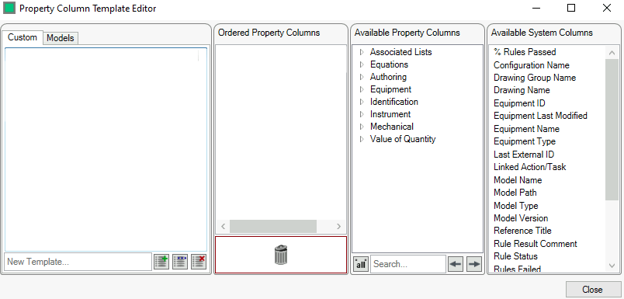
This will open the Property Column template Editor:
Custom Column Templates
To create a new template, select the Custom tab in the leftmost pane, enter the template name and click Create Template.

With the new template selected, search for the required properties in the Available Property Columns and Available System Columns lists and drag then into the Ordered Property Columns to add them to the column template.
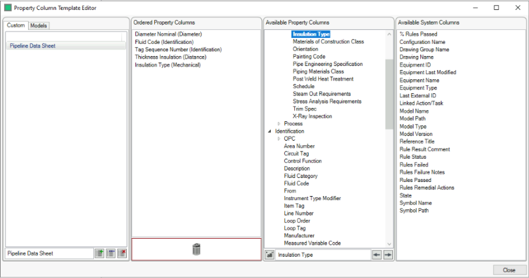
The order from top to bottom corresponds to the order from left to right the columns will appear as in Data Editor. Columns can be reordered by clicking and dragging them above or below other columns and can be removed from the template by dragging them into the  box.
box.
Properties added to a Column Template will save automatically, so once all the properties have been added in the correct order it is possible to close Property Column Template editor or create a new template and repeat the process.
Model Column Templates
Similar to Custom Templates we can create column templates that are applied based on the model filtered in Data Editor. The process is the same except we select the Model tab and then apply the column template on the Group or individual models.
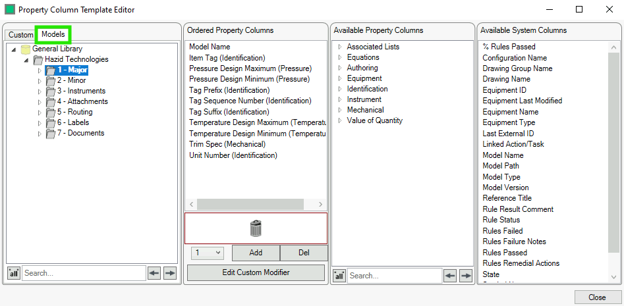
In this example we have applied a column template on all models within the “1 – Major” group so whenever we filter for major equipment, we expect to see the Data Editor grid contain these columns.
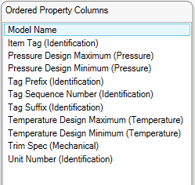
If we would like to add more control over when to use the Model Column Templates, we can set a modifier by clicking the  button. This will open the Custom Modifier window.

From here we can set the properties to check before adding the column template, in this example we will only want to apply the model template to items that are connected, choose “Connected Piping Points” from the drop down menu and set the operator to “>” and a value of “0”, then click the  button.

With all the modifiers set click the  button to apply it.