Associated Properties
Associated property lists are used to populate data that is associated with a certain value of a property without being explicitly included in that value, for example a piping materials class code refers to a detailed set of specifications as listed in the piping specifications document. Such a document can be imported into Hazid Integrity as an associated list so that the associated data can be viewed in Data Editor and used by rules.
Associated Property Lists are stored and managed in Knowledge Bank. They can be accessed by right clicking on the top level.
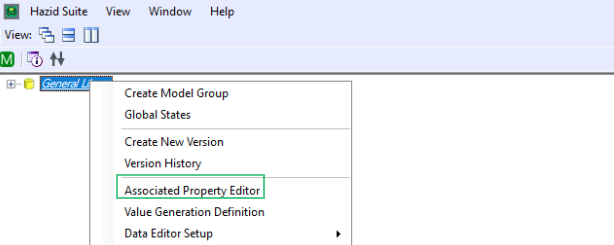
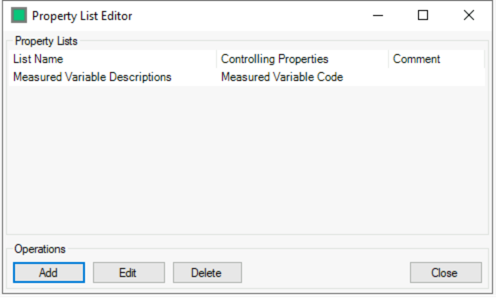
This opens the Property List Editor Window, which lists the associated property lists present within the library:
Create Associated Property
Click Add to create a new Property List.
You will need to choose a name for the new list and select at least one Controlling Property (this is the property to which the Associated properties will be linked).
Select the property from the dropdown, then click the + button to add it to the list. You can also choose models and groups from the tree to apply the property list to.
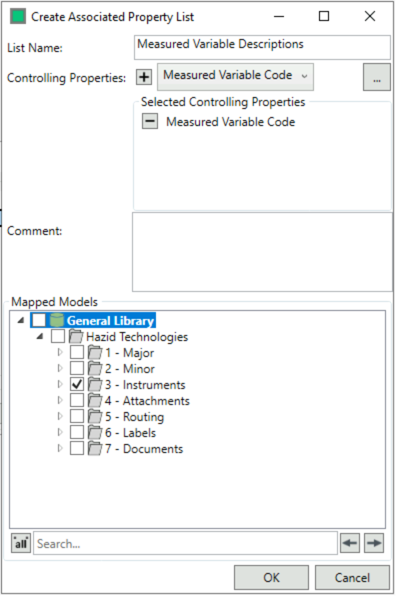
Click OK to proceed to filling in the list data
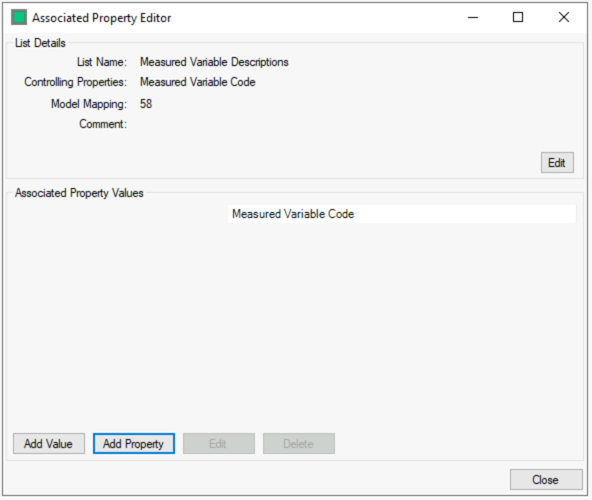
Click Add Property to create an Associated Property
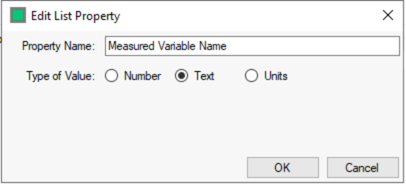
Click OK to add the property to the table, you can now click Add Value to populate the list
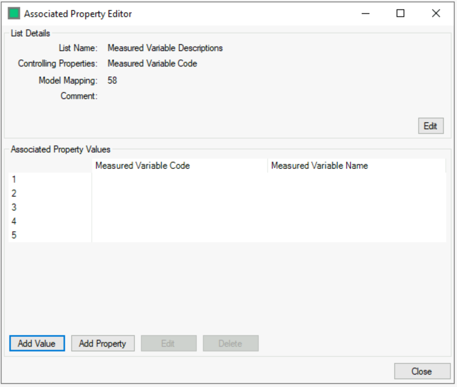
Fill in the values for the Controlling and Associated Properties
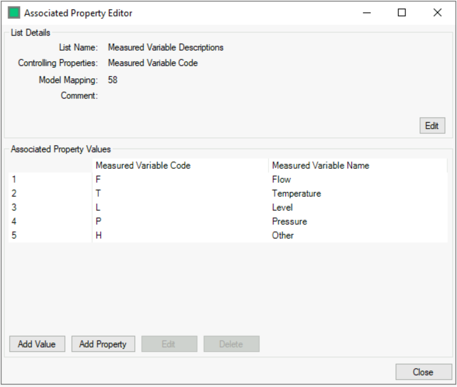
Click Close when finished, this will add the associated properties to all items which have the controlling properties. New properties will need to have permissions defined; they will then be visible in Data Editor.
Import Associated Properties
Associated property lists can be imported as Excel documents using the standard Excel import method. When importing the data intermediate, select the import type “Associated Property List Import”:
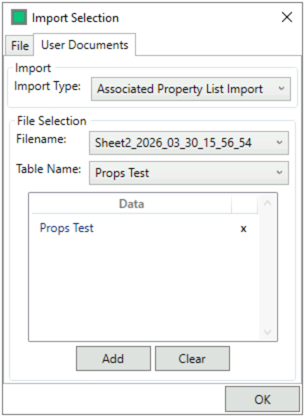
Choose the Data Intermediate file and corresponding template from the dropdowns, then click Add and OK.
You will need to define which columns are the Controlling Properties, these are the properties which are read to determine the values of the other (dependant) properties. In this example the wall thicknesses, outer and inner diameters have been extracted from the piping materials specification, these properties are dependent on the piping materials class and the nominal diameter, therefore these are selected as controlling properties:
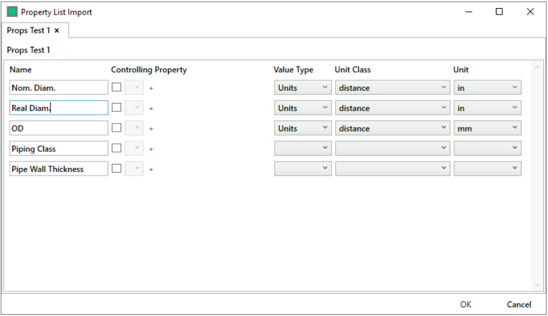
The controlling properties need to be mapped to existing properties in the library:
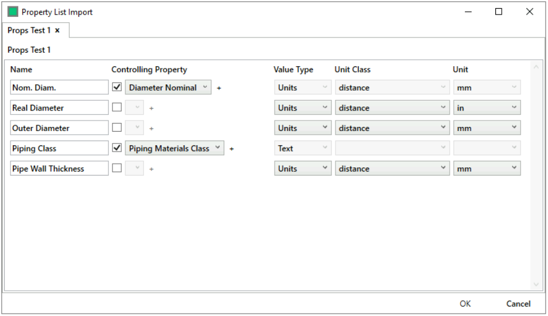
The dependant properties will be created as new read-only properties, you may rename them here from the column names (this should be unique names that aren’t used by existing properties). You will also need to define the value type and units if used. Click OK to create the associated property list. When created, the list will be stored in the Knowledge Bank. As they are new properties, they will also need access permissions to be set to be visible in Data Editor.
View Associated Properties
Associated properties can be applied from the Column Setup view in Data Editor, appearing under the Associated Lists group:
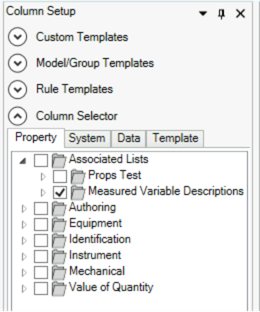
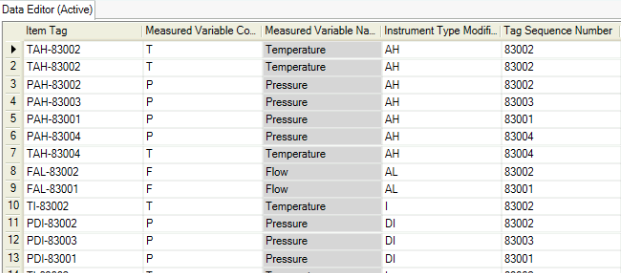
For items that have the controlling properties present, the associated properties will also be populated, these values are read-only and will have a grey background colour to show this: