Models
Create Model
Hazid Knowledge models hold all of the Process Equipment Ports, Deviation Propagation and Cause Consequence behavior for the equipment item.
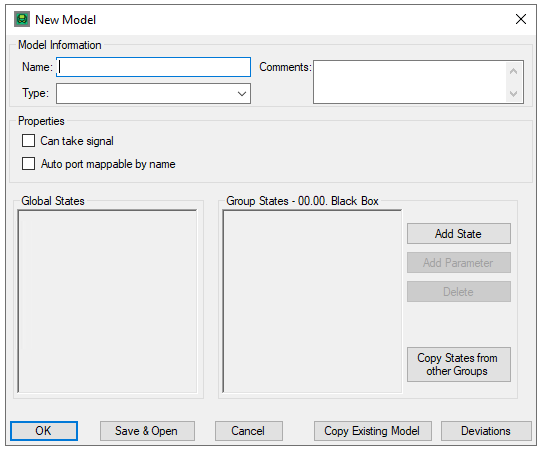
Hazid Knowledge Models are the foundation of creating the Process model from the P&ID.
To create a Model you must fill in all the required details.
- Name - A name for your model
- Comments - Any comments that you wish to add to the model
- Type - Models are stored as particular types to allow for filtering and advanced functions within the Hazid Integrity Projects, Process Safety Analysis and P&ID Integrity Rules analysis. Select the type of model that you are wishing to create from the drop down list
- Label - A model representing a label as detailed on the P&ID. No model ports or any further details need be added for label models as they are automatically attached to their parent items.
- Major - A major equipment type such as a Pump or Vessel. Major equipment will not be included in piperuns and will often have more than two process port
- Minor - Minor Items on the P&ID such as inline items. These usually carry most Cause behaviour and only have two ports
- InstrumentInline - Inline Instrumentation such as Pressure relief valves.
- InstrumentOffline - Offline Instruments such as PIC etc. These do not normally require any process ports to be created as Hazid Integrity carries the Signal ports as system.
- SignalRun - Signal lines within the P&ID. This included connect to process and pneumatic signal lines. These allow Hazid Integrity to understand the different interfaces between the process and instrumentation boundaries.
- OPC - Any Off Page connector model
- Electrical - Electrical Equipment (Bus/Load etc)
- Document - Documents (PID/Standards/SLD etc)
- Note - Drawing/Document notes
- Gap - A gap in a signal/process line
- AreaBreak - An area break on a drawing
- Break - An inline break on a drawing where data about the line changes
- BreakLabel - A label displaying the data change on an inline break on a drawing where data about the line changes
- Piperuns - Is not a selectable model type as Hazid Integrity treats piperuns in a special manner. To create a Piperuns model you must copy it from the delivered system models.
- Branch - Branches on piperuns, this is not a selectable model type as Hazid Integrity treats piperuns in a special manner. To create a Branch model you must copy it from the delivered system models.

The Property selections allow you to add extra functionality to the model
- Can Take Signal - Allows normally process items to pass a signal pulse. Such as Nozzles on equipment or valves isolating Instrument lines. This allows Hazid Integrity to propagate a signal from its source destination to the equipment it is ultimately impacting upon. rather than only the connected line.
- Auto Port Mappable by Name - Minor Items and Inline Instruments that have more than two ports may use this selection. Hazid Integrity will use the port names to identify all process connections and map them automatically in the project.

Instrument Offline Model Types have a special Control Function which allows them to use their Item tag to identifies a loop,. This is for use in the cases where Instrument Loops are not defined other than by Tagging procedures or Interlocks are in use in the plant but are not part of an Instrument Loop.

The Global Sates available are displayed for information purposes as well as those created in the parent Group. You can add new states to the Model Group from the model creation page or copy states from another Group,. For more Information See Creating Model States and Copying Model States
Selecting  allows you to copy a complete model from another group in the model Library. For More Information see Copy Existing Model
Selecting  allows you to select which Process Safety Deviations you wish to use within the model. By default all deviations are selected.
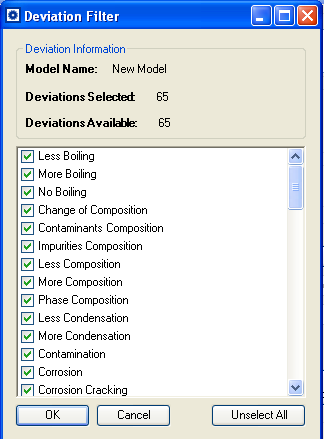
Use the checkboxes to select or unselect the deviations you wish to use for the model.
Select  Create your model
Select  to save your model and open the Model Overview
Select  to close without creating your model
Delete Model
Deleting a model will remove all of the information pertaining to that model from the Library.
Copy Existing Model
Model can be copied from one group to another to allow you to reuse any information you may have added to the Hazid Knowledge Library previously
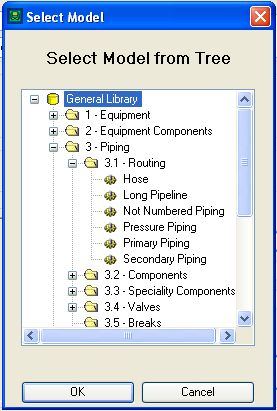
Browse the Model Tree till you reach your desired Model you wish to copy.
Models are defined by the  .
Select the desired model and Select to copy.
Select to quit the operation.
.
Select the desired model and Select to copy.
Select to quit the operation.
All Model, properties Ports, States and deviations are copied with the model. The comment field displays the origin of the copied model
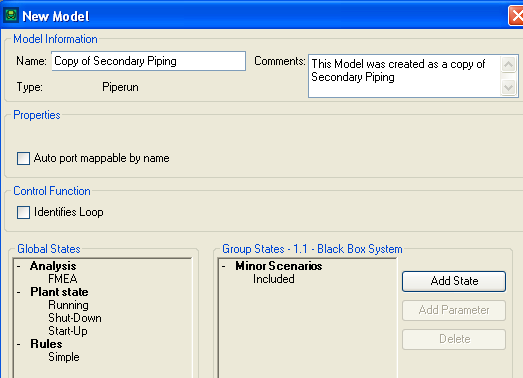
Model Options
All Model Options,
- Open Model - Open the Model definition for editing
- Edit Model - Edit the Model Properties
- Delete Model - Delete the specified Model
- Copy Model within Group Copy - a model within the same Model Group
- Create New Version - Create a New Version on the Model
- Version History - Review the Version History of the Model and retrieve past versions
- Rules > Editor - Enters the Rule Editor with the Model pre-selected
- Refresh Model - Refresh the Model from the database