Equation Editor
Equations can be created for use within P&ID Integrity. These are usable within the constraint section of the rule details.
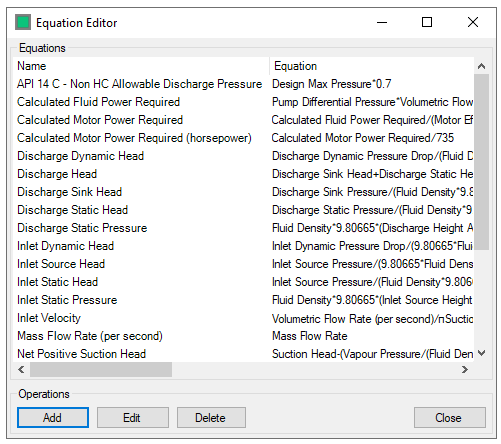
To Add an equation select  to open the calculator
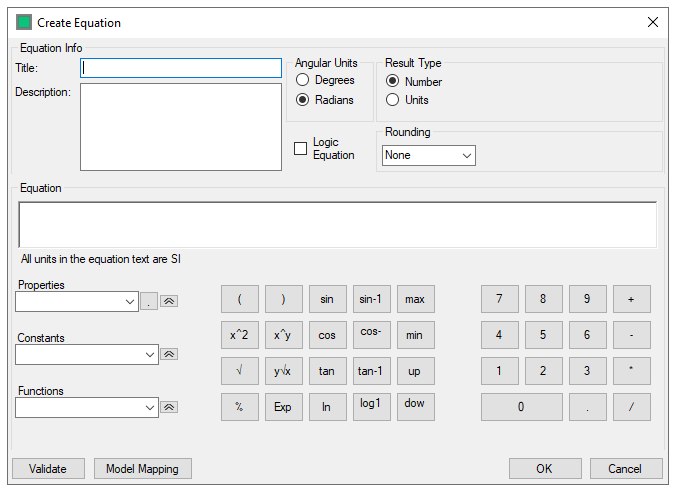
You can add Title and description to the equation. The title will be displayed in the constraint Property section in Rule Details.
You must select whether the equation will produce a numerical value or a Unit value, if selecting a Unit value you must define the unit type, and the unit the equation answer will be in. (Angular Units should be left on "Radians" unless you require the result in degrees)

The  checkbox allows you to create a Logic Equation
Use the rounding drop down to define your rounding requirements for the eqaution

There are 4 options - No Rounding, Always Round Up, Always Round Down and Standard Rounding. The rounding will fit the equation solution to the Precision Type and Scale defined in the Framework Settings.
The Equation field allows you to add the equation as it will be calculated when used within P&ID Integrity.
You may use Properties, Constants and functions in the equation by selecting from the drop down and selecting  to add it to the equation.
When adding a function x will appear for you to add the function value.
You may use the Calculator the keypad or any shortcuts created to add values to the equation
Once you have added the equation to your satisfaction selecting  will check that the equation is satisfied.
It is required to link a created equation to the model or models on which it will be run, this is to ensure that equations only run where they need to. To do this, click on the  button.
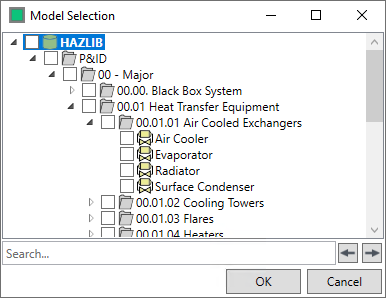
Here you select the model, models or groups that you wish to apply the equation to, click  to save or
  to close the dialog without making changes.
Please note that all equations are calculated in SI units and converted to the final unit selected. Please only add united values in SI units into the equation calculation.
To save the equation select
To close without saving select
Logic Equations
Logic Equations can be created for use within P&ID Integrity. These equations have constraints upon them to allow an If-Then-Else statement to be run as an equation.
This If-Then-Else Statement is governed by Conditions - If the user defined conditions are met, then one equation is run, if the conditions are not met then another equation is run.
The "Then" and "Else" portions of the Logic Equation are Equations created identically to the process outlined in the initial Equation Editor page. The only difference is that there are two equation boxes, and these are focussed upon by left clicking them.
This section of the guide will focus on Condition and If statement creation.
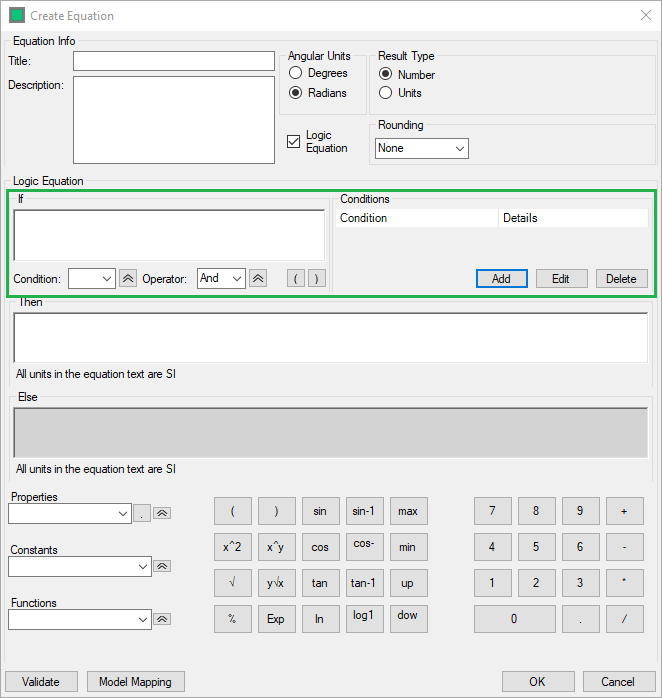
If statements require conditions to be created, to create conditions, click the  Condition button to open the condition creator
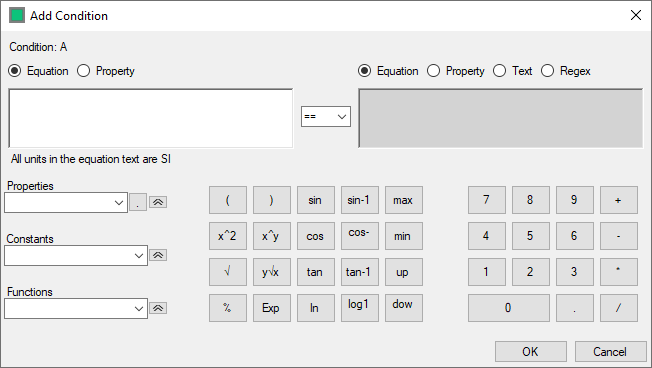
Conditions are created in ascending Alphabetical order, starting with "A"
A Condition can be an Equation or Property, defined on the left hand side that safisfies a parameter defined on the right hand side - the parameter that it is compared against can be and Equation, Property, Text or Regex, the comparison makes use of the Operators in the central box to carry out the comparison. The focus of the creation panels are switched between the Equation/Property and the parameter by left-clicking the relevant box.
The reason that non numerical (text/regex) values can be checked is that this gives equations the ability to run different equations dependent upon properties - for example newtonian and non-newtonian fluids.
Again, properties, constants functions and numbers are added to the condition in the smae way that they are added to the equation itself, as outlined on the Equation Editor page.
Once you have completed your condition, clicking saves your condition and clicking exits without saving changes
A created condition can be editted by selecting it and clicking on the  button, and deleted by selecting it and clicking on the
  button.
Once you have one or more conditions created, these can be added to the "If" statement

Conditions are added to the "If" statement by selecting them from the dropdown and clicking on the button, Boolean Operators are added in the same way. If you add an operator or condtion in error, then they can be removed by selecting them and pressing the "delete" buton on your keyboard.