Symbol Manager
The Symbol Manager is used to Import, store and manage Symbols from other authoring tools, and their mapping to knowlege models in the Integrity Suite (where required)
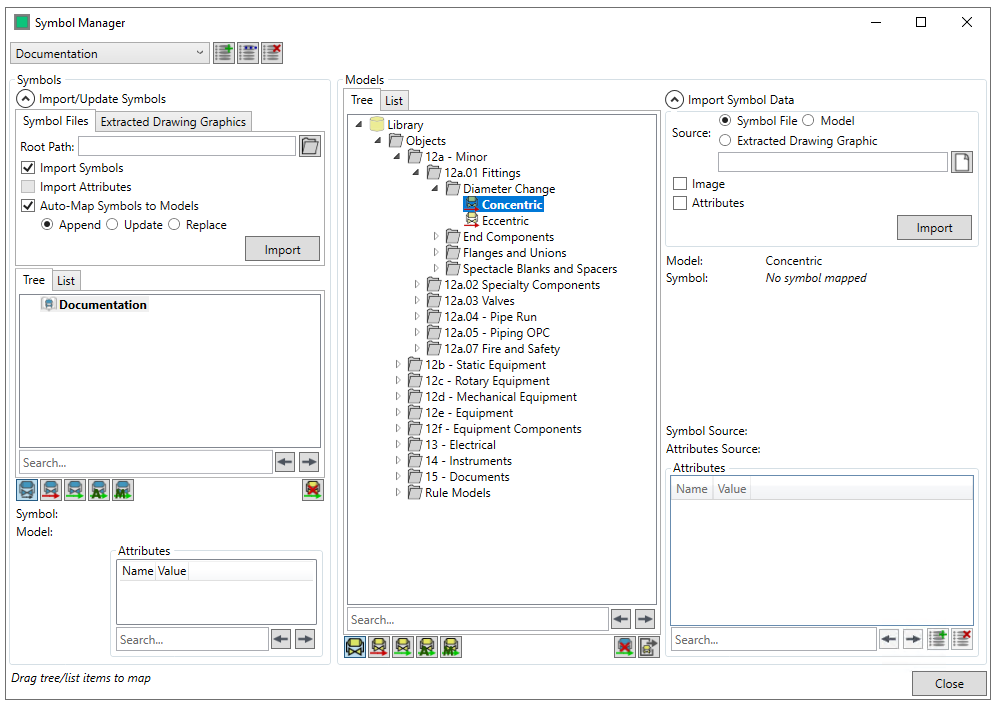
Initially there will be no symbol maps available, so you will need to create on, by clicking on the  button (the
  button edits an existing symbol set, and the
  button deletes the selected symbol map)

Enter the name of the symbol map and click  to save your new Symbol Set, or
  to exit the dialog without creating.
This Creates a new blank symbol map
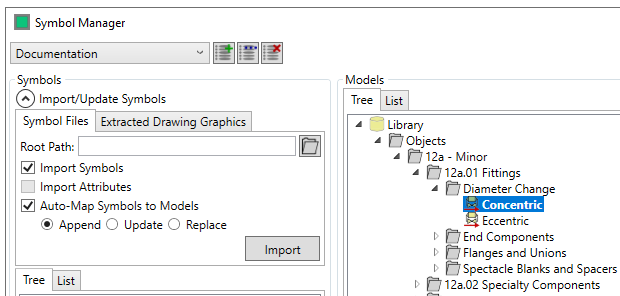
To create a symbol map from SPPID symbols, open the Import/Update Symbols panel with the  button and specify the root location of the .sym files that you wish to use to build the symbol map, either by entering it, or using the
  button to pick a location. (The process to do this is the same for extracted drawing graphics, and is carried out in the same manner within the "Extracted Drawing Graphics" Tab)
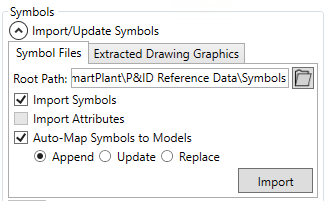
There are three import options - "Import Symbols", if this is checked then the symbol graphics are imported, "Import Attributes" - this imports all the attributes on the symbol if checked and "Auto-Map Symbols to Models" - this automatically matches imported symbols to Integrity Models, based upon their name and properties. This has three further options Append/Update/Replace which allow you to either add to the existing tree, update it with the new symbols or replace them. (the auto-mapping is also available in the extracted drawing mapping import)
Once you have made your selections, then clicking  Imports the symbols.
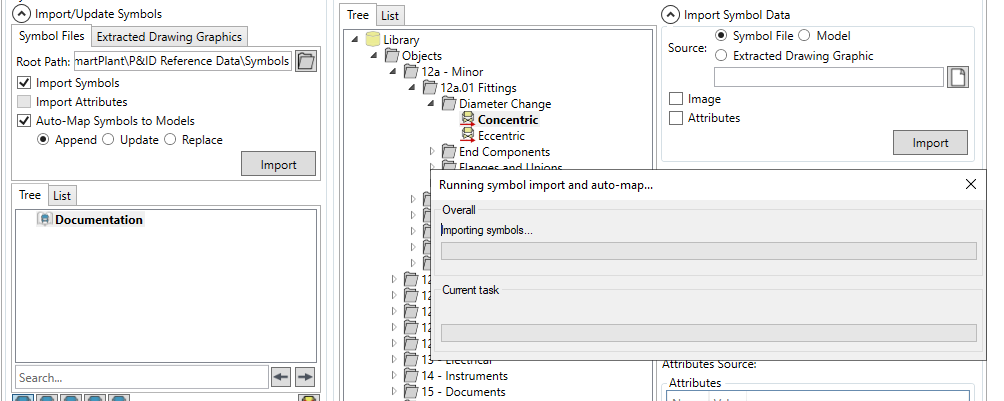
Once this is completed, the Tree is populated with your imported symbols

If you selected the"Auto-Map Symbols to Models" option, then the most symbols should have been automatically mapped to models during the import process.
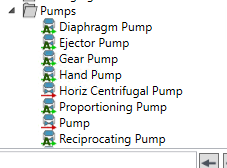
Automatically mapped symbols are denoted by a green arrow with a "A" over it  , unmapped symbos are denoted by a red arrow
  .
.
There are the following options available

There is a standard search field and six buttons, the six buttons are, from left to right above
- Show All - Show all symbols in the tree
- Show Unmapped - Show only unmapped symbols in the tree
- Show Mapped - Show only mapped symbols in the tree
- Show Auto-Mapped - Show only automatically mapped symbols in the tree
- Show Manually Mapped - Show only manually mapped symbols in the tree
- Delete Selected Mappings - Deletes the mapping(s) that you currently have selected. (This does not delete the symbol or model, only the link between them)
To map an symbol that has not been mapped automatically, drag and drop it onto the model that you wish to map it to
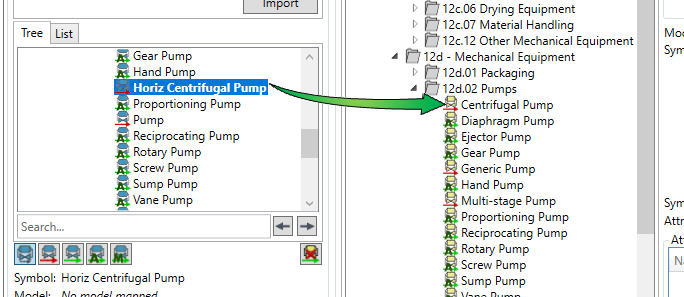
This creates the mapping.

The Model Tree has a similiar set of options as the symbol tree.

These options are the same as the table above, with one exception, the seventh button  is used to export the graphics of the model to a location that you specify.
The Import Symbol Data panel lets you import the graphical data and attributes from a symbol into a model
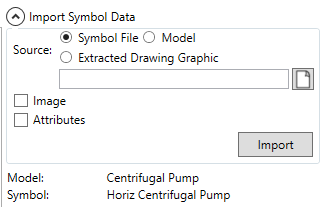
There are three locations that you can import from - A symbol (.sym) file, another model in the tree, and an Exctracted Drawing Graphic. To import from a symbol or extracted drawing graphic, select the file you wish to import from, either by entering it, or using the button. To import from a model, you can pick from the model list or from the tree using the  button.
There are two checkbox options for the import (Image and Attributes, selection one or both of them will cause the Image/Attributes to be imported)
Once you have made your selections, then clicking Imports the symbol data.

Default Attributes can be added to models here, by selecting the model you wish to add it to in the tree, and clicking on the button

Here you add the Name and Value of the attribute.
Clicking on the button removes your selected attribute.
There is a standard search box for searching large attribute lists.
Select  to exit the form