Property Filter Editor
The Property Filter Editor is used to configure and manage Property Filters for use in the Data Editor.
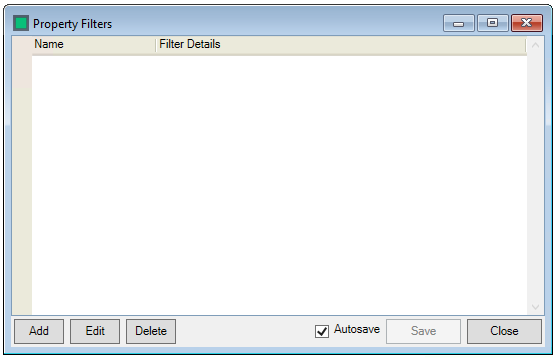
To create a property filter click on the  button (the
  button edits an existing filter and the
  button removes a previously created filter)
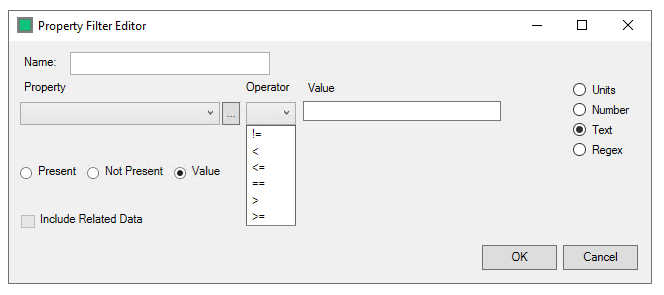
Enter a name for your filter and select the property that you wish to filter on, either by typing into the Box, Using the Dropdown or using the  button to pick from the tree
Select the operator that you wish to apply to the property data, there are 8 Operators
- > - Greater than
- < - Less than
- >= - Greater than or equal to
- <= - Less than or equal to
- != - Does not equal
- == - Equals
- in - In list (available for list-based properties)
- not in - Not in list (available for list-based properties)
Enter the Value that you wish to apply the operator to
The Criteria Selection, there are 4 types of criteria that the property can be matched with.
- Units - This allows you to match the property to a particular unit value, using the drop downs to select the unit type and unit, with a manually entered value.
- Number - This allows you to match the property to a unit–independent number.
- Text - This allows you to map the property to a text string.
- Regex - This allows you to match the property to a regular expression.
Click  to create your filter or
  to exit without saving any changes
In the bottom right of the window are the Save/Close options

Checking the "Autosave" checkbox will save the form continuously as you make changes, the  button saves your work and the
  button closes the form