Rule Filter
When drawings have had rules run on them, the Rule Filter is used in Data Editor to filter to items that the rules have run on. The results can then be viewed in more detail with the Rule Results panel.
The Rule Filter is accessed via the Rule Filter tab, which is enabled via the Views Menu.
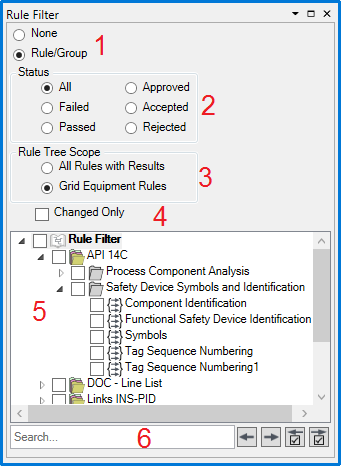
- None/Rule/Group - Select Rule/Group to enable the filter.
- Rule Results Status - Select which results to view.
- Rule Tree Scope - Selecting 'All Rules with Results' will make the Rule Tree display all rules that have results in the currently open project level. Selecting 'Grid Equipment Rules' will make the Rule Tree display only rules on items that are currently displayed by other filters in place.
- Changed Only - Checking this allows you to only view rules for which the results have changed in the tree.
- Rule Tree - This displays all of the rules that have results to display that correspond to the Status filter selection that you have made. To create a filter, select the Rules/Groups that you wish to filter by here.
- Search - The 'Search...' field is used to search for rules by name. The
 buttons cycle between search results, and the
  buttons cycle between checked rules.
To apply the filter, click  button on the Data Editor toolbar.