Views Menu
The tabs for filters and other options that are displayed by default on either side of the Data Editor main grid can be rearranged or hidden by the user.
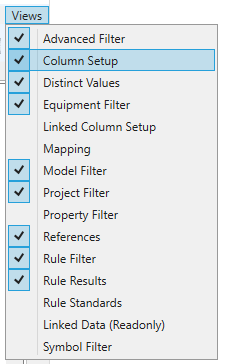
The Views menu in the top right corner of the window allows you to set which tabs are visible from the list of available views:
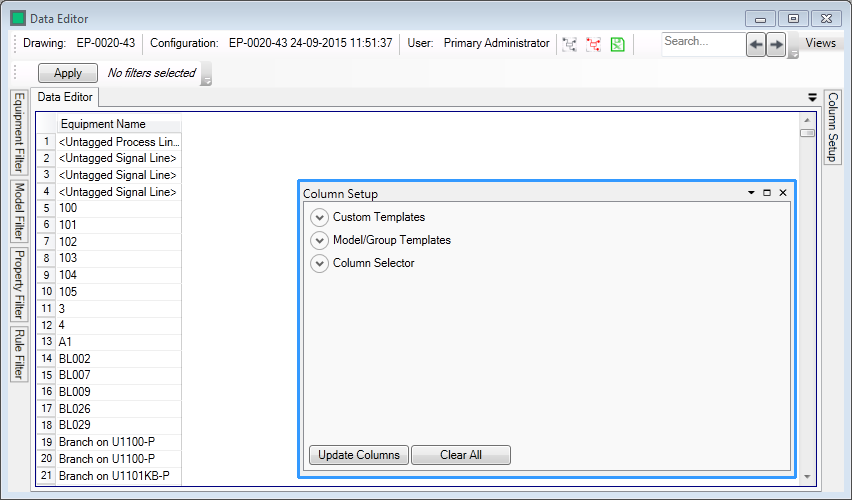
Enabling a view will make it appear as a detached panel:
Clicking and dragging the panel will display a guide diamond used to dock the panels:

The panel can be snapped to any edge of the grid by dragging it onto the icons.
Clicking or hovering over a tab will expand the panel, but it will retract again after clicking off it. To fix the panel in place click the Auto-Hide  button.
The options are also available from the  menu on the panels:

Float (while Docked) - detaches the main panel
Dock (while floating) - Snaps the panel to its last docked position.
Dock as Tabbed Document - Makes the panel appear as a tab on another panel:

Auto Hide - Toggles whether the panel is fixed open or will retract after clicking off it.
Hide - Removes the panel from the screen.
Clicking  also removes the panel. To restore the panel it must be re-enabled from the Views menu.