Property Filter
The Property Filter is used to filter items in the Data Editor based upon what data they have against them.
The Property Filter is accessed via the Property Filter tab, which is enabled via the Views Menu.

Selecting the 'Property Filter' radio button allows you to define the property filter:
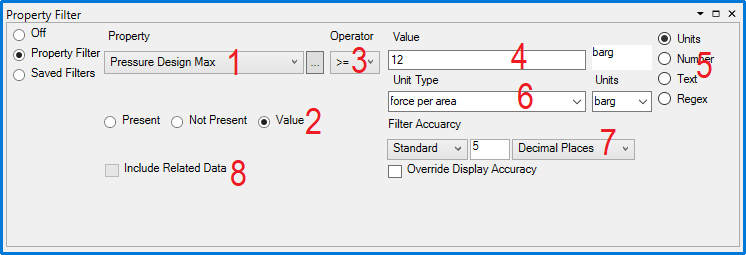
- Property - Here you select which property to filter on. Select from the drop-down list or click
 to open the property tree.
 - Present/Not Present/Value - You can select to filter to all instances where the property has a value entered or no value, or specify what the value shou
- Operator - For unit and number properties, the operators >, <, >=, <=, != and == can be used to set criteria for the value. For properties with lists, the additional operators 'In' and 'Not in' can be used to select from the list which values the property should or should not have.
- Value - Here you enter what value the property should be compared against.
- Value Type - Here you specify what type the value should be interpreted as:
- Units – this allows you to match the property to a particular unit value, using the drop downs to select the unit type and unit, with a manually entered value.
- Number – this allows you to match the property to a unit–independent number.
- Text – this allows you to map the property to a text string.
- Regex – this allows you to match the property to a regular expression.
- Unit Type - If 'Units' is selected, this is where you specify which unit type and unit the value should be interpreted as. When a unit property is selected this defaults to the default unit of that property.
- Filter Accuracy - This allows you to specify the tolerance for unit and number values to be considered equal. The rounding type can be set to Standard, Up, Down or None, and the number of decimal places or significant figures to be rounded to is entered. For example, if an accuracy of 1 decimal place is specified then a value of 10.52 is considered equal to 10.5.
- Include Related Data - This option determines whether related data from linked items or associated property lists should be considered by the property filter.
To apply the property filter, click the  button on the Data Editor toolbar.
Selecting the 'Saved Filters' radio button allows you to select from a list of previously created property filters and create new saved filters.

Checking the boxes sets which filters to apply. The All/Any buttons determines whether multiple filters should be combined with AND or OR logic. Apply the selected filters using the button on the Data Editor toolbar.
Clicking the  button allows the saved filters list to be edited:

To create a new filter, click  . To edit a filter, select it from the list and click
  . To delete a filter, click
  .
.
When a filter is created or edited, the Property Filter Editor is opened:
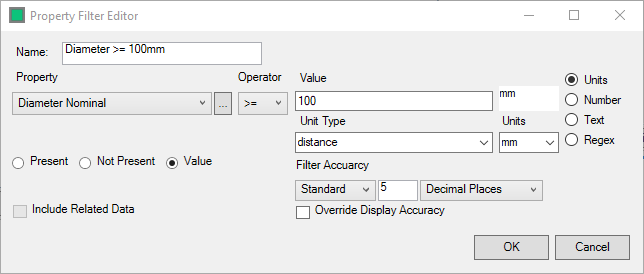
The property filter is defined in the same way as previously described. Click 'OK' to save the filter.