Model Filter
The Model Filter is used to filter equipment in the Data Editor according to the Hazid Integrity model they are mapped to.
The Model Filter is accessed via the Model Filter tab, which is enabled via the Views Menu.

Selecting 'Equipment Mappings' enables you to filter by mapped or unmapped equipment:

This allows you to select either items that have been mapped to a model or not. To apply the filter, click  button on the Data Editor toolbar.
Selecting 'Model Type' provides a drop-down menu that allows you to filter by model type:
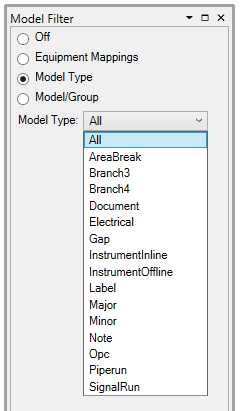
Selecting a model type sets the filter to all items mapped to a model of that type. To apply the filter, click button on the Data Editor toolbar.
Selecting the 'Model/Group' button allows you to filter to items mapped to specific models or model groups. The Model Tree is displayed containing only models present in the project level that Data Editor is open on:
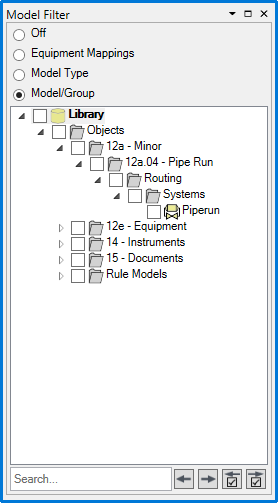
Model groups can be expanded with  . Checking the boxes next to the models and groups sets the filter to those models. The 'Search...' field is used to search for models by name. The
  buttons cycle between search results, and the
  buttons cycle between checked models and groups. To apply the filter, click button on the Data Editor toolbar.