Web Search
Document Search
The navigation bar at the top of the application allows you to search for any document within you projects.

Matching results will be displayed as you type, selecting one of these results will take you to the document page for the queried item.
Quick Search
From the landing page quick search is available in the main window which allows us to search for drawing and equipment names from any project selected from the drop down menu.
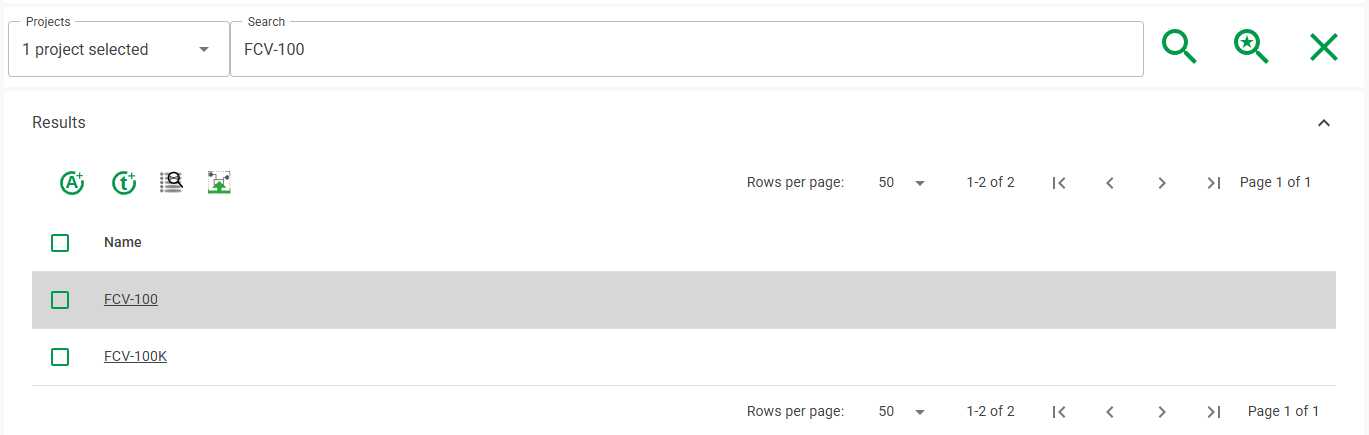
Using the checkboxes to the side of the results we can select the items to assign actions or tasks to.
Advanced Search
By clicking the investigate button we are directed to a dedicated search page giving us the ability to define where to search, search on multiple properties and define how the results are viewed.
To open this window, click the  button from anywhere within a project.
This will open the investigate window:
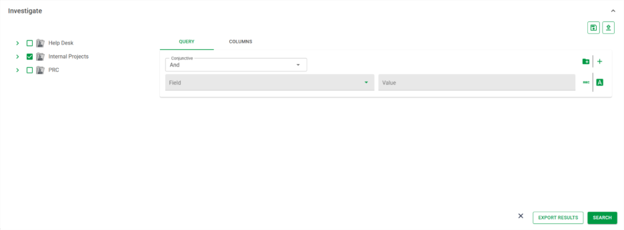
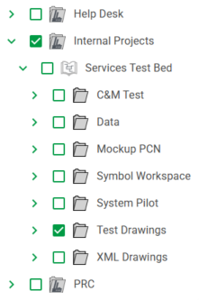
On this left is the project tree where we can define the area within the project we would like to search.
In the “Query” tab we define the property to search on in the “Field” section and define the value we would like to search for in the “Value” section.

In the “Columns” tab we define the properties/columns to display in the results section and when we open the query result in Data Editor.

Search Options
We can build advance searches with the use of the buttons/toggles to the right of the “Value” section, where we can add additional queries with the  button and/or new query groups
  which can be merged with the “Conjunctive” dropdown menu as either “AND” or “OR”.
To search for more than an explicit value we can set the “search type” for the “Value” field with the use of the toggles listed below:
 Contains (the specified value exists in the field)
 Present (any value exists in the field)
  Exact (only the specified value exists in the field)
 Regex (use regular expressions to match patterns
 Match case
 Ignore case
Example Search
To demonstrate the abilities of the search, here is an example of a query to find all Ball Valves with any value in the Item Tag property.
The first field looks in the property MODEL_NAME, only for the value “Ball Valve”
The second field looks for the presence of the property “Item Tag”
The conjunctive “And” means that only equipment which matches both conditions will be returned.
The Columns tab next to the Query can be used to define which properties will display on the results.
Clicking the  button will populate the results section with all items that match the query.
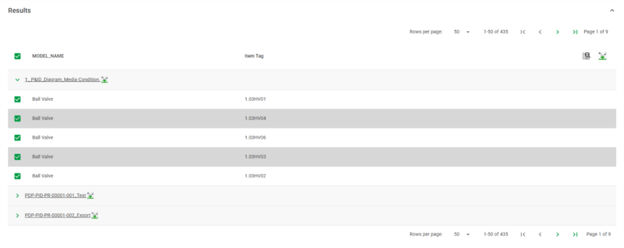
You can check the box beside an item or group and click  to open the results in Data Editor or
  to highlight the equipment in Drawing Viewer.