Web App
The full Hazid suite is accessed through the web interface and provides a search functionallity for all items inside the project.
Accessing Integrity
To access the Integrity Hub either; Follow the link provided in your email, or navigate your web browser to https://integrity.hazid.com to access the web login:
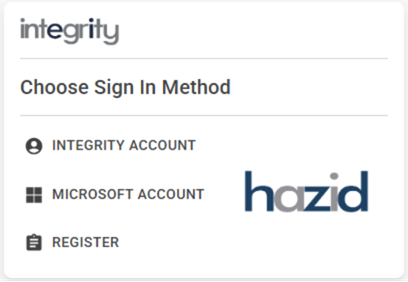
If you have already registered, select “Integrity Account” and login with your account details. If this is your first time using Integrity select “Register” and create your account, you will be sent a registration email and can login from there.
Once logged into Integrity you will be directed to your active site landing page where you can access all the Hazid Integrity suite.
Landing Page
Upon first logging in you will be greeted with the Hazid Landing Page:
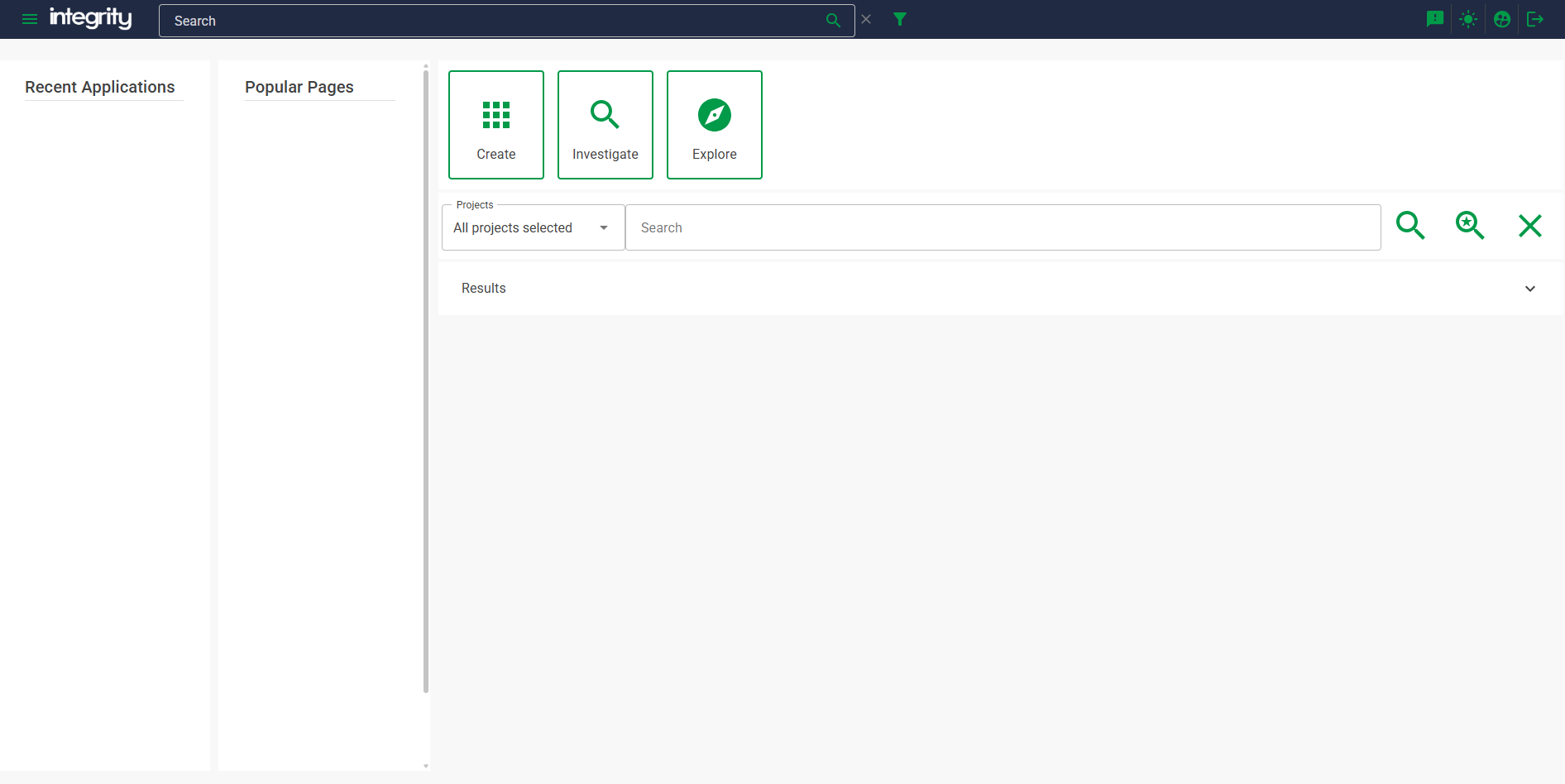
Recent Applications will contain the most recent document opened with what Hazid Application. Select one of these to open another tab and launch the relevant Hazid web app.
Popular Pages are the most commonly viewed documents/groups and will take you to the web page for the document when selected.
 Opens a new tab and relaunch a previous Hazid Web app session or create a new one if none are available.
 Opens the main search window and provides a granular search on a project level or within a particular group inside a project.
 Opens the Project page and will list all active projects for your site.
Top Navigation Bar
At the top of web pages inside the Intergity app you will find the navigation bar:

On the left of the navigation bar is the  button which will expand the sidebar and give acces to the Create, Investigate and Explore options from anywhere inside the Integrity app.

In the centre is the search bar which can be used to perform a quick search across all projects on the site.

On the right is the user options 
Project Page
To access the Project Explorer page, click the button one the landing, where you will be redirected to page where you can access the projects available to your site:
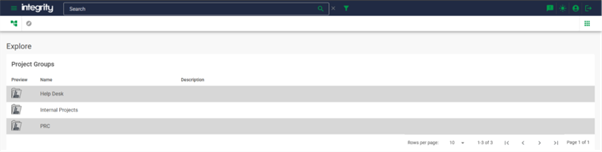
The main panel contains your currently avaliable document(s) and/or group(s)
The  button opens the Integrity Application Launchpad, which displays a list of the applications your permissions allow you to launch for the item you have filtered to.
On the left side of the window is a collapsible panel containing 3 options (and a 4th option to their right)
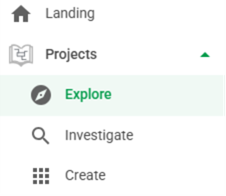
Similiar to the landing page the “Explore” button takes you to the project home page, the “Investigate” button opens the detailed search, and the “Create” button re-launches a session that has recently been closed.
The  button opens the navigation tree, here you can drill down into the tree and select the location within it that you wish the main panel to filter to by left-clicking it
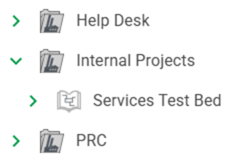
Navigating to an object (Project/Drawing Group/Drawing) either via left-clicking it on the main panel, or from the Navigation Tree, filters the main panel to that item, enabling further options.
Document Page
From the Project Page we can drill down through the document groups to access the documents overview page:
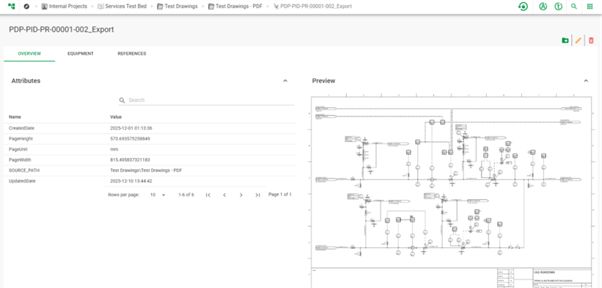
The Overview tab contains 4 dropdown section enabling you to view the Attributes, Drawing Preview, Versions and any Briefcases associated with the Document you have selected.

The Equipment tab contains all mapped models inside the document, allowing for a quick search for pieces of equipment without opening the document first:
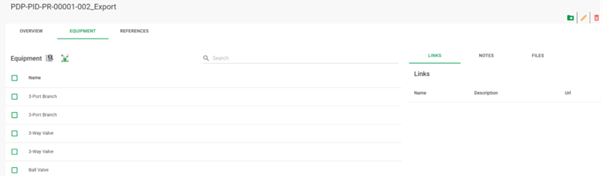
The Reference tab provides a location for external reference and notes associated with a particular document:

The 3 buttons to the right of the document title allow you to move the document to another group, edit the document name or delete the document entirely. 
Document Toolbar
On the left of the top toolbar, we can see the full path to this document:

To the right side of the top toolbar there are new buttons available:

The  button releases any drawings/documents that have become locked to your user (for example, due to your browser crashing).
The  button opens the action creation interface on the Object you currently have selected whilst the
  button opens the task creation interface.
The  button is an alternative means of using the ‘Investigate’ function and will open the search page.
The button opens the Launchpad for the Integrity Applications which are as follows:
Launchpad
The launchpad is how we access all apps available from the Hazid Suite and can be enabled/disabled based on user permissions assigned by your site administrator.
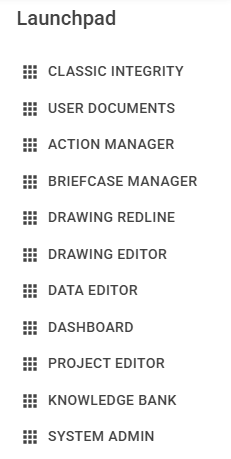
- Classic Integrity The desktop program redeployed for the web
- User Docmuents For managing uploads and downloads
- Action Manager A project management tool
- Briefcase Manager Managing instances of documents that have been "checked out"
- Drawing Redline For quickly highlighting and noting information directly on the drawing
- Drawing Editor Opens the Drawing in an editable state for updating graphic and/or data
- Data Editor To view and edit all the data inside a document
- Dashboard Rule results provided as a graph and report
- Knowledge Bank Contains all data structures for a project
- System Admin For the site administrator