User Documents
User documents provides a simple to use upload and download manager thats allows users to organise their documents ready for ingestion and process by the Hazid suite.
User documents are isolated by project and can be accessed from the project page and below by clicking the  button found at the top level of a project:
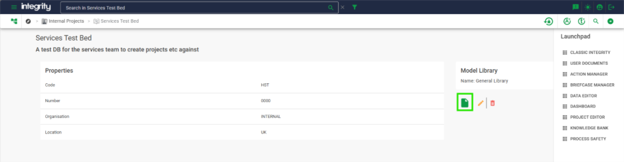
This will redirect you to the user document web page for the active project:
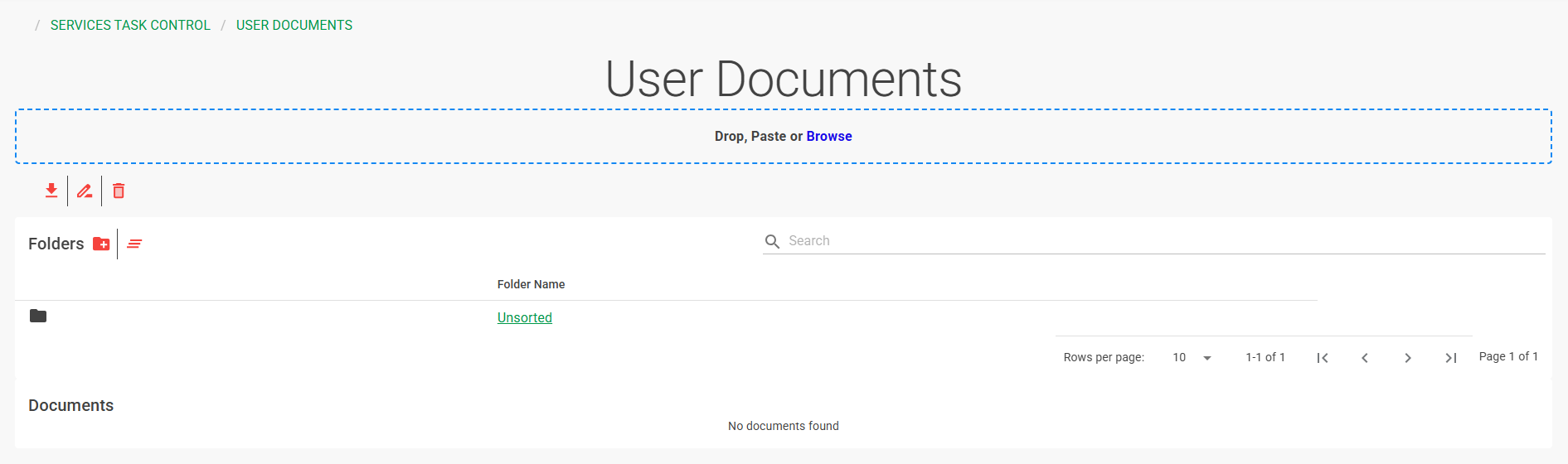
The user documents will, in an established project, have various sub folders that are created automatically when performing various tasks. You can navigate by clicking on the various folders. New sub folders can be created, renamed or deleted using the icons at the top left.
Once you are in the location you want to import the files to. In this case a Data folder would be an appropriate location, to create this new folder click the  button and enter "Data" as the folder name.
Navigating to the folder we can upload files to it by dragging a file over the drag/drop area:
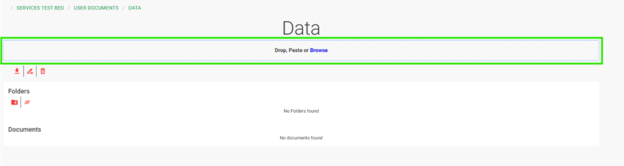
You will see that the folder is now showing the uploaded file.
