Distinct Values
The Distinct Values panel can be used to list every unique value in a column currently displayed in the Data Editor grid.
The Distinct Values panel is accessed via the Distinct Values tab, which is enabled via the Views Menu.
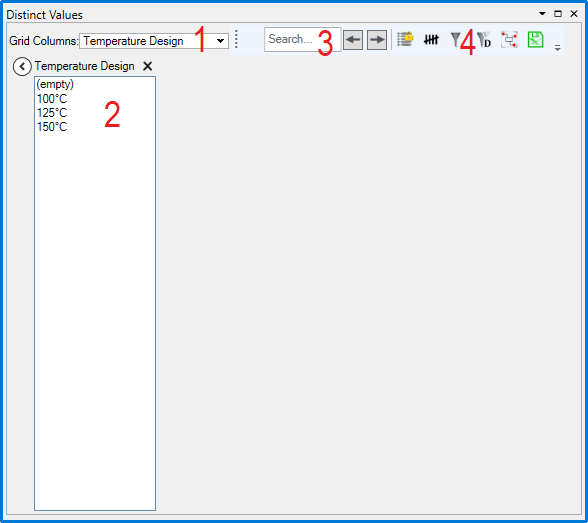
Grid Columns - This menu will list every active column in the grid. Checking the boxes will display lists of all the distinct values in that column.
Distinct Values - The selected columns will be shown here with a list of every unique value. Clicking
 collapses the list and clicking
  removes it.
Search Field - This can be used to search for values in the list. The
 buttons cycle between search results.
Toolbar
 Lock Values - This retains the distinct values list when the grid is filtered again
 Show Counts - This displays the number of instances of a value in the distinct values list:

 Set as Filter - When a value is selected from the list, clicking this will apply a property filter to the grid for the selected value.
 Clear Distinct Filters - This removes the property filter set on the distinct value.
 Highlight Linked Equipment - When a value is selected, clicking this will open Drawing Viewer with every item that has that value highlighted.
 Export to Excel - Clicking this will allow you to export the distinct values list to a .xlsx format. You will be asked to choose which columns to export:

Upon clicking 'Export' the file browser will ask you to specify a filename and location. Multiple columns will be on separate sheets.