Column Setup
The Column Setup panel is used to change which columns are displayed in the main grid of Data Editor. Any of the Properties in Hazid Integrity can be selected to add to the grid. Which properties are available is determined for each user in Property Access Permissions in the Model Library.
The Column Setup panel is accessed via the Column Setup tab, which is enabled via the Views Menu.

Expanding 'Custom Templates' will show a list of available column templates, these are created in Property Column Templates in the Model Library.
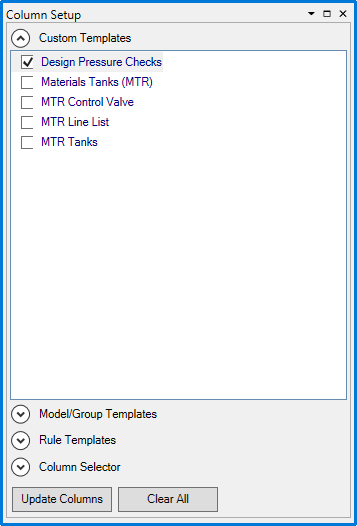
Checking one or more templates and clicking  will add the associated columns to the grid.
Expanding 'Model/Group Templates' shows the column templates associated with particular models/model groups. These are also created in Property Column Templates.
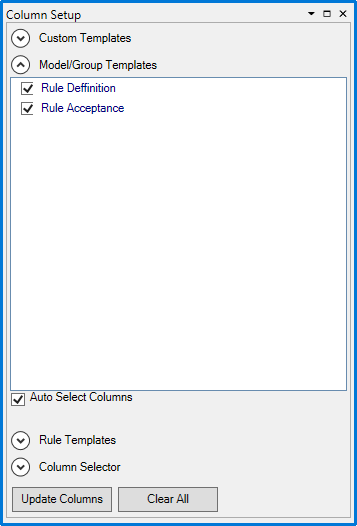
Checking one or more templates and clicking will add the associated columns to the grid. When 'Auto Select Columns' is selected, the templates are automatically applied whenever the grid is filtered to only display the corresponding models.
Expanding 'Rule Templates' shows templates to be used for viewing rule results (Work in Porgress - WIP)
Expanding 'Column Selector' allows you to individually select which columns to apply:
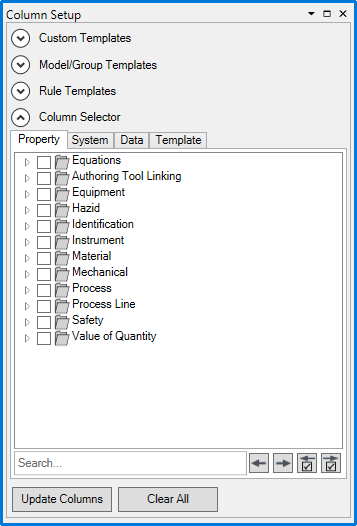
Under the 'Property' tab is the property tree showing every property you have permission to view. The 'Search...' field is used to search for properties by name. The  buttons cycle between search results, and the
  buttons cycle between checked properties. Checking one or more properties and clicking will add those columns to the grid. Clicking
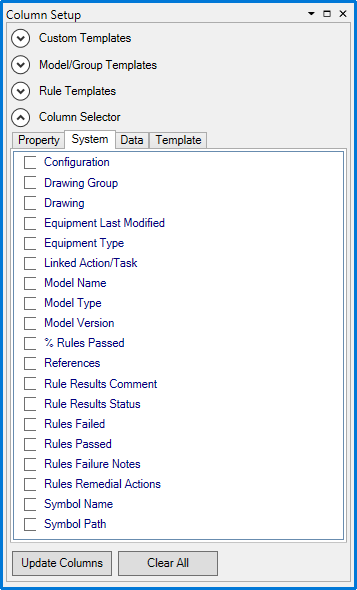
  unchecks every property. Under the 'System' tab are the read-only properties defined by other operations in the system:
When an item is selected on the grid, the 'Data' tab lists every property that has a value for that item.