Piperuns
Piperun
| Icon | Description | Usage |
|---|---|---|
 | Toggle Piperun Overlay | 1. Toggles the displaying of all piperuns in the drawing to the colour chosen in the overlay options setting 2. When checking a drawing to ensure piperuns are correct. |
 | Auto-Piperun | Starts the Auto-Piperun automation using the start points defined in the rules |
 | Auto-Piperun Selected | Start the Auto-Piperun automation from the user selection and ignoring the start point rule If another item is selected then it will use this as the stop point |
 | Create Process Piperun | Manually create process piperun from the users selection in the order provided |
 | Create Signal Piperun | Manually create signal piperun from the users selection in the order provided |
 | Remove All Piperuns | Will delete all piperuns from the drawing |
 | Remove Selected Item | Will remove the selected item from all piperuns it is in |
 | Pipe Sequence |
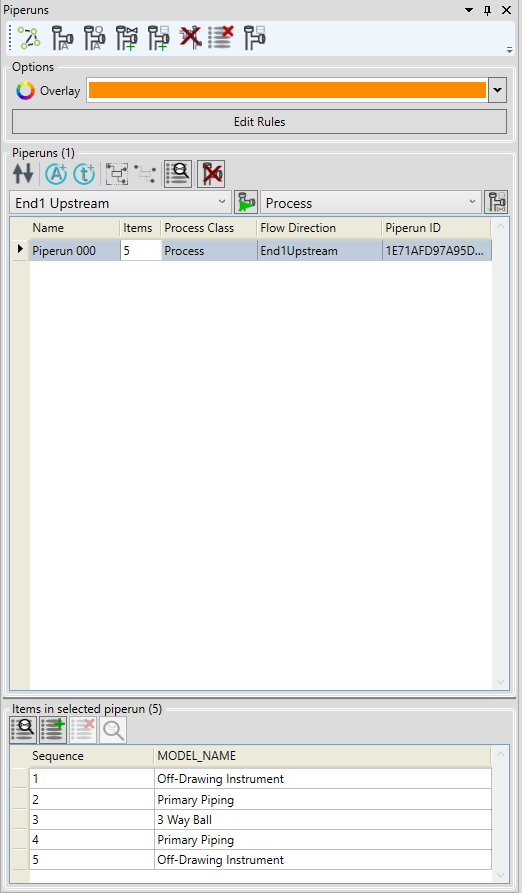
Piperun Options
Overlay allows you to choose the color of the piperun overlay.
The Edit Rules button will open the Auto-Piperun window. For more information please the Auto-Piperun Section
Piperun List
Any piperuns generated automatically or manually will be populated in the piperun list, here we will describe the functionality this section provides.
| Icon | Description | Usage |
|---|---|---|
 | Refresh Piperun List | Manually refreshes the piperun list |
 | Add Action | Will open Action Manager and add an action for the selected piperun |
 | Add Task | Will open Action Manager and add a task for the selected piperun |
 | Auto-Highlight Piperun | Will highlight and focus the drawing window on any selected piperuns |
 | Clear Highlight | Clears all highlighted piperuns |
 | Auto-Select Piperun | Will select all items in the selected piperun |
 | Delete Piperun | Will delete the selected Piperun |
Editing Piperun Flow
When a piperun is selected from the piperun list you can edit the flow direction by choosing the direction from the dropdown menu and pressing the  button, and edit the flow class by choosing either process or signal and pressing the
  button.
Items in Piperun
When a piperun is selected from the piperun list the items contained within that piperun whill be shown in the piperun items list, here we will describe the functionality this section provides
| Icon | Description | Usage |
|---|---|---|
 | Auto-Select Item | Auto-Selects any highlighted item in the piperun items list |
 | Add-Item | Add's items selected in the main drawing window to the currently selected piperun Will add based on the order selected and connection Only adds to the end of a piperun |
 | Remove-Item | Removes the selected item from the piperun Will remove any other items below this as well |
 | Focus Item | Centers and zoom on the drawing item in the main drawing window |