Connections
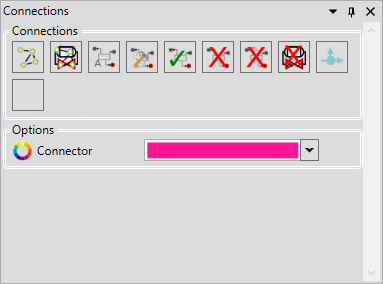
| Icon | Description | Usage |
|---|---|---|
 | Toggle Connections Overlay | 1. Toggles the connection lines for all items on the drawing 2. When checking a drawing to ensure connection are correct. |
 | Show Connections For Selected | 1. Toggles the connection lines for the selected equipment 2. When working on a dense drawing and the connection overlay is too crowded to accurately percieve what is going on. |
 | Run Auto-Connections | 1. Once auto connection rules have been verified the majority of connection will be accurately created. 2. See Connection Rules for more information. |
 | Fix Connections | Checks drawing items for any invalid connections and removes them. |
 | Connect Selected Equipment | 1. Will create connections between equipment (if CanConnect = true). 2. Can create connections between multiple pieces of equipment dependant on the order selected such as a piperun of items. 3. Manually creating connections if the drawing is unique and creating automation rules would be redundant. 4. Creating connection rules visulaly ("Update Auto Connection" in the options menu must be enabled) |
 | Remove Connections Between Selected | 1. Remove connections between the selected equiment 2. Will update the Auto Connection rules if the "Update Auto Connections" option is enabled |
 | Remove All Connections | Removes all connections from the drawing |
 | Remove All Connection From Selected | Remove all connection for the selected piece of equipment |
 | Create Branch | Will create a 3 or 4 port braanch between the selected pipes |
 | Join Pipes | 1. Merges several pipe items into the first selected pipe 2. Fixing signal lines or pipe lines that have been gapped. |