Remove Regions Tab
The Remove Regions Tab is used to remove regions from items in a specified sheet\layer, or with a specified attribute, or both.
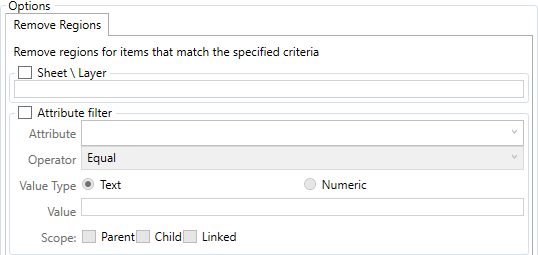
Use the "Sheet \ Layer" and "Attribute filter" Checkboxes to select which method(s) you wish to use the remove regions.
With "Sheet \ Layer" checked enter the sheet\layer that you wish to remove from in the format "Sheet\Layer". This setting alone will remove all regions in the specified layer.
With the "Attribute filter" checked, define the attribute that you wish to check either by entering it or selecting it from the drop down, then select which of the ten operators you wish to use to compare
- Equal Must Equal
- NotEqual Must Not Equal
- LessThan Must be Less Than
- LessThanEqual Must be Less Than or Equal To
- MoreThen Must be Greater Than
- MoreThanEqual Must be Greater Than or Equal To
- REGEX Regular Expression Language Match
- Contains Must Contain somewhere within the Attribute
- StartsWith Must Match from start
- EndsWith Must Match from end
The Text/Numeric radio buttons allow you to switch between a text search and a numeric value (text seerch is recommended where possible, as this is more flexible)
The Value field is where you enter the string/pattern to match
The Scope checkboxes define how large the search will be
All unchecked - only the item itself will be searched
- Parent - If the item is a child, then it's parent item will be searched for an attribute match, if the match is made, then the region on the item from which the search began will be removed
- Child - If the item is a parent, then it's child item(s) will be searched for an attribute match, if the match is made, then the region on the item from which the search began will be removed
- Linked - If the item is a linked, then the item(s) to which it is linked will be searched for an attribute match, if the match is made, then the region on the item from which the search began will be removed