Auto Regions Tab
The Auto Regions Tab allows you to define how the automatic regioning of graphics should function during the Batch Operation.
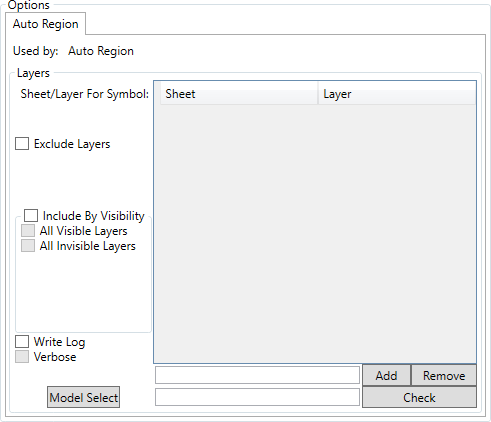
Here you specify the sheets and layers that should be regioned, by entering them into the text box in the format "Sheet\Layer"

Clicking the  button adds the defined layer to the list, clicking the
  button removes the selected layer from the panel above.
If you are unsure if the layer you wish to add exists in your drawings, then entering it into the lower textbox and clicking on the  button searches the imported layers to confirm that it exists before you add it to the auto-regioning.
The "Exclude Layers" checkbox excludes the layers from your search and searches all the layers within a sheet, this is useful when complete symbols are compounded up from multiple simple symbols on different layers of the same sheet, as it helps to prevent erroneous additional regioning.
The "Inlcude By Visibility" checkbox options allow you to simplify the autoregioning to layers that are invisible/visible or both. With both "All Visible Layers" and "All Invisible Layers" checked, every drawing will have the autoregioning run on every sheet and layer.
Note that selecting this disables the "Exclude Layers" check box.
The "Write Log" checkbox enables logs of the Autoregioning to be written, and the "Verbose" checkbox increases the detail of those logs for review purposes.
The  button opens the Model Selection window. This is used alongside the layers to ensure that complex symbols are not erroneously identified as several simple symbols, by allowing you to specify the symbols that should be matched to, that the system will match to in desceding order of their complexity.