Batch Operations
The Batch Operations Panel is used to define the batch operations that you wish to run, and the order in which you wish to run them
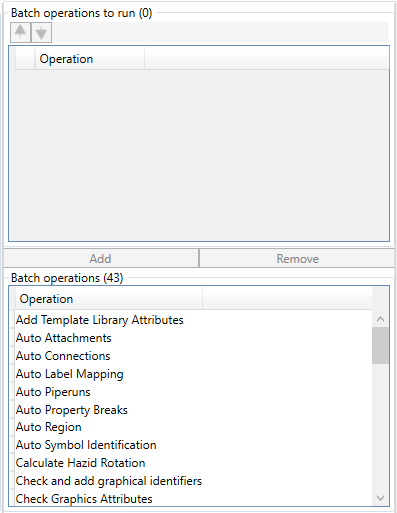
To add an operation, select it and click on the  button
To remove an operation, select it in the top panel and click on the  button

Batch Operations are run as an instruction order as if they were being run manually, so any changes an instruction makes are "last one wins" except for where the instruction does not overwrite existing data. As such, they can be moved up and down the instruction order with the  buttons.
There are a maximum of forty three operations available if the drawings are in the database, with thirty six operations being available for HDX file drawings.
- Add Template Library Attributes Updates the Can Attach/Connect/Break Piperun, Never in Piperun and Maximum Connections attributes based upon the model the graphic is mapped to
- Auto Attachments Runs the Auto Attachment Rules
- Auto Connections Runs the Auto Connection Rules
- Auto Label Mapping Runs the Auto Label Mapping Rules
- Auto Piperuns Runs the Auto Piperun generation rules based upon your selections in the Options Panel
- Auto Property Breaks Automatically inserts line breaks between the items to which a break label is attached based upon your selections in the Options Panel
- Auto Region Automatically generates regions around graphics for equipment creation based upon your selections in the Options Panel
- Auto Symbol Identification Automatically identifies equipment from regioned graphics based upon your selections in the Options Panel
- Calculate Hazid Rotation Calculated the Hazid Rotation attribute of the imported equipment based upon your selections in the Options Panel
- Check and add graphical identifiers Generates graphical identifiers for all graphical items that do not have one
- Check Graphics Attributes Runs the Routine to Check and Remediate the attibutes that define the graphical items
- Create in SPPID - Database only Exports the drawing automatically into SPPID based upon your selections in the Options Panel
- Create Piperuns from Attributes Creates piperuns based upon the attributes that identify them, and breaks them where those attributes change
- Export SPPID FULL Background Symbol Exports the entire drawing as an SPPID background file
- Export SPPID Background Symbol Exports the drawing border and title block as an SPPID background file
- Export to AutoCAD Allows you to export the currently open drawing to a specific location as an AutoCAD .dwg file based upon your selections in the Options Panel
- Fix Connections Repairs connections that have a connectedpipingpoints attribute that is incompatible with their number of true connections
- Fix Piperuns Repairs piperuns that have an equipment order different to the connections within them
- Generate Branching Points Runs the routine that generates the connection and model detail where pipes/lines join or split based upon your selections in the Options Panel
- Identify Centrelines Runs the Centreline identification based upon your selections in the Options Panel
- Output to HDX - Database only Allows you to export the currently open drawing to a specific location as a Hazid .HDX file based upon your selections in the Options Panel
- Output to PDF Allows you to export the currently open drawing to a specific location as an Adobe .pdf file based upon your selections in the Options Panel
- Prepare for SPPID Injection - Database only Runs the SPPID injection preparation routine
- Process Xdata Attributes Creates Aurelia attributes from the contents of the drawing Xdata attributes
- Recalculate Graphical Identifiers Recalculates the centre, extents, width and height attributes for graphics
- Remove orphaned attributes - Database only Removes attributes that have no parent item
- Remove Orphaned Branches Removes branches that have no connections
- Remove Orphaned Equipment - Database only Removes equipment that has no parent drawing
- Remove Regions Removes regions from graphics based upon your selections in the Options Panel
- Replace Graphics Replaces Graphics in the drawing based upon your selections in the Options Panel
- Re-sequence TextBlock attributes Re-sequences textblock attributes to a logical numbering system (TextBlock1,2,3...)
- Set layer visibility Defines which layers are set to visible by default based upon your selections in the Options Panel
- Snap Lines to Grid - Database only Snaps the lines on the drawing to the grid based upon your selections in the Options Panel
- Split Blocks Splits the graphical blocks into sub blocks based upon your selections in the Options Panel
- Split Selected Pipe By Inline Items Allows certain inline items to split piperuns, these are defiend based upon your selections in the Options Panel
- Split TextBlocks from graphics Moves text blocks out of graphics and into their own item
- Sync piperun data Creates and updates grouped piperun equipment
- Synchronise equipment identifier attribute Synchronises the ID attribute with the equipment id and removes the now-redundant EquipmentID attribute
- Update attributes from mapped models - Database only Updates the Model Name and Model Path attributes from the model that the graphic/text is mapped to based upon your selections in the Options Panel
- Update piping/signal attributes Updates the piping/signal identifers and numbers of connections based upon your selections in the Options Panel
- Update Text Synchronises all TextBlocks with their VTextProperty attribute (the text to be displayed) and adds it if it is missing
- Update TextBlock attributesd (Rotation, Font, Size, Model) Updates the rotation, font and size attributes of all text equipment, also defines the Model Name and Path for text that does not have those attributes
- Update TextBlock Graphics Trims whitespace and resizes text block areas to fit the text within them