Compliance Grid
When the Dashboard is first opened, the compliance grid displays a summary of the non-compliant items in the analysis. The plant and unit are listed as well as the number of inconsistencies and the relevant rules types. The number of non-compliant items in the rule types is also shown:

To view the items in a particular rule type select the number. For example selecting "22" in the "Design" column displays the following in the compliance grid:
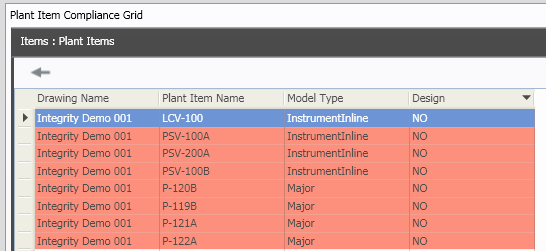
Cells containing the word "NO" represent items which are not compliant for a particular rule type. Selecting "NO" opens the rule results summary of the "Passed" and/or "Failed" rules. For example selecting "NO" in the "P-122A" row:

Notice the percentage of passed rules is 33%, the compliance threshold set for "Design" is 50% therefore "P-122A" is not compliant for this particular rule type. For more information on setting compliance thresholds on rule types see Custom Type Editor.
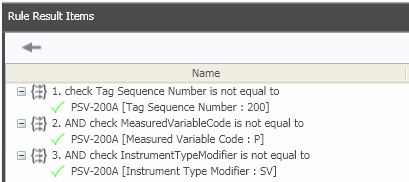
Selecting "Passed" or "Failed" will show the Rule Result View of passed and/or failed rule items as shown below. For more information see Rule Item View.
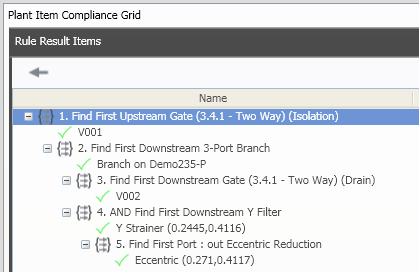
Note: Selecting  allows you to go back to the previous compliance grid view.
You can use the pie and bar charts in the other dashboard panels to filter the data listed in the compliance grid. For more information on this see Dashboard Compliance Panels. As an example filtering the compliant instruments displays the following data in the compliance grid:
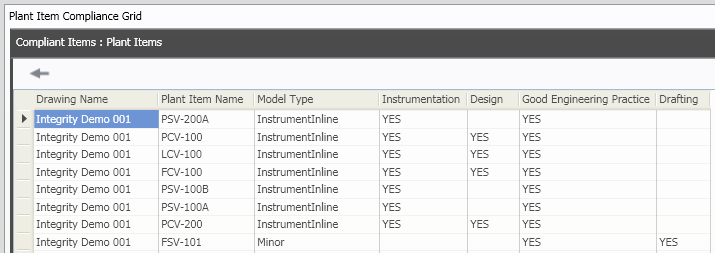
The cells with "YES" represent instruments which are compliant for a particular rule type. Selecting "YES" opens the rule results summary of the "Passed" and/or "Failed" rules. For example selecting "YES" in the "PSV-200A" row and "Instrumentation" column:

Notice the percentage of passed rules is 100%, the compliance threshold set for "Instrumentation" is 50% therefore "PSV-200A" is compliant for this particular rule type. Selecting "Passed" or "Failed" will show the Rule Result View of passed and/or failed rule items as shown below. For more information see Rule Item View.