Creating Rule Items
Rule Items are created in tree for starting at the source item which is the Root of the tree. The rule structure allows user to select items down the tree to continue searching from items which are not the source item. User may also create multiple trees within the Rule Items allowing you to have boolean values and multiple rule passing conditions.
To begin creating a rule, right click on the root of the rule tree and select create Rule Item

This opens the Rule Item details. This is split into different sections to allow user to create rules easier.
Specification auto creates a description for the Rule Item. It converts the search terms and constraints used into a human readable language.

If user wishes to overwrite this and enter their own description than unselect the  .
.
Detection location is a way in which the P&ID Integrity System should search for the required equipment. Selecting  constrains the search mechanisms to only search in the direction of process flow.
Use the drop down to select the search type

There are 14 different search mechanisms
- Attached - Instructs the rule to search for a directly attached Item to Find
- Control Loop - Instructs the rule to search for the device in a control loop that is associated with the equipment on which the rule is created
- Document - Instructs tthe rules to seach for the Item to Find on the Document on which the source item exists
- Downstream - Instructs the rule to search only downstream of the equipment on which the rule is created
- Instrumentation - Instructs the rule to search for the Item to Find on signal lines connected to the equipment on which the rule is created and associated Control Loops
- Linked - Instructs the rule to search for the Item to Find as an item linked to the source item
- Port - Instructs the rule to search for the Item to Find down the line attached to a particular port on the equipment on which the rule is created. The port is selected by the user from a second drop down menu that becomes active when ‘Port’ is selected as the search type. The Port is limited to display NonUnique only when the rule item source is a Model Group.
- Port Type - Instructs the rule to search for the Item to Find on a particular type of port, Signal, Ignore or Mappable, the port type to search is define by the user from a second drop down menu that becomes active when ‘PortType’ is selected as the search type
- Process - Instructs the rule to search for the Item to Find across all Process connections, both upstream and downstream
- Project - Instructs the rule to search for the Item to Find across all of the data in the entire project. This option enables a regex search to restrict the rule to passing on a specifc documnet/group of documents
- Self - Instructs the rule to act upon the item of equipment on which the rule is created.
- Signal - Instructs the rule to search for the Item to Find all of the signal lines connected to the equipment on which the rule is created.
- Upstream - Instructs the rule to search for the Item to Find only upstream of the equipment on which the rule is created
- InPath - This search is used in compound rules, to search the line between two items of equipment defined in consecutive rule items. For More Information see Creating InPath Rules
Item to find specifies the Model Group, Hazid Integrity Knowledge Model or Instrument that the rule item should search for.

- Device Group - Selecting the G limits the device drop down box to be Model Group items only. You can select the
 icon to select from the Model Tree
 - Device Model - Selecting the M limits the device drop down box to be Model items only. You can select the icon to select from the Model Tree
- Device Instrument - Selecting the I displays the Instrument selection boxes. You can type multiple measured variable in the first box, or leave it blank to search for all measured variables and devices without. The second box allows user to select the instrument type modifier from the drop down. This must have an entry. Is Source Item Selecting Is Source Item sets the device to be the source item of the rule.
- Search Sub Groups - When searching for a Group the default is to only search for items directly beneath the group in the tree. Select this to search for all sub items of the group.
- States - User can search for an item in a specific equipment State. For more information see Setting States
The Constraint allows user to set certain conditions that the Item found must pass in order for the rule to be satisfied. The user can place a constraint against any parent item on the tree back to the source, and also to items anywhere above it in the tree stucture

or user may select a specific value that the item must hold, via unchecking the "From Device" checkbox.

The User can also check patterns using regular expression on both the property of the item to find, and of either of the found properties:

The User can check that a property is in a particular list of allowed values:
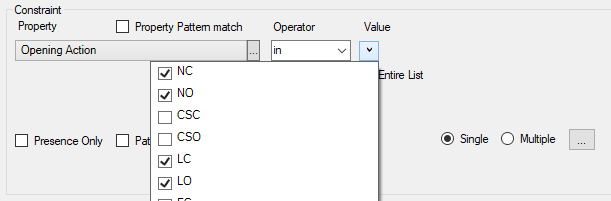
- Property Pattern Match - Allows the user to match a pattern in the property name using regex
- Property - The Property of the Item which user wishes the value to be compared with. This could be Item Tag, Operating Pressure etc.or a Calculation. If an Item is specified as having associated properties a second drop down appears to allow user to select that. The user can use the icon to select the property from the Property Tree.
- Operator - The Operator for the comparison. P&ID Integrity allow Greater than (>), Greater than or equal(=>), Less than(<), Less than or Equal(<=), Does not equal(!=) and Equals(==) as operators. There are two options for properties with lists. "In" allows the user to select acceptable values from a dropdown list. "Not in" allows user to select values from a dropdown list which are not acceptable.
- Device - Any Device including the Item the rule is currently on that is a parent of the rule item can be selected to compare the Property against
- Device Property - The Property of the device the user wishes to be compared. This could be Item Tag, Operating Pressure etc.or a calculation. If an Item is specified as having associated properties a second drop down appears to allow you to select that. The user can use the icon to select the property from the Property Tree.
- Presence Only - Select this option to forgo a constraint and search only for the item to find.
- From Device - Deselect from device to compare the property against a specific value
- Pattern Match - Allows the user to match a pattern in the property using regex
- Device Pattern Match - Allows the user to match a pattern from another device using regex
- Single/Multiple Constraints - Allows the user to define more than one constraint in a single window. Multiple Constraints
- Units - To compare the property against a unit value. User may select the units they wish for the property to be compared against
- Text - To compare the property against a text string. To enter a blank text field type a "space" in the field
- Number - To compare the property against a numerical value
- Regex - User can use Regular Expressions to create complex search algorithms for the property to compare against
Search Options are used to limit the Search to or to allow the search to be more expansive. Most options can be used in the same search
- Check Branches - Selecting check branches allows the search to continue through every branching pipe that it comes across until it finds the item to find.
- Find First Item Only - Will stop searching after it finds the item to find for the first time down a search path. Branches etc. in lines will create multiple search paths so more than one item may be found in parallel
- Search Piperun Only - Will only search within the piperuns the search began on
- Stop at Device - Will stop the search when it finds the first device group or model specified by the user.
- Any Can Pass - When multiple items are found in a search with constraints. Any found items must pass the constraint
- Pass Threshold - When multiple items are found in a search with constraints, the specified percentage (as a minimum) of those found must pass in order for the item to pass.
- Check LHS/RHS - Enables the constraint to search for the specified property on an item directly attached to the parent item on the left/right hand side of the constraint (or both)
Failure messages allows user to add extra information to the rule item which can act as an aide to the Rule Result Evaluator.
- Failure Notes - Likely reasons why a Rule Item may fail or information on what should be the ideal situation.
- Remedial Action - What the user should do to remove the failure from the Rule Item
Once you have added a rule item user can right click on the rule tree for other options
- Create Rule Item - Adds another rule Item as the child of this one. The rule now searches from the Item to find as defined above
- Create In Path Rule - See Creating In Path Rule
- Insert Rule Item - Inserts a rule Item between the currently selected one and the Rule Item above
- Copy Rule Item - Copies a rule item to the Root of the tree
- Copy Rule Item - and Sub Item(s) Copies the Rule Item and all of its children to the root of the tree
- Delete Rule Item - Deletes the Rule Item and all of its children from the Rule