Text Only Rule
Text Only Rules are able to be created for the times that the rule can not easily be performed on the P&ID but you would like a record of the decision taken or that there has been a consideration for the requirement. Text Only rules have no Rules within them and are just placeholders for text.
When creating the rules you must fill in the details in the Rule Creation form
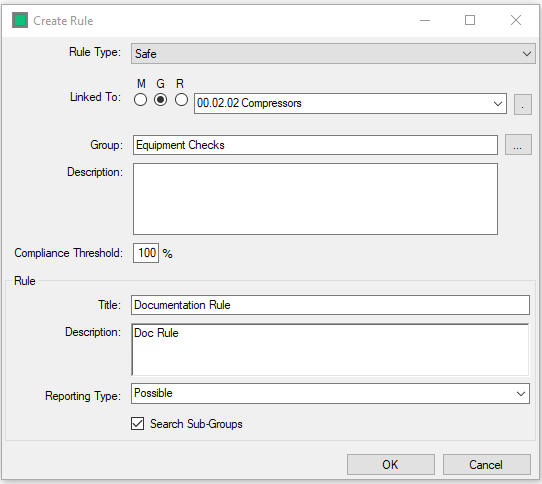
All Fields are Mandatory in the Rule Creation form.
- Rule Type - Select the Custom Rule Type that you wish the rule to be created under. If creating a rule from selecting a Custom Rule type it is automatically entered.
- Linked to - The Model Group or Hazid Integrity Knowledge Model that the Rule is linked to. You may select the linked group or model from the drop down list. M filters for models Only. G filters for Group only. You may choose the model or group from the model tree by using the
 icon.
icon. - Group - The Rule Group you wish the Rule to be stored under. To create a new rule group while creating the rule type the name into the box. When creating a new Rule Group this way you will be prompted to add a comment. Use the button to select a rule group already created.
- Title - A short title for the Rule
- Description - A description of the purpose of the rule this will become the text in the rule
- Reporting Type - Hazid Integrity will report the results in two ways (The reporting type can be toggled on or off in the Rule Analysis results).
- Mandatory - The rule result will always be reported in the Rule Analysis results
- Possible - The Rule result will only be reported in the Rule Analysis results if failed
- Search Sub-Groups - By Default Rules entered at a Model Group Level will only run on those Model Items directly bellow them. Selecting to Search Sb-Groups allows the rules to be run on all children of the Model Group.
Select  to continue creating the rule and move to the Text Rule Details
Select  to stop the rule creation.
Text Rule Details
The Rule Detail form is where you create the individual rule items that will enable you to run the P&ID Integrity checks.
The form is split into multiple sections each detailing different aspects of the rule.
The Rule Source Item Info displays the information about how and where the rule will run.
- Type - The Type of rule created, Safety Analysis, SAFE etc.
- Name - The Name of the source item. This is the item that will be detected within the P&ID and trigger the rule to run
- Report - Type Whether the rule has been set to report Mandatory or Possible
- Search Sub Groups - Whether the rule will only run on items directly below the Model Group of all sub items
- State - The state the source item must be in to trigger the rule. For more Information see Setting States.
The Rule Group Info displays the Custom Type and group the rule is assigned to.
- Rule Type - The Custom Rule Type that the Rule has been created in
- Name - The Rule Group Name
- Comment - Any Comment on the Rule Group
The Rule Info displays the Text elements of the rule. Select  to change the Rule info details.
- Title - The short Title as entered for the rule
- Description - A Description of the purpose of the rule
The Main section of the Text Only Rule displays a large editable text area for you to enter the rule details.
Selecting Include Modifier adds a new Tab to the Rule Details allowing you to specify a rule which must Pass in order for the main rule to run in your plant configuration. This helps ensure that Text Only Rules appear only in the instances that you require the Rule Evaluator to specify if a particular action has been considered pertaining to the Text Only Rule. Rule Modifiers are added in the same way as Creating Rule Items
Select  to commit the rule.
When a rule is closed Hazid Integrity will verify that the rule items are correct and all information is completed.