Filtering Results
Rule Results have a number of Filter options to allow user to quickly browse to relevant results for their study. These are both in the Toolbar and also displayed as panels in the results.
The Toolbar filter filter on the rule result items as displayed on the grid.
- Rule Type - Allows user to filter for specific Custom Rule Types
- Status - Allows user to filter their results based on their status, Passed, Failed etc.
- History - Allows user to view Passed rule results
- Type - Allows user to view the Change type of the result to quickly check the delta between the last analysis, such as Change, unchanged, manually edited
- Success Operator - The Operator for the for the percentage passed. P&ID Integrity allow Greater than (>), Greater than or equal(=>), Less than(<), Less than or Equal(<=), Does not equal(!=) and Equals(==) as operators
- Percent - The level of percentage to use with the Operator
- Presets - P&ID Integrity has preloaded percentage presets for quick filtering
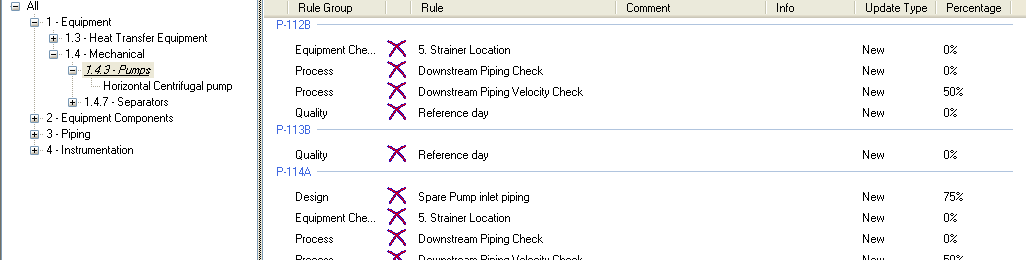
The Panels which user can invoke allows user to browse for specific Items within the rule results.
Selecting  opens the Project Tree within Rule results.

Only configuration levels store the rule results.
Selecting  allows user to move to specific Hazid Knowledge Models or Model Groups within the Rule analysis to view only results on Pumps say
Selecting  allows user to select specific equipment which have rule results associated with them. The Equipment items are grouped per state they are in.
