Rule Import Summary - Model Config
The Rule Import summary displays all the validated rules from your selection. It determines that the Model items are available in both the source and destination location sand that there are no Broken rules. It displays the summary for each rule type in a separate Tab containing filterable columns of all the items selected and rules available.
- Name - The Name of the Model Group or Model selected
- Type - Whether the selected item is a Model Group or Hazid Knowledge Model
- Valid Rules - The number of rules which are valid for Import
- Selected Rules - The Rules Selected for Import which are associated with the Model or Model Group
- Selected Groups - The rule Groups selected which are associated with the Model or Model Group
- Status - Whether the Import has detected a Conflict with any of the selected rules with rules residing in the Destination
- Resolution - The selected resolution to the conflict
To review and deselect specific rules for import right click on a selected Model or Model Group and select  This displays the Rule Selection Form
Rules which have Conflicts must be Resolved before the Import is allowed to continue. You can resolve individual rules by selecting the resolution from the drop down on the selected line or you can resolve all rules by selecting the resolution from the drop down and selecting Apply.

The Resolutions available are:
- Insert - This resolution combines the project and model rules, so that a unified set of model/project rules are held in the project
- Replace - This resolution overwrites the project rules with the rules present in the model
- Ignore - This resolution leaves the rules unchanged, i.e. the model rules are not applied to the project in any way
- Update - Update only updates rules that already exist in the project, any rules that are new will not be imported.
Select  To begin the Import Process
Once Import is selected you must add the new Model Configuration Rules to the desired location in the Model Configuration Order.
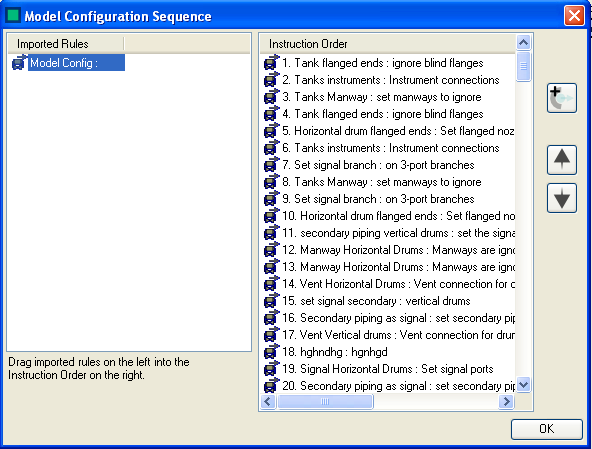
You can modify the current order in your destination file by selecting the rule and using the  arrows or add a new Auto Port Mapping by selecting
  .
.
To Add the new Model Configuration rule to the destination order drag and drop it in the desired location. Select  to complete.
Select  to return to the Rule Selection Form